Start Joomla with Docker in just a few clicks
Start your Joomla website with Docker in just a few clicks! Follow this quick, right-to-the-point guide to launch your Joomla project instantly using a simple Docker Compose setup.

This article is over a year old but was reviewed on July 30, 2026 — the content is still accurate.
This article is part of the Create your joomla website using Docker series:

This is a minimal, no-frills guide to launching Joomla with Docker: copy the official compose.yaml snippet from Docker Hub, run docker compose up --detach, and log into http://127.0.0.1:8080/administrator with the default joomla/joomla@secured credentials defined in that file.
Yesterday at lunchtime, while chatting with a friend, he challenged me with a simple request: explain the easiest way in the world to start a Joomla project with Docker.
The aim is to hop, hop, copy/paste a file, hop, Joomla is launched and you can start playing with the site.
Three things you'll want soon after: a volume so the site survives a docker compose down, Adminer or phpmyadmin to look inside the database, and Update php.ini when using a Docker image the day Joomla refuses your file upload as being too large.
Let's take a look; not in detail, but right to the point.
Here are the very few steps to follow to start your Joomla website using Docker:
- Surf to https://hub.docker.com/_/joomla
- Scroll down until you can see the
yamlcontent and click on theCopybutton. That button appears when the mouse pointer is over the text (hidden otherwise) - On your computer, create a new file called
compose.yamland paste the content there - The most difficult part is now: please start a new console, go to the folder where you've just created the file (in my case, I've created the file in my
/tmp/joomlafolder so I jump in it usingcd /tmp/joomla) - Still in your console, please run
docker compose up --detach.
From now, Docker will download (just the first time) the Joomla CMS, PHP, Apache and MySQL. Then Docker will start the downloaded images (called containers).
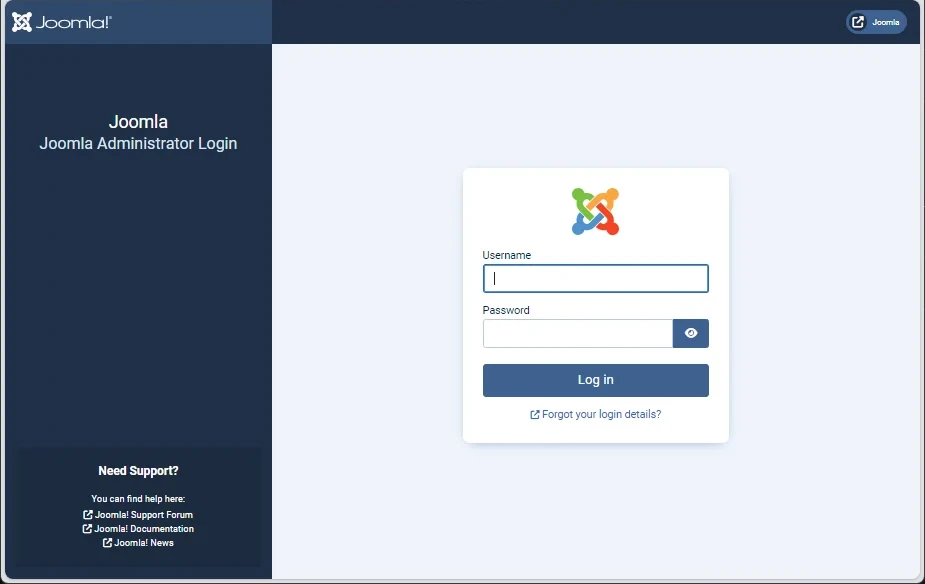
Surf to http://127.0.0.1:8080/administrator and enjoy!
Caution
The admin account to use is joomla and its password is joomla@secured (as defined in the yaml file you've just copied earlier).
Information
This article is deliberately simple; please follow the Joomla tag if you want more than this introduction.
This article is part of the Create your joomla website using Docker series:
Related posts

Create your Joomla website using Docker - Part 2
October 18, 2024
Restore a Joomla backup using Docker
October 18, 2024
Create your Joomla website using Docker - Part 1
December 22, 2023

Update php.ini when using a Docker image
December 22, 2023