Self-hosted note-taking application
Deploy the memos self-hosted note-taking application quickly using Docker. Learn how to use its simple features - Markdown, checklists, tags, and image pasting.

This article is part of the Self-host your own services series:
Changelog
This article introduces 'memos', a lightweight and simple self-hosted note-taking application perfect for developers' daily reminders and tasks. The guide provides a complete walkthrough of installing memos using a custom Docker Compose setup, emphasizing how to configure it for data persistence and correct file permissions. You'll learn how to get started, create notes using Markdown and checklists, organize them with tags, and use advanced filters called 'shortcuts'. The post also highlights practical features like the ability to paste images directly into your notes.
As a developer, I'm working all day on a computer and sometimes (too often in fact), at the end of the day, I send myself an email for tomorrow's me Don't forget to ..., you have to continue [a task], I stopped at [a file], I have to continue the others, in short, I use my inbox like a to-dos/to-remember manager.
Can we do better? Of course, but which tool should I choose?
What I'd like: to be able to write notes very easily, for some notes to be tasks (a checkbox is enough for me) and for me to be able to copy/paste images such as a screenshot.
Ideally, I'd like to have a local website that I can consult every day as a reminder.
Simplicity is the key.
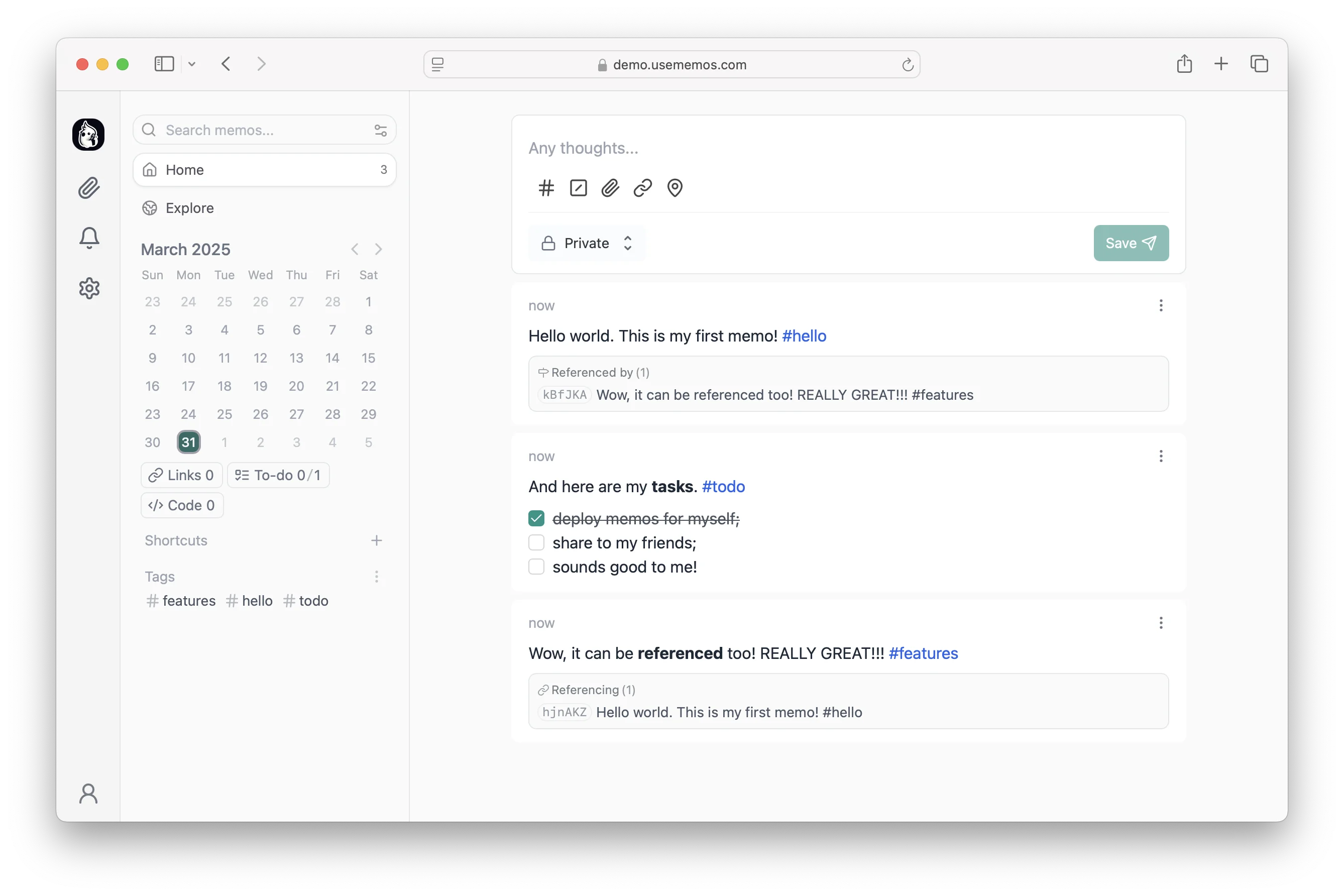
There are a lot of applications but, because I really need one simple and fast (it's the end of the day, I should leave for my train, hop hop, a few seconds, ok, the note for tomorrow has been created), I've tried memos and I appreciate it a lot.
Let's install memos
This time, I will not suggest to use the temporary folder since we'll need to keep track of our notes, pasted images, ... on our disk during the next couple of days, weeks or months. This is done with a Docker volume: the container can be destroyed and recreated, your notes stay on your disk.
So, please run mkdir -p ~/tools/memos && cd $_ to create a folder in your home directory and jump in it.
Then, please create a file called compose.yaml with this content:
name: tools
services: memos: image: neosmemo/memos:stable container_name: memos init: true user: ${UID:-1000}:${GID:-1000} ports: - "5230:5230" volumes: - ./data:/var/opt/memos restart: unless-stoppedThis is a Docker Compose configuration file that defines a single service called 'memos'. It sets up a containerized memos application (a note-taking app) that will run on port 5230, store its data in a local 'data' folder, and automatically restart if it crashes.
Note
The line user: ${UID:-1000}:${GID:-1000} will ask Docker to use a specific user (not the root one) while creating files on your disk.
The user 1000:1000 is, in most cases, you i.e. it's your current Linux user (type id -u and, then, id -g to retrieve your user ID and your group ID and you'll see it'll be 1000 for both).
If your IDs are not 1000, please edit the yaml file and put your IDs instead.
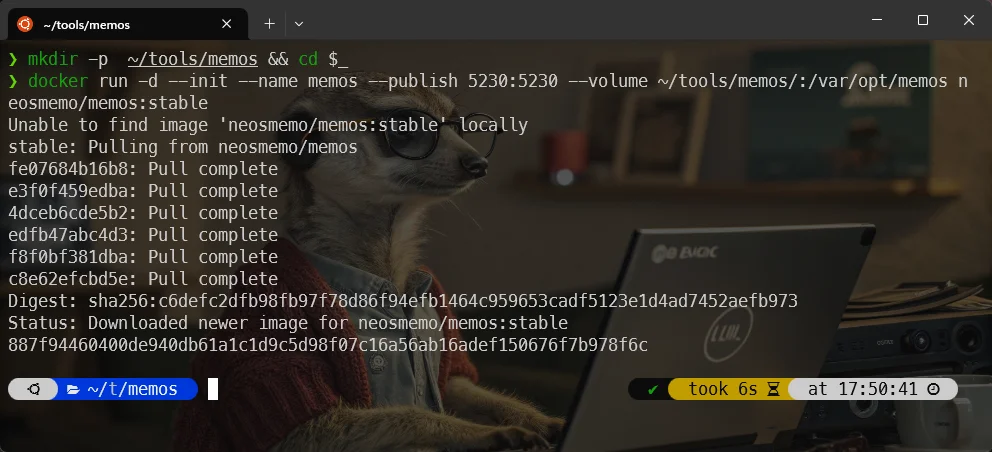
In your console, now, just run docker compose up --build --detach.
In just six seconds, memos has been installed on my machine and a container has been created:
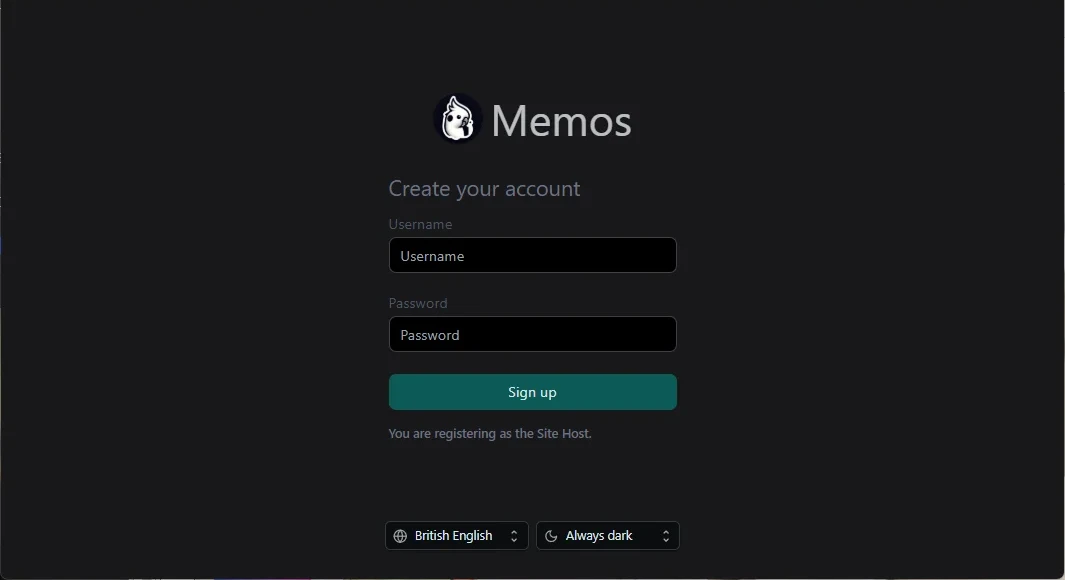
Go to http://localhost:5230 and you'll see the website is already running:
Information
See on the bottom left; it's possible to select another language; French is supported f.i.
I'll create my account (admin/admin since I'm working on my localhost) and I'm ready to create my first note. It took me less than one minute until now.
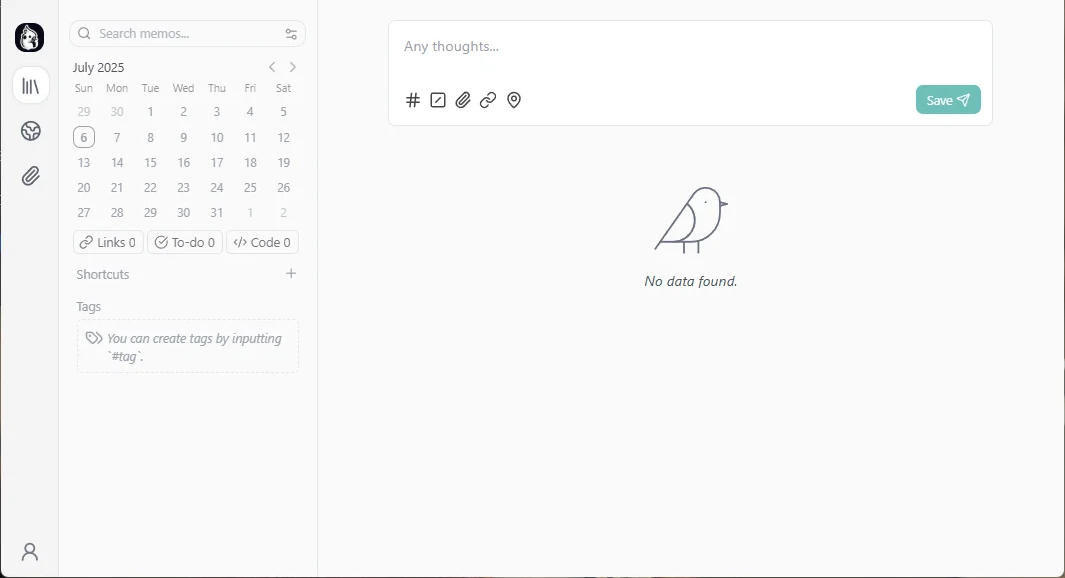
Click in the Any thoughts... edit box and start to type your thought... For instance:
**Python Codebase - User Authentication Module:**

- [ ] Implement password hashing using bcrypt.
- [ ] Create user registration endpoint (`/register`).
- [ ] Develop user login endpoint (`/login`) with JWT token generation.
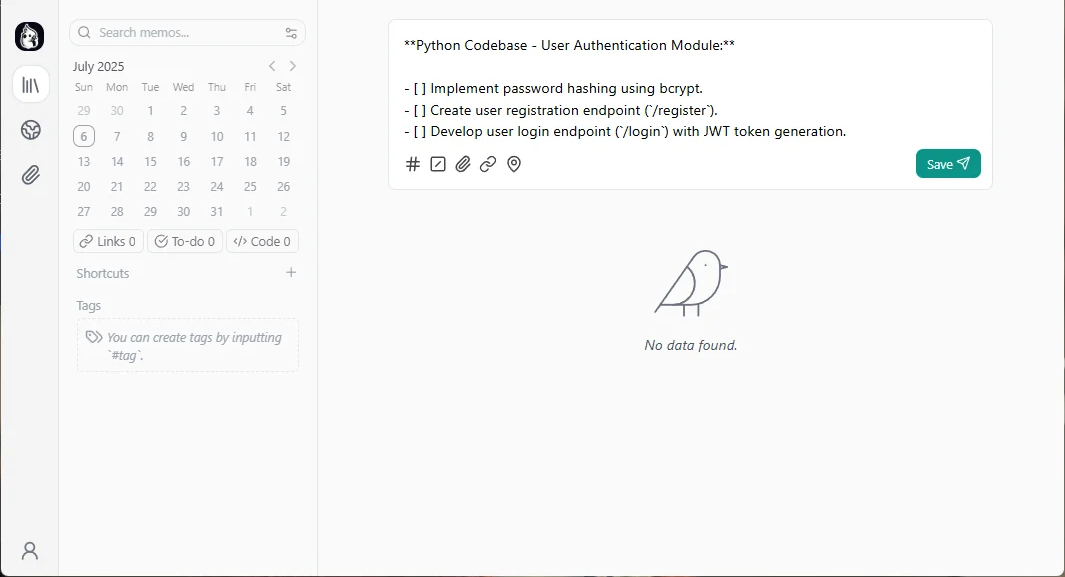
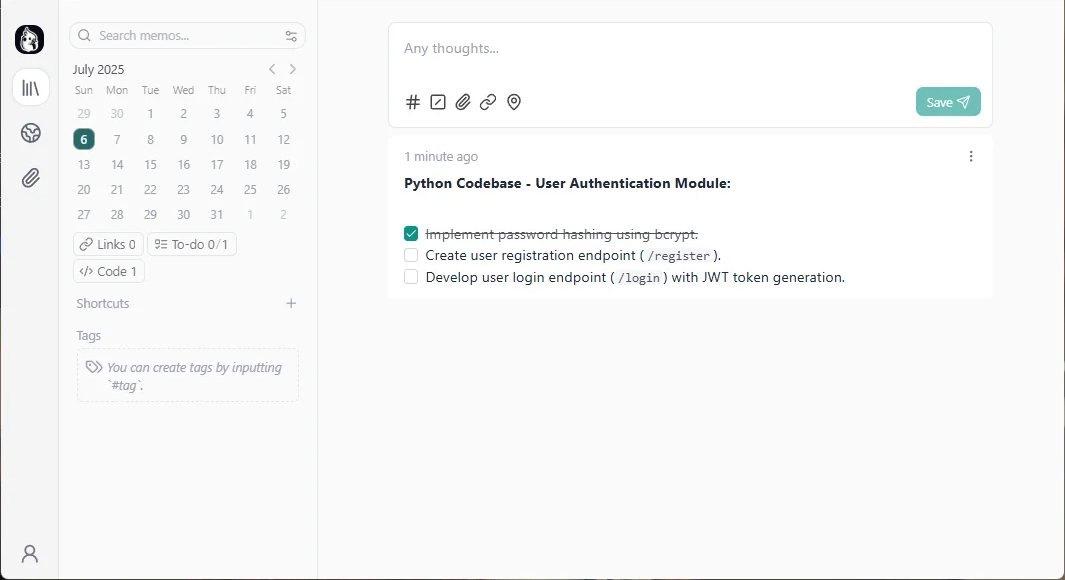
By pressing the Save button, the note is created. It's clean and, tomorrow, oh nice, oh yes, that's true, I need to do these three things.
Imagine it's tomorrow and I've achieved the first one, I just need to check the box and it's automatically saved:
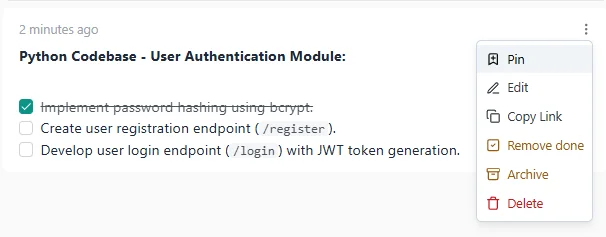
I can still edit, pin, delete, archive, ... the task using the three-dots button:
Let's create a few more tasks
As you can see, even it's optional, let's assign one or more tags to a note. Simply by using the hash syntax:
**Python Codebase - User Authentication Module:** #python

- [x] Implement password hashing using bcrypt.
- [ ] Create user registration endpoint (`/register`).
- [ ] Develop user login endpoint (`/login`) with JWT token generation.
Investigate and resolve the bug in the budgetary application that occurs when initializing a new financial exercise. #budget
Write the missing documentation for the new user authentication module, covering API endpoints, data models, and setup instructions. #python
Review the Dockerfile for the user authentication service to ensure optimal image size and security practices. #docker #python
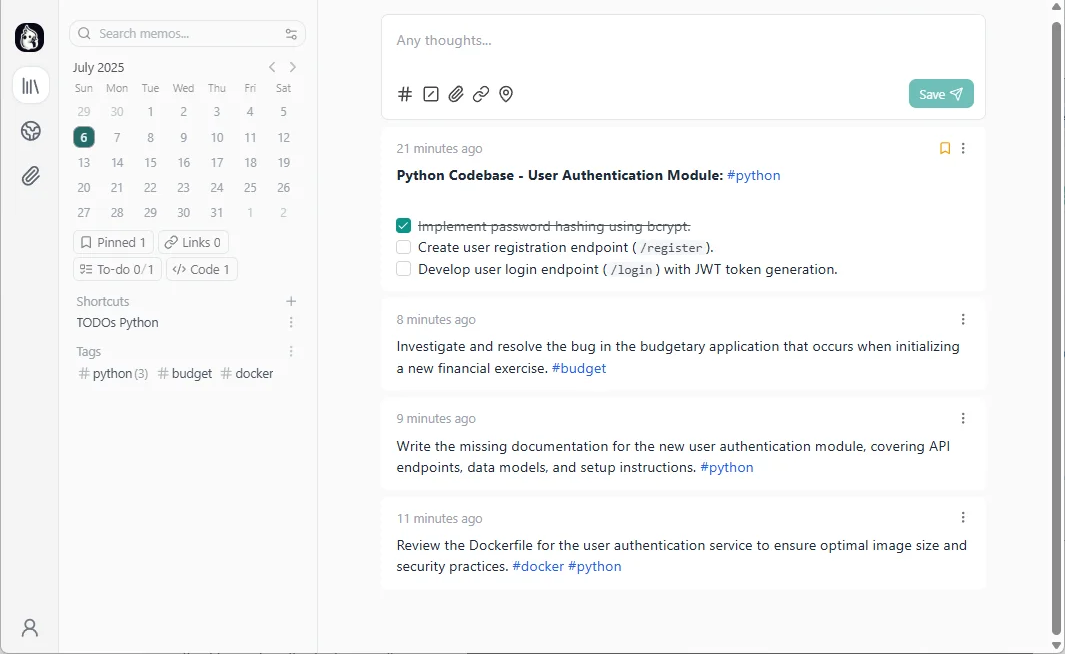
Filtering using tags
When you've used tags, you'll see them immediately bottom left under Tags. Simply click on a tag to filter on it. You can click on more than one if you want. In the example below, I've three notes for Python and just one with the Docker tag:
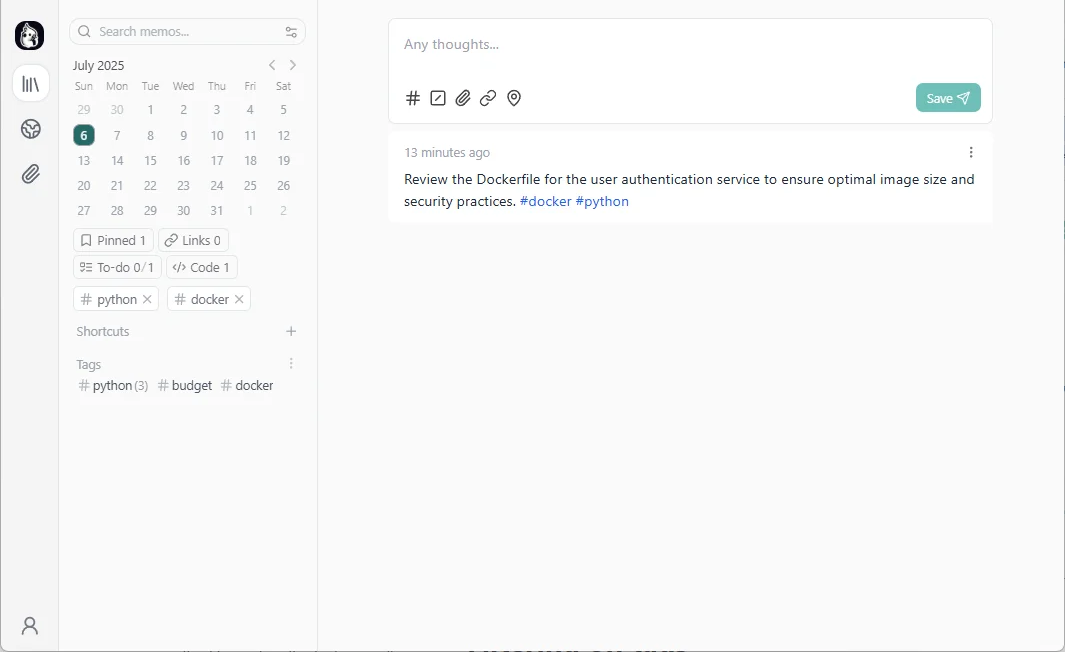
Creating shortcuts
Next to tags, you can use more sophisticated filters like what memos call shortcut.
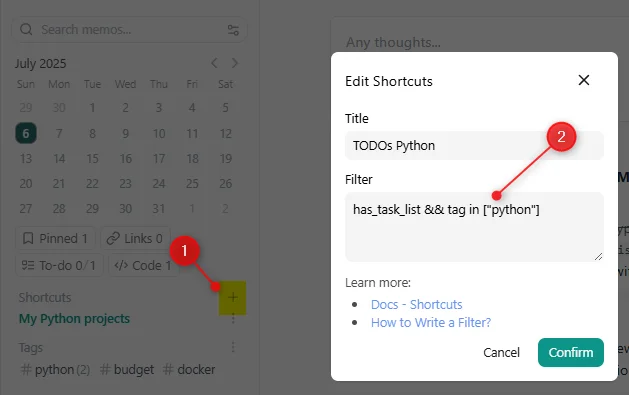
The used filter is has_task_list && tag in ["python"].
Now, just click on the filter to enable it. You'll just see one task (because the other tasks with the python tag didn't have a checkbox). Really easy no?
Learn more about writing filters
Pasting images
Just like you do in any modern application, copy the image in the clipboard and paste it in the text area. Add if you want some text.
Customization
By clicking on the bottom left profile icon, you can update the application's settings like setting Monday as the first day of the week (for the top left calendar).
You can also inject some CSS / JavaScript to customize the look&feel of memos.
Conclusions
As introduced in the preamble, personally, it's more than enough for my needs. I wanted something ultra-simple (a tab in my browser) and the ability to write my notes very quickly (with Markdown support), the possibility of having checkboxes and being able to copy/paste a screenshot.
Memos go a step further with tag and shortcut management, and the ability to restrict the to-do list to a calendar period.
And it's all 100% free!
More info
Please refer to the official https://www.usememos.com site to get more info.
Two other self-hosted tools running next to memos on my machine: Heimdall, the dashboard from which I open all of them, and Uptime Kuma for monitoring.
This article is part of the Self-host your own services series:
Loading comments…
Related posts
Open WebUI — Beyond the Chat: Models, RAG, Tools and API Keys
October 26, 2026
AnythingLLM: Chat With All Your Scattered Documentation
August 17, 2026
SSH Remote development with VSCode
January 5, 2026

How to connect to your hosting server using SSH
December 29, 2025

karakeep - The Bookmark Everything App
July 18, 2025

Excel Formula Beautifier
May 25, 2025