Docker - How to group containers together
Learn how to organize Docker containers into logical groups using compose.yaml for a cleaner workflow.

This article is over a year old. The information may be outdated.

This article provides a quick tip for organizing your containers in Docker Desktop. It explains how to use the top-level name property in your compose.yaml files to group related services together under a single, collapsible entry in the Docker Desktop UI. This simplifies management, allowing you to start and stop multiple containers at once and keep your workspace tidy. The post also notes that this is a UI feature and suggests converting docker run commands to a compose file to take advantage of it.
On a daily basis, I'm running several tools as Docker containers: Heimdall, Memos and Karakeep. It can be one or more containers per tool.
I'm working under Windows so I'm using Docker Desktop to get a list of containers and, because I'm working with Docker for my own projects (can be Python, PHP or whatever), I'm facing the following situation: I have a big list of containers and I would like some order.
Tools like Heimdall, Memos and Karakeep, I'm using them to make my daily work easier and it would be nice if I could group them together.
See below: I'm grouping tools of different origin under Tools so it's easier to manage them.

This way, I have a smaller overview of the containers and can quickly sort out my tools and projects. Also, if the need arises, I can stop all the tools at once. That's handy.
The name property in the compose.yaml file
The solution is easy to implement: if you have a compose.yaml (or docker-compose.yml if using the old name convention), just add a name: tools entry in the file, at the top.
For instance:
// highlight-next-linename: tools
services: memos: image: neosmemo/memos:stable container_name: memos init: true ports: - "5230:5230" volumes: - ./data:/var/opt/memos restart: unless-stoppedThis is a Docker Compose configuration file that defines a service called 'memos' using the neosmemo/memos image. It sets up a container that listens on port 5230, persists data to a local directory, and automatically restarts if it crashes.
And that's all.
Another way to keep a long list of containers manageable, this time from the terminal rather than from Docker Desktop: the interactive fzf-based functions of ZSH Functions - Customizing Your Shell for Docker Management.
Now, by running docker compose up --build --detach, you'll see your containers will be grouped in tools (only visible in the Docker Desktop Windows software; not using the docker ps command).
Do the same for every tool you want, if there is a compose.yaml file, just add the name: tools top-level entry.
But what if you don't have a YAML file and you're using a docker run command instead? There is indeed a --name flag with docker run but it's for naming the container (equivalent to the container_name entry thus).
So, if you're running docker run [something] you'll have to convert the line to a YAML file. Any AI can do that. Just copy/paste your full docker run [something] command and ask it to convert it to a compose.yaml file.
Easy and really handy.
No compose.yaml either because the container is a VS Code devcontainer? Two runArgs give it the same grouping: see Devcontainer - Name Your Container and Group It in Docker Desktop.
Tools can be located in different folders
Just to say, you can put your files, volumes, ... in different folders, it doesn't matter. On my disk, I have a ~/tools folder with one directory per tool (one for Heimdall, one for Memos, one for Karakeep, ...) and it's not a problem at all.
This lets me store files and volumes properly.
Loading comments…
Related posts

ai-explain: ELI5 for Scripts and Errors, Right in Your Terminal
November 12, 2026
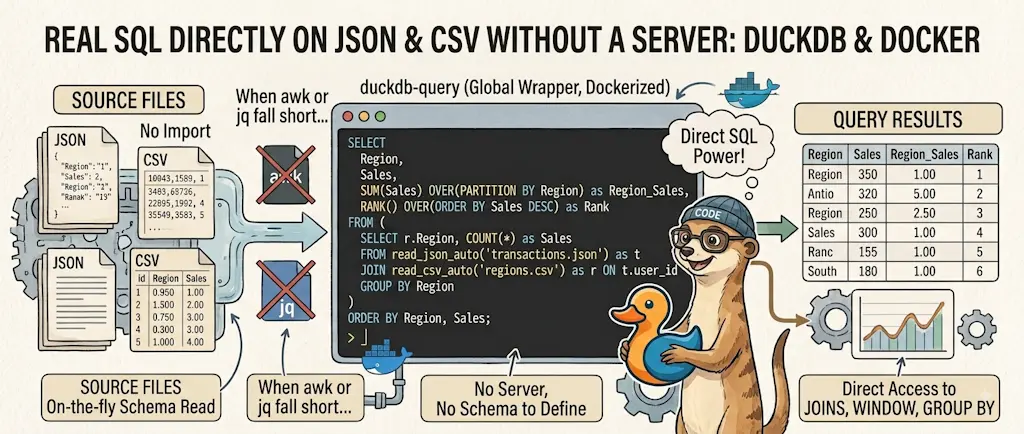
DuckDB - Query JSON and CSV Files With SQL, No Database Required
November 9, 2026


Docker Build Cache Ate 180 GB — Here's How to Get Them Back
November 2, 2026

Open WebUI — Beyond the Chat: Models, RAG, Tools and API Keys
October 26, 2026
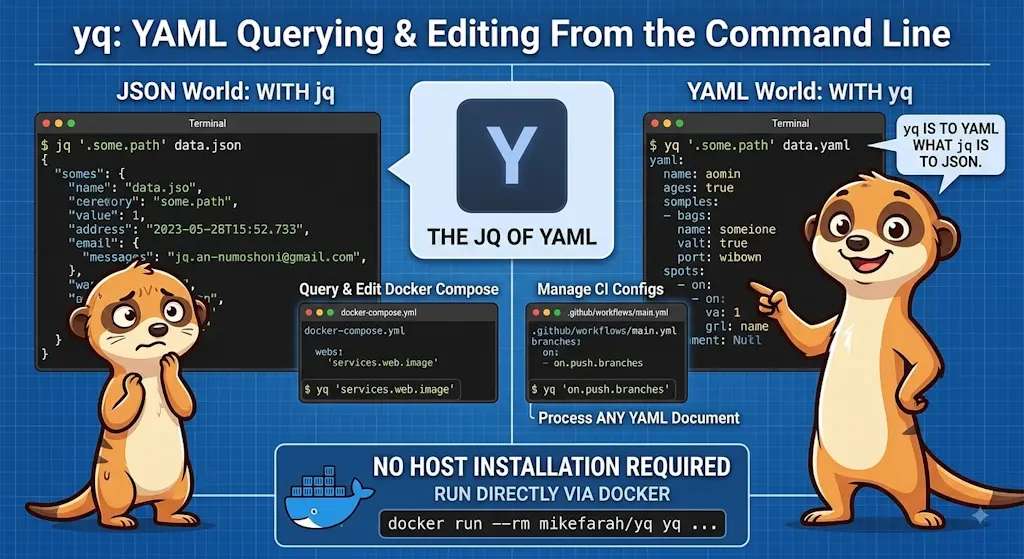
yq — The YAML Processor You Already Know How to Use
October 19, 2026