Documentation as Code - Transform Your Infrastructure into Beautiful Diagrams with Python and Mermaid
Automate your Documentation as Code by building a Dockerized Python and Mermaid CLI stack to generate dynamic architecture diagrams directly from your codebase.


This article is part of the Diagrams as code series:
- Docker - Diagrams as code
- Build a mind map using Docker and Markdown
- Rendering a JSON file as a mind map
- How to generate a graph from compose.yaml
- Drawdb-app - Render your database model as png, markdown, mermaid, ...
- Python - Generate flows using pydot
- Getting a more attractive mindmap with Markmap and Quarto
- Documentation as Code - Transform Your Infrastructure into Beautiful Diagrams with Python and Mermaid

I like documentation, and what is more inefficient than writing docs for things that can be self-documented?
As you might know, I love Docker and I do almost everything in a dockerized way. So, in every one of my projects, there is a compose.yaml file. If I want to document it for my colleagues, I could start writing: There are three services, one is for PHP, one for Nginx, one for PostgreSQL. That one is using a volume to make data persistent on disk and blah blah blah. The Nginx service is publishing on port xxx and the database is accessible using port yyy. I can do that, for sure, but isn't there a better way to do this? What if I add a new service or update a port number? My documentation would already be outdated, unless...
Let's see how to automate the documentation using Docker, Python and Mermaid.
The Result
Point the pipeline built in this article at a real compose.yaml, and one command produces this:
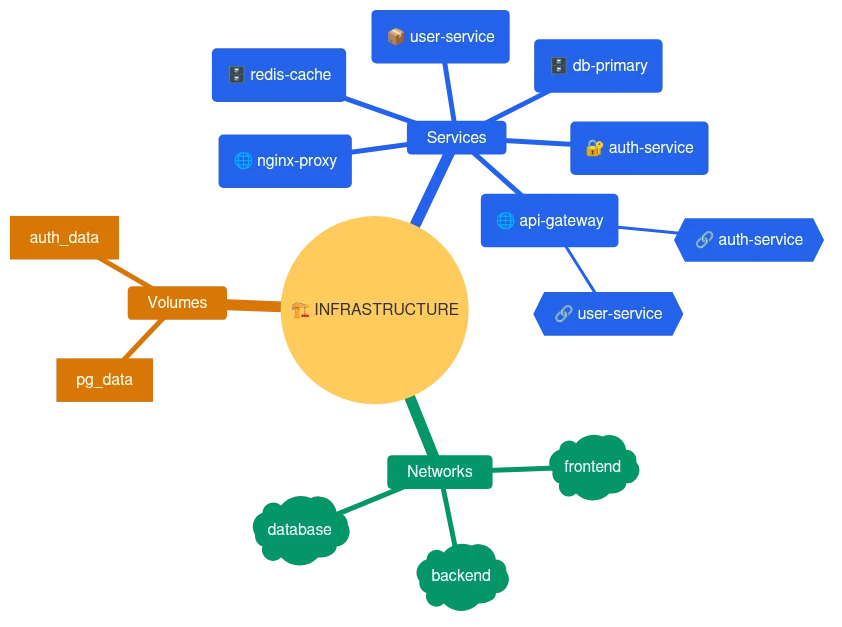
This image has been generated entirely from the compose.yaml file — no manual drawing, no diagramming tool. Change the YAML, run the command again, and the diagram updates itself.
Why Mermaid
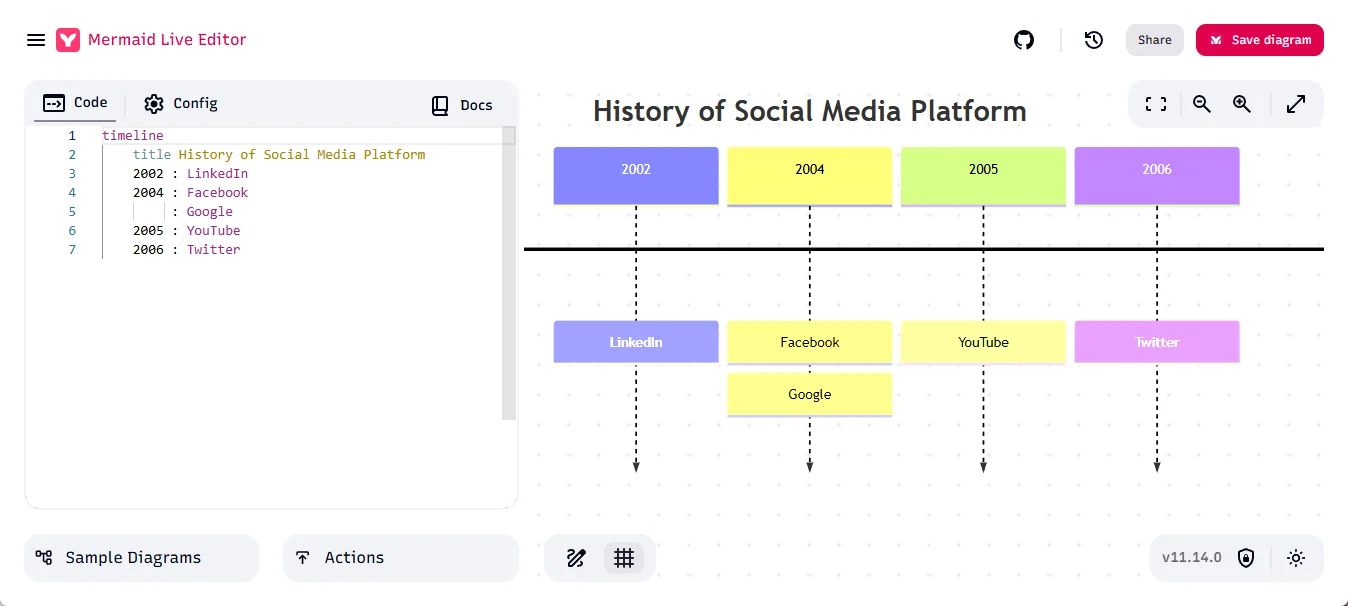
Go to Mermaid Live Editor and play with the Sample Diagrams bottom left to discover all the tool has to offer. A Python script can generate that same pseudocode from anything readable — a compose.yaml, a folder tree, whatever data you already have — and the Mermaid CLI renders it into a transparent PNG.
Installation — Let's create the Docker image
The Dockerfile we'll use is this one. It's quite simple.
To build this image run docker build -t yourself/docker-python-mermaid . in your terminal:
The final image size will be around 2GB.

Prepare Mermaid rendering
We need to have two external files for the rendering.
The first one will configure Puppeteer:
And the second one will allow us to use our own formatting (font, colors, ...) when rendering the pseudocode to an image:
Finally, we need a Python script
We've our Docker image, we've our configuration files. The last thing is writing a Python script that will do "something", generate a Mermaid pseudocode and render that pseudocode as an image.
What can we do? Whatever you want to do! Just use your preferred AI engine and ask it to create the corresponding Python script.
Let's try two things:
We'll read a Docker compose.yaml and create a mindmap
The script below will read a compose.yaml file and generate a visual mindmap. There is also a ready-made tool for this, see How to generate a graph from compose.yaml, but writing the script ourselves gives us total freedom on the output.
Here is the dummy compose.yaml I'll use as an example:
Now, the best part: please run this command to render the image:
Using a single command line produces the mindmap shown at the top of this article. This image has been generated by the mindmap.py Python script once our compose.yaml file was processed. We can now change our YAML file, run the docker run command again, and the image will be updated automatically.
Colors
Remember, simply update the mermaid-config.json file if you want another color scheme.
More Examples
Another example
This script will look at our file structure, identify the files we have, and create a mindmap as well:
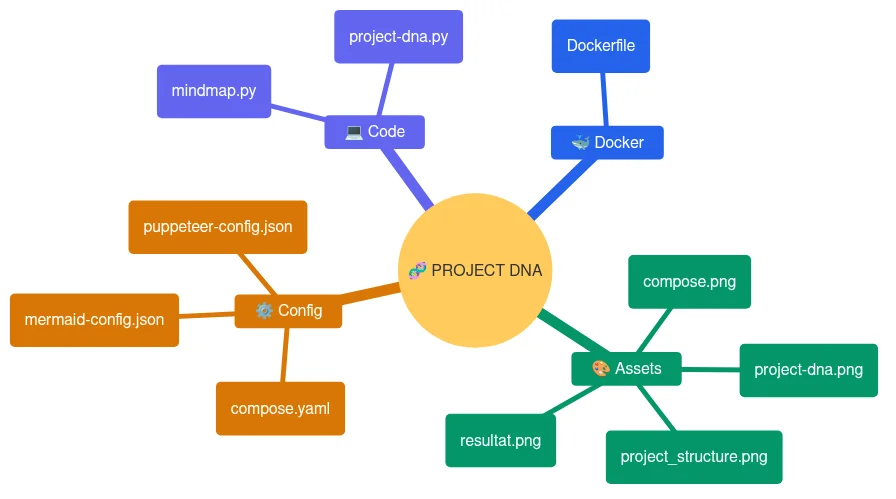
This mindmap will not just show us our folders but will group files into categories like Code, Configuration, Assets, etc.
Last example
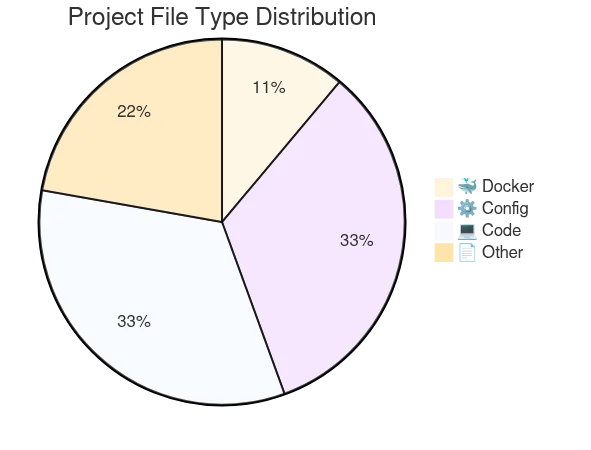
This time a Pie chart:
All needed files
Need help here? Click the "Help" button above for setup instructions.
Conclusion
By combining the parsing power of Python with the rendering elegance of Mermaid, we've turned static documentation into a dynamic asset.
If you like the Documentation as Code approach, have a look at two other articles of mine going in the same direction: Docker - Diagrams as code and Python - Generate flows using pydot. And when there is no parser to write at all — a sentence describing a process, a config format I have no script for — ai-diagram asks a local LLM for the Mermaid instead.
This article is part of the Diagrams as code series:
- Docker - Diagrams as code
- Build a mind map using Docker and Markdown
- Rendering a JSON file as a mind map
- How to generate a graph from compose.yaml
- Drawdb-app - Render your database model as png, markdown, mermaid, ...
- Python - Generate flows using pydot
- Getting a more attractive mindmap with Markmap and Quarto
- Documentation as Code - Transform Your Infrastructure into Beautiful Diagrams with Python and Mermaid
Loading comments…