Docling - Convert PDF, Word, PowerPoint, Excel and HTML to Markdown, GPU-Accelerated
A Docker batteries-included setup for Docling, IBM's document-conversion library: PDF, Word, PowerPoint, Excel and HTML files converted into clean Markdown, with GPU acceleration for machines with spare VRAM. A companion to my Markitdown article — same idea, a heavier engine underneath.


Changelog
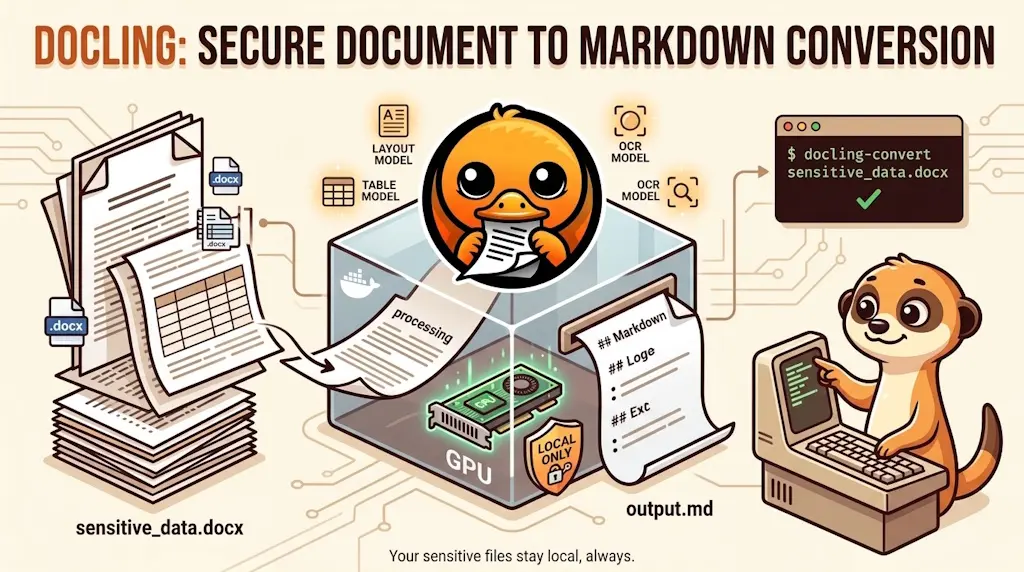
This article does for Docling exactly what my Markitdown article did for Markitdown: a Docker batteries-included image and a docling-convert shell function for zsh or bash, so converting a document to clean Markdown is one command from any folder. The difference is what's under the hood — Docling uses dedicated layout, table-structure and OCR models instead of format-specific parsers, runs on GPU if you have one, and is built from the ground up for exactly the "sensitive document, must stay local" scenario this blog keeps coming back to.
A friend who was reading my Markitdown article suggested I try Docling instead — Microsoft-adjacent open-source project, IBM this time, same "convert office documents to Markdown" pitch, but built around actual layout-understanding models rather than per-format parsers. I have 24GB of VRAM sitting mostly idle on my AI server; if a tool can put it to work turning a badly-scanned PDF into something readable, that's worth ten minutes of testing.
Converting Five Formats
Once the image and the docling-convert function are in place (we'll cover this below), converting a document is one command:
PDF, DOCX, PPTX, XLSX and HTML, five separate docling-convert calls, five clean .md files sitting right next to their originals — no manual export-to-Markdown step in Word or PowerPoint, no online converter to trust with the content.
What Docling Does Differently
Same output, a very different engine
For every format in this article except PDF — .docx, .xlsx, .pptx and .html — Docling does what every other converter does: it reads the file with a format-specific Python library and walks the result. Nothing exotic, no model loaded, and nothing that needs a GPU — --pipeline vlm is simply ignored on those four.
The PDF path is where it diverges. A PDF has no structure to walk: it is a bag of glyphs at coordinates, and every converter has to infer where the paragraphs, headings and tables were. Docling infers it with models — one for page layout, one for table structure, one for OCR, and optionally a vision-language model that reads the rendered page the way a person would. That last one is the reason this article has a GPU in it at all.
As always, I'll build a Docker image first — no Python, no pip, nothing installed globally on my machine.
Installation
Create our Docker image
Two files get a permanent home, ~/tools/docling, so the image can be rebuilt any time (new machine, docker image prune, a new Docling version): the Dockerfile, and docling-convert.sh, the script that drives a conversion (detailed below):
Need help here? Click the "Help" button above for setup instructions.
ARG DOCLING_VERSION pins the exact release rather than letting pip grab whatever is newest at build time — Docling ships a new version every few days, and an unpinned build is a different image every time you rebuild it. Bump that ARG when you actually want the newer one.
One package name, a whole shopping list behind it
Since spring 2026, docling on PyPI is a thin metapackage: installing it pulls docling-slim[standard], and that is what brings in the PDF, DOCX, PPTX, XLSX and HTML backends, PyTorch and the layout models. So a plain pip install docling still covers the five formats this article is about, with no extras to remember — but it is also why the image is heavy. If you only ever convert, say, .docx, pip install "docling-slim[cli,format-docx,models-local]" gives you a much smaller image; the full extras list is in the project's PyPI page.
Build the image
No compose.yaml here: conversions go through a shell function that mounts whichever directory you are standing in, which a Compose file sitting in a fixed folder cannot do. So a plain build is all there is:
Expect this one to take noticeably longer than Markitdown's: PyTorch, its bundled CUDA libraries and the four baked-in models add up to an 8.3 GB image here. Those models are the part worth paying attention to — they are downloaded once, at build time, and they live in the image, so a --rm container starts with everything it needs and fetches nothing.
Optionally, if you want to test it to make sure the image is correct, just run docker run --rm docling --help — the documentation covers every flag it lists.
Make docling-convert available everywhere
Same pattern as md-convert, adapted for Docling's actual CLI shape. The real work is done by ~/tools/docling/docling-convert.sh, the script you just created next to the Dockerfile:
#!/usr/bin/env bash# Converts documents to Markdown using the isolated docling Docker image, with# GPU acceleration when the NVIDIA container runtime is available. Unlike# md-convert, docling writes "<basename>.md" directly into the current directory# rather than to stdout — the source format is auto-detected from the extension.## The image already carries its layout, table, OCR and VLM models, so there is# nothing to download here and nothing to persist between runs.## --pipeline vlm is the slow, accurate path: it reads the page the way a human# would instead of stitching text fragments, which is what keeps paragraphs and# titles intact. Pass "--pipeline standard" as an extra argument for the fast# one. --pdf-backend only applies to the standard pipeline, where the default# ("threaded_docling_parse") drops the last line of every paragraph; pypdfium2# rebuilds the text correctly and gives the cleanest spacing of the backends.## --image-export-mode referenced overrides docling's own default ("embedded"),# which inlines every picture as a base64 data: URI and bloats the Markdown.# "referenced" writes them as PNG files in "<basename>_artifacts/" instead, and# the links stay relative because of "--output ." below.set -euo pipefail
if [[ $# -eq 0 ]]; then echo "Usage: docling-convert <file> [extra docling options]" >&2 exit 1fi
# True when "$1" is already among the extra options, either bare or as "--opt=value".has_arg() { local needle="$1" arg shift for arg in "$@"; do [[ "${arg}" == "${needle}" || "${arg}" == "${needle}="* ]] && return 0 done return 1}
# Printed under the result of every PDF conversion, because the moment you want# the flag list is the moment you have just read a disappointing file and are# about to run the command again. Options already on the command line drop off# the list, so a second attempt never suggests what it is already doing. PDFs# only: on the other four formats none of these flags changes anything.print_tip() { [[ "${DOCLING_CONVERT_NO_TIP:-}" == "1" ]] && return 0 [[ "${1,,}" == *.pdf ]] || return 0
local -a tips=() has_arg --pipeline "${@:2}" || tips+=("--pipeline standard (faster, rougher on titles)") has_arg --image-export-mode "${@:2}" || tips+=("--image-export-mode placeholder|embedded (drop the images, or inline them)") has_arg -v "${@:2}" || tips+=("-v (the full log)") ((${#tips[@]} == 0)) && return 0
local joined joined="$(printf '%s, ' "${tips[@]}")" echo "💡 Not happy with the result? Run it again with ${joined%, }." >&2 echo "💡 Hide this hint with DOCLING_CONVERT_NO_TIP=1." >&2}
# Without the NVIDIA container runtime, "docker run --gpus all" fails outright;# skip the flag and let "--device auto" settle on the CPU instead.gpu_args=()if docker info --format '{{json .Runtimes}}' 2>/dev/null | grep -q '"nvidia"'; then gpu_args+=(--gpus all)else echo "docling-convert: no NVIDIA container runtime detected, converting on CPU" >&2fi
# Triton compiles a shared library on first use and then has to load it, which a# noexec filesystem forbids. Rather than loosen /tmp, give it 256 MB of its own# that allows execution — and nothing else.## That tmpfs doubles as HOME. The container runs under the caller's UID, which# has no entry in /etc/passwd, so HOME would otherwise be empty: PyTorch then# resolves its kernel cache to "//.cache/torch/kernels", fails to create it, and# recompiles its CUDA kernels on every single run.## --quiet drops the two dozen INFO lines Docling logs per run, leaving warnings# and errors. It is not a dead end: Docling ignores --quiet as soon as -v is# given, so "docling-convert file.pdf -v" still brings the whole log back.## The awk filter handles what --quiet cannot. In 2.127.0, VlmConvertModel.__del__# logs through a module global that Python has already torn down by the time it# runs, so every VLM conversion ends on an "Exception ignored in" traceback —# after the Markdown has been written, and with the exit code still 0. It is# noise, not a failure. The rule below drops that one block, keyed on its exact# first line, and passes everything else through. Delete it when upstream fixes# __del__; it is pinned to a version for exactly that reason.start=${SECONDS}set +edocker run --rm \ "${gpu_args[@]}" \ -v "${PWD}:/workspace:cached" \ --read-only \ --tmpfs /tmp:size=512m,noexec,nosuid \ --tmpfs /run:size=16m \ --tmpfs /cache:size=256m,exec,nosuid \ -e HOME=/cache \ -e TRITON_CACHE_DIR=/cache/triton \ --cap-drop ALL \ --security-opt no-new-privileges:true \ -u "$(id -u):$(id -g)" \ docling convert "$1" \ --to md \ --device auto \ --pipeline vlm \ --pdf-backend pypdfium2 \ --image-export-mode referenced \ --output . \ --quiet \ "${@:2}" 2>&1 | awk ' /^Exception ignored in: <function VlmConvertModel\.__del__/ { skip = 1; n = 0; next } skip { n++; if (/^AttributeError: / || n >= 8) skip = 0; next } { print } ' >&2status=${PIPESTATUS[0]}set -e
# In referenced mode docling creates "<basename>_artifacts/" for every run, even# for a document without a single picture in it. rmdir only succeeds on an empty# directory, so this clears the stray folders and can never touch one that holds# actual images.artifacts="$(basename "${1%.*}")_artifacts"if [[ -d "${artifacts}" ]]; then rmdir "${artifacts}" 2>/dev/null || truefi
# Docling no longer announces what it produced, so the wrapper does — one line,# with the elapsed time, because the whole point of the pipeline choice above is# the trade it makes against the clock.if [[ ${status} -eq 0 ]]; then echo "docling-convert: $(basename "${1%.*}").md written in $((SECONDS - start))s" >&2fi
print_tip "$@"
exit "${status}"This script wraps the Docling document converter in a Docker container, automatically detecting GPU availability and configuring the container with security restrictions and temporary filesystems. It filters out known spurious error messages from the output, reports timing information, and suggests command-line flags that might improve the conversion quality on subsequent runs.
It stays a bash script on purpose: your shell only loads a short function that checks the script and the image are there, then runs the script with bash, whether your own shell is zsh or bash:
# docling-convert: convert a document of the current folder to Markdown with# the docling Docker image. Works in zsh and bash: save it as# ~/.zsh/fns/docling-convert.zsh or ~/.bash/fns/docling-convert.sh.## docling-convert report.pdf -> report.md, next to report.pdf## The real work (GPU probe, docling options, log filtering) is done by# ~/tools/docling/docling-convert.sh, a bash script kept next to the# Dockerfile; this function only checks that everything is in place.docling-convert() { local image="docling" local build_dir="${HOME}/tools/docling" # Shown as is in the messages, so the command can be copied for any user. # shellcheck disable=SC2016 local build_dir_shown='${HOME}/tools/docling' local script="${build_dir}/docling-convert.sh" local script_shown="${build_dir_shown}/docling-convert.sh"
if ! command -v docker >/dev/null 2>&1; then printf '\e[31mError: docker is not installed or not in your PATH.\e[0m\n' >&2 return 1 fi
if [[ ! -f "${script}" ]] || ! docker image inspect "${image}" >/dev/null 2>&1; then if [[ ! -f "${script}" ]]; then printf '\e[31mError: %s does not exist.\e[0m\n\n' "${script_shown}" >&2 else printf '\e[31mError: the Docker image "%s" does not exist on this machine.\e[0m\n\n' "${image}" >&2 fi printf 'How to continue:\n' >&2 if [[ -f "${build_dir}/Dockerfile" && -f "${script}" ]]; then printf ' 1. docker build -t %s "%s"\n' "${image}" "${build_dir_shown}" >&2 printf ' 2. Run your docling-convert command again.\n' >&2 else printf ' 1. Get the Dockerfile and docling-convert.sh from\n' >&2 printf ' https://www.avonture.be/blog/docling and save them in %s\n' "${build_dir_shown}" >&2 printf ' 2. docker build -t %s "%s"\n' "${image}" "${build_dir_shown}" >&2 printf ' 3. Run your docling-convert command again.\n' >&2 fi return 1 fi
bash "${script}" "$@"}This bash function wraps a Docker-based document converter tool. It checks that Docker is installed and that both the Docker image and a helper script exist before running the actual conversion; if anything is missing, it prints helpful instructions on how to set things up.
- zsh
- bash
1. Create the file in ~/.zsh/fns/:
Need help here? Click the "Help" button above for setup instructions.
2. Load the folder from ~/.zshrc. Already done if you followed one of my "Ollama daily use" articles. Otherwise, add at the end of ~/.zshrc:
for fn_file in ~/.zsh/fns/*.zsh; do
  source "$fn_file"
done
3. Open a new terminal (or run exec zsh).
1. Create the file in ~/.bash/fns/:
Need help here? Click the "Help" button above for setup instructions.
2. Load the folder from ~/.bashrc. Add at the end of ~/.bashrc (the -r test keeps an empty folder from printing an error):
for fn_file in ~/.bash/fns/*.sh; do
  [[ -r "$fn_file" ]] && source "$fn_file"
done
3. Open a new terminal (or run exec bash).
Check that the shell knows the function: type docling-convert must answer docling-convert is a shell function.
If the image or the script is missing, docling-convert prints the exact docker build command to run, or points back to this article when ~/tools/docling is gone too.
Coming from the previous version of this article?
It installed docling-convert as a script in /usr/local/bin/. Remove it (sudo rm /usr/local/bin/docling-convert): the function takes over, and the old script would otherwise linger on your disk.
Why a wrapper?
The script probes docker info for the NVIDIA runtime before adding --gpus all. That check is not decoration: docker run --gpus all doesn't degrade politely on a machine without the toolkit, it refuses to start the container at all. With the probe in place, the same script works on my GPU server and on my laptop — slower on the laptop, that's all, and nothing to configure on either. Setting that runtime up is optional and comes at the end of this article.
Left alone, Docling narrates every run — engine selection, model loading, token counts, twenty-odd INFO lines to convert a single page — which is why the wrapper passes --quiet. That is not a dead end: Docling ignores --quiet as soon as -v is present, so docling-convert report.pdf -v brings the whole log back on the day something actually goes wrong. The two TRANSFORMERS_* and HF_HUB_* variables in the Dockerfile finish the job, silencing the model stack underneath, which has its own opinions about progress bars.
First conversion
Time to check the whole chain holds together. The five files used throughout this article are here — one document, a short delivery note, expressed five ways, so you can see what each format costs on the way to Markdown rather than compare five unrelated things:
samples.zip — the five filesPrefer to stay in the terminal? The archive sits at a fixed URL, so curl fetches it straight into a scratch folder, /tmp/docling, unzipped into a samples subfolder:
report.md lands next to report.pdf, title and paragraphs intact — no output folder to name, no redirection to remember.
Two things are worth noticing there. The first is that docling-convert report.pdf has taken fourteen seconds. The second is the list of flags printed under the result: it shows up under every PDF conversion, options you already passed drop off it, the other four formats get no hint at all, and DOCLING_CONVERT_NO_TIP=1 stops it for good.
Which leaves the obvious question: what do those fourteen seconds buy?
Why the slow pipeline is the default
Docling can read a PDF two ways. The standard pipeline detects regions, pulls the text out of each, and reassembles them. The vlm pipeline hands the rendered page to a small vision-language model — GraniteDocling, 258M parameters — and asks it to describe the structure, the way a person reading the page would. That is the one the wrapper uses, and here is report.pdf — four justified paragraphs under a display-font title — through both:
$ export DOCLING_CONVERT_NO_TIP=1

$ docling-convert report.pdf --pipeline standard
docling-convert: report.md written in 8s

$ cat report.md

## Quarterly Delivery Note d titiitl iltil

y y
Scope, milestones and termination — internal circulation only
Following the quarterly review held on 3 September, this note records the agreed
scope, [...] the payment schedule set out in section three,
which is intended to replace it entirely.
The supplier shall deliver the first increment within six weeks of signature, [...]

$ docling-convert report.pdf
docling-convert: report.md written in 14s

$ cat report.md

## Quarterly Delivery Note

Scope, milestones and termination - internal circulation only
Following the quarterly review held on 3 September, this note records the agreed
scope, [...] the payment schedule set out in section three, which is intended to
replace it entirely.
The supplier shall deliver the first increment within six weeks of signature, [...]
Look at the standard pipeline's first line. Quarterly Delivery Note d titiitl iltil, followed by a stray yy — the OCR stage fired on the large title and hallucinated letters that are in no version of that document. Then it broke the first clause in two, stranding which is intended to replace it entirely. on its own line. The VLM produced neither the invented text nor the orphan. Fourteen seconds against eight is the price, and it buys a file you can hand to someone without reading it first.
The fast path does not fail loudly: it invents, and invented text is only caught by re-reading the output.
One real difference from md-convert
Markitdown prints Markdown to stdout, so md-convert file.docx > file.md is how you capture it. Docling's CLI writes <basename>.md straight into the output directory instead — there's no stdout mode. docling-convert file.docx produces file.md next to it directly; no > redirection needed, and none will work.
A word on images
Docling renders anything the layout model classifies as a picture — and on a title set in a display font, that can be the title itself. Left alone it then embeds each one in the Markdown as a base64 data: URI, which keeps the file self-contained and inflates it enormously. The wrapper passes --image-export-mode referenced instead: the pictures land as real PNG files in a budget_artifacts/ folder next to budget.md, linked relatively, so the two travel together.
The other two modes are one flag away. --image-export-mode placeholder drops the images and leaves a <!-- image --> marker where each one was — the right choice when the Markdown is going to feed a model rather than a person. --image-export-mode embedded brings the base64 file back, for when you want a single self-contained document. One thing to know if you ever call Docling without the wrapper: those links are relative because of --output ., and an absolute --output writes the container's own paths instead, which resolve to nothing outside it.
Optional — Putting a GPU Behind the PDF Pipeline
Everything above works without a GPU, and this section is skippable — twice over:
- You only convert
.docx,.xlsx,.pptxor.html? Then it buys you strictly nothing. Those four formats never load a model, so there is nothing to accelerate;--gpuschanges neither the speed nor the output. - You convert PDFs on a machine with no NVIDIA card? Then it still works.
--device autosettles on the CPU, the same VLM pipeline runs, and the same Markdown comes out — it just takes longer. The wrapper prints the elapsed time on every run, so your own hardware will tell you how much longer.
Recommended for PDFs, pointless for the other four, mandatory for nobody.
Why a toolkit is needed at all
A container does not see your graphics card. The card, its VRAM and the NVIDIA driver live on the host; a container gets neither /dev/nvidia* in its device list nor the driver's libraries in its filesystem. The CUDA libraries that pip installed in our image — the torch wheel carries its own, which is why the Dockerfile starts from a plain python:3.12-slim-trixie and not from an nvidia/cuda base — are only the upper half of that stack: they talk to the driver, they do not replace it. With the lower half missing, PyTorch reports no CUDA device and computes on the CPU.
The NVIDIA Container Toolkit is the piece that joins the two halves: it registers a hook in the Docker daemon which, each time a container starts with --gpus, injects the host's GPU device nodes and driver libraries into it. That is the whole reason it appears in this article — no toolkit, no VRAM. Install it on the Docker host, never in the image, then confirm the GPU is visible from inside a container:
That table is the host's card read from inside a container: 24 GB of VRAM, driver version, what is currently using it. The nvidia/cuda image there is just a convenient carrier for nvidia-smi — our own image doesn't need it.
If that table doesn't show up
Nothing is broken: docling-convert keeps converting, on the CPU, exactly as it did through the whole article. If you do want the GPU, three failures cover nearly every case:
| What you get instead | What it means | What to do |
|---|---|---|
could not select device driver "" with capabilities: [[gpu]] | Docker has no GPU hook: the toolkit is either not installed, or installed and never wired into the daemon | Install the toolkit from NVIDIA's package repository, then run the two commands below |
nvidia-smi fails on the host too, outside any container | The driver itself is missing or broken — Docker isn't in play yet | Install the driver and reboot until nvidia-smi works on the host. On WSL2 that driver is a Windows driver: install it on Windows, never inside the distribution |
Failed to initialize NVML: Unknown Error | The hook ran, but the container was refused the device — a daemon still running its pre-toolkit configuration | The two commands below |
Two of those three are the same fix, because the package only puts the hook on disk — the daemon still has to be told about it:
$ sudo nvidia-ctk runtime configure --runtime=docker
$ sudo systemctl restart docker

$ docker info --format '{{json .Runtimes}}'
{"io.containerd.runc.v2":{"path":"runc"},"nvidia":{"path":"nvidia-container-runtime"},"runc":{"path":"runc"}}
That last command is the exact probe the wrapper script runs before adding --gpus all: once nvidia appears among Docker's runtimes, the next PDF goes through the GPU with nothing else to change.
What the Five Files Cost
Every number in this article was measured on the files you unzipped earlier, and the five commands from the very first terminal run on them as written. On my machine the four office formats land in four to five seconds each, almost all of it process start-up, and report.pdf takes fourteen with the GPU in play. That gap is the whole story: only the PDF needs the models.
What the spreadsheet actually shows
Merged cells are not collapsed, they are repeated: the title comes out once per column it spanned, and so does each section row. Nothing is lost, but do not expect Markdown to reproduce the visual merge. And Docling reads formulas, not their results — a spreadsheet written by a script and never opened in Excel converts with every total empty. budget.xlsx stores computed values for that reason.
Key Takeaways
docling-convert quick reference
- GPU is optional —
--device autofalls back to CPU cleanly if passthrough isn't configured - One package, five formats —
pip install doclingpullsdocling-slim[standard], which covers PDF, DOCX, PPTX, XLSX and HTML - Models are baked in — downloaded at build time, so a read-only unprivileged container never has to fetch anything
- Writes files, not stdout —
docling-convert file.pdfproducesfile.mddirectly, no>redirection - Slow on purpose —
--pipeline vlmkeeps paragraphs and titles intact; add--pipeline standardwhen speed matters more - Only PDFs need the models —
.docx/.xlsx/.pptx/.htmlgo through a plain parser, no GPU and no model involved
Conclusion
Between this and Markitdown, I now have two Docker images that turn office documents into Markdown without a single byte leaving my machine — a light one I reach for by reflex, and this heavier one for when a PDF's structure matters enough to spend twenty seconds and a GPU on it. And since both output plain Markdown, either one slots straight into the kind of pipeline I described in Chat with your documents using AnythingLLM — or into the next article in the "Ollama daily use" series, where that Markdown becomes the input to a local translation and summarization pipeline for documents that were never meant to touch the cloud in the first place.
Related posts
Add a "Copy as Markdown" Button to Your Docusaurus Blog
September 10, 2026
Your Blog Is Unreadable to an AI. Here Is the Fix.
August 24, 2026


A component for showing code snippets in a Docusaurus blog
September 24, 2025