Running some checks on your Docusaurus images
A Python script to verify lazy loading and size of images in your Docusaurus site using Playwright and BeautifulSoup.

This article is part of the Creating Docusaurus components series:
- Change how Docusaurus will create img tags
- Overrides the generation of img tags with Docusaurus
- Organize Your Docusaurus Content with a Custom Series Component
- Providing a go to the top button in Docusaurus posts
- Creating a search&replace plugin for Docusaurus
- A component for showing code snippets in a Docusaurus blog
- A Docusaurus component that alerts readers the article is over a year old
- Showing the changelog of your post
- Inject ASCII Art in any HTML pages rendered by Docusaurus
- Best Practice - Customizing the Docusaurus RSS Feed for Full Content & Images
- Running some checks on your Docusaurus images
- Tags management in Docusaurus
- Automating TL;DR Summaries with Gemini AI
- Introducing the ProjectSetup Component - A Standardized Way to Share Project Structures
- How to indicate AI-assisted content in a Docusaurus blog
- Bring Your CLI Tutorials to Life with a Typewriter Terminal
- Meerkat Mischief: Sprinkling Easter Eggs Across my Blog
- AI-Powered Code Tooltips in Docusaurus — Explain Like I'm Five
- Adding Reader Reactions to Your Docusaurus Blog
- Your Blog Is Unreadable to an AI. Here Is the Fix.
- Shake Your Phone, Startle the Meerkat
- Add a "Copy as Markdown" Button to Your Docusaurus Blog
- Ask My Blog: Turning 259 Articles Into 2,160 Searchable Questions
- The Third Door: A Floating Chat Bubble, and the Feature Nobody Could Find
- Drawing a Map of My Own Blog
- Let Readers Flag Issues — A Multi-Type Feedback Widget for Docusaurus
Changelog

This article explains how to enforce lazy loading on a Docusaurus blog by overriding the default MDX image component to automatically inject the loading attribute. It further details how to validate this behavior using a containerized Python and Playwright script that simulates user scrolling to check image attributes and file sizes. This workflow ensures that performance best practices are consistently applied and verified across all blog content.
Like you know me well enough by now, I care a lot about performance. For a lot of good reasons, but mainly because it's fun to optimize things and see the results immediately. And it's a good challenge too!
My blog is now quite big (more than 200 articles), and I wanted to make sure that all images are properly lazy-loaded — but how can I be sure of that?
Lazy load? What is it? When you lazy load an image, you tell the browser to only load it when it's about to enter the viewport (i.e., when the user scrolls near it). So instead of loading all images at once when the page loads, only the images that are immediately visible are loaded first. This reduces the initial load time and saves bandwidth, especially for pages with many images.
In this post, I'll share how I enforced lazy loading on this Docusaurus blog and, more importantly, how I automated the verification of this behavior using a Python script.
Running the Check
Once the script (shown further down) and its container are in place, auditing every image on the site was one command:
I'll get a report in the console indicating any images that are missing the loading="lazy" attribute, especially if they are large.
For instance:
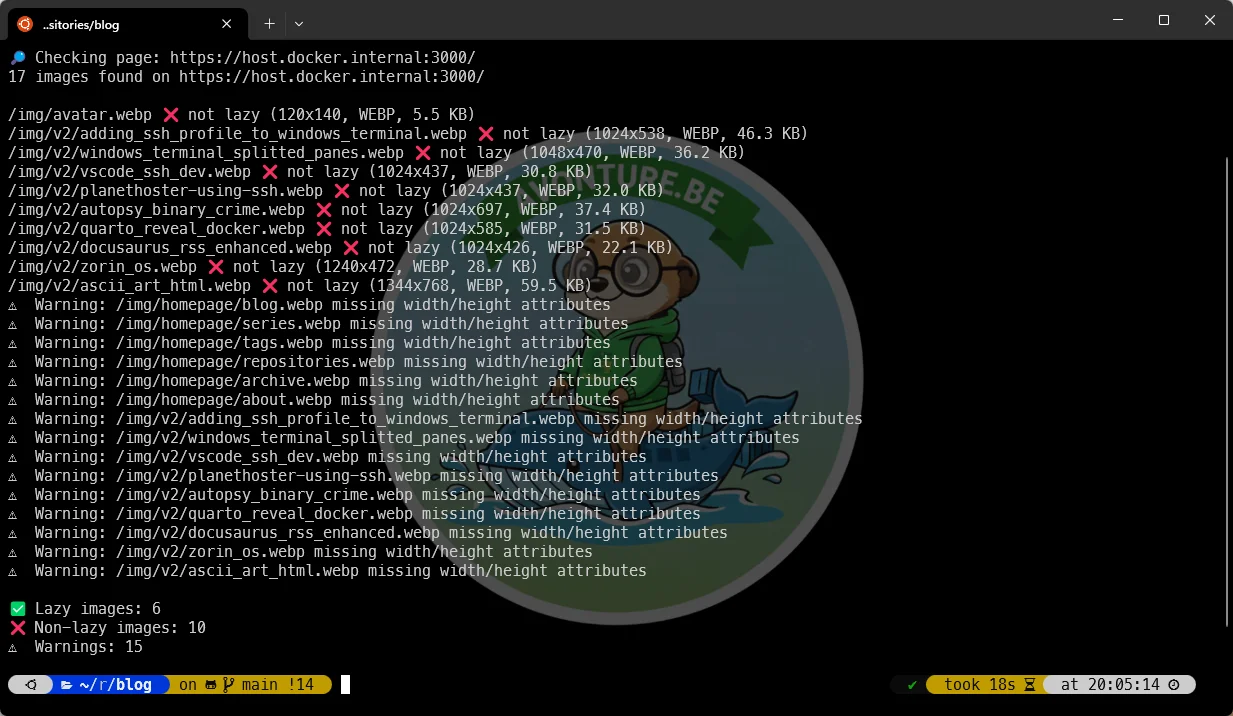
Up to you, now, to act on the results! On my own blog, I've added some missing attributes and optimized some images that were too large. I've reviewed my React components too to ensure they also include lazy loading where appropriate.
Step 1: Enforcing Lazy Loading in Docusaurus
By default, when you write standard Markdown image syntax , Docusaurus renders a standard HTML <img> tag. While modern browsers support the loading="lazy" attribute, it's not always added automatically by the framework.
To ensure every single image on my blog is lazy-loaded (and decoded asynchronously), I overrode the default img component in Docusaurus. I've told that story twice already, from the component angle in Change how Docusaurus will create img tags and from the plugin angle in Overrides the generation of img tags with Docusaurus.
This is done in src/theme/MDXComponents.js. By wrapping the default image component, I can inject the attributes I need:
With this simple change, every image generated from Markdown now has loading="lazy".
Step 2: Trust, but Verify
Implementing the code is one thing; ensuring it works across hundreds of blog posts is another. I wanted to be sure that:
- Images indeed have the
loading="lazy"attribute. - Large images are properly handled.
- The behavior persists even after site updates.
Manually inspecting elements in Chrome DevTools is tedious. So, I wrote a Python script to automate this.
The Challenge: Scrolling
Static analysis (just downloading the HTML) isn't enough. Some lazy loading implementations (or hydration processes) might depend on the user actually scrolling down the page.
To simulate a real user, I've used Playwright. It allows me to run a headless browser, render the page, and programmatically scroll to the bottom, triggering any lazy-loading mechanisms.
The Script
The script performs the following actions:
- Browses a list of URLs (my blog posts).
- Scrolls down the page multiple times (simulating a user reading).
- Parses the DOM using
BeautifulSoup. - Inspects every
<img>tag to verify the presence ofloading="lazy". - Checks image dimensions using
Pillowto flag large images that definitely should be lazy-loaded.
You know me very well now; I like to containerize things. So, I wasn't using Python or Playwright directly on my host machine but rather inside a Docker container. That container mounts the current directory, installs the required packages, and runs check-images.py — the exact command shown at the top of this article.
Note
This script has since been retired from my own toolkit and is kept here only as a reference; the code above still works as documented.
Additional Checks
The script also does these checks:
- Check to see if the image format is WebP; if not, it issues a warning.
- Check if the image size exceeds a certain threshold (200 KB); if so, it issues a warning.
- Check if the image height and width attributes are set; if not, it issues a warning.
You can easily modify these checks in the script to fit your own needs. And add yours too!
Conclusion
Performance optimization is a journey, not a destination. By combining a global code override in Docusaurus with an automated validation script, I can write content peacefully, knowing that my images won't slow down the experience for my readers.
If you are interested in the full script, you can find it in the .scripts folder of my repository!
This article is part of the Creating Docusaurus components series:
- Change how Docusaurus will create img tags
- Overrides the generation of img tags with Docusaurus
- Organize Your Docusaurus Content with a Custom Series Component
- Providing a go to the top button in Docusaurus posts
- Creating a search&replace plugin for Docusaurus
- A component for showing code snippets in a Docusaurus blog
- A Docusaurus component that alerts readers the article is over a year old
- Showing the changelog of your post
- Inject ASCII Art in any HTML pages rendered by Docusaurus
- Best Practice - Customizing the Docusaurus RSS Feed for Full Content & Images
- Running some checks on your Docusaurus images
- Tags management in Docusaurus
- Automating TL;DR Summaries with Gemini AI
- Introducing the ProjectSetup Component - A Standardized Way to Share Project Structures
- How to indicate AI-assisted content in a Docusaurus blog
- Bring Your CLI Tutorials to Life with a Typewriter Terminal
- Meerkat Mischief: Sprinkling Easter Eggs Across my Blog
- AI-Powered Code Tooltips in Docusaurus — Explain Like I'm Five
- Adding Reader Reactions to Your Docusaurus Blog
- Your Blog Is Unreadable to an AI. Here Is the Fix.
- Shake Your Phone, Startle the Meerkat
- Add a "Copy as Markdown" Button to Your Docusaurus Blog
- Ask My Blog: Turning 259 Articles Into 2,160 Searchable Questions
- The Third Door: A Floating Chat Bubble, and the Feature Nobody Could Find
- Drawing a Map of My Own Blog
- Let Readers Flag Issues — A Multi-Type Feedback Widget for Docusaurus
Loading comments…
Related posts

Preview Your Local Docusaurus Site on Your Phone
November 16, 2026


Drawing a Map of My Own Blog
October 8, 2026
Ask My Blog: Turning 259 Articles Into 2,160 Searchable Questions
September 28, 2026

Add a "Copy as Markdown" Button to Your Docusaurus Blog
September 10, 2026