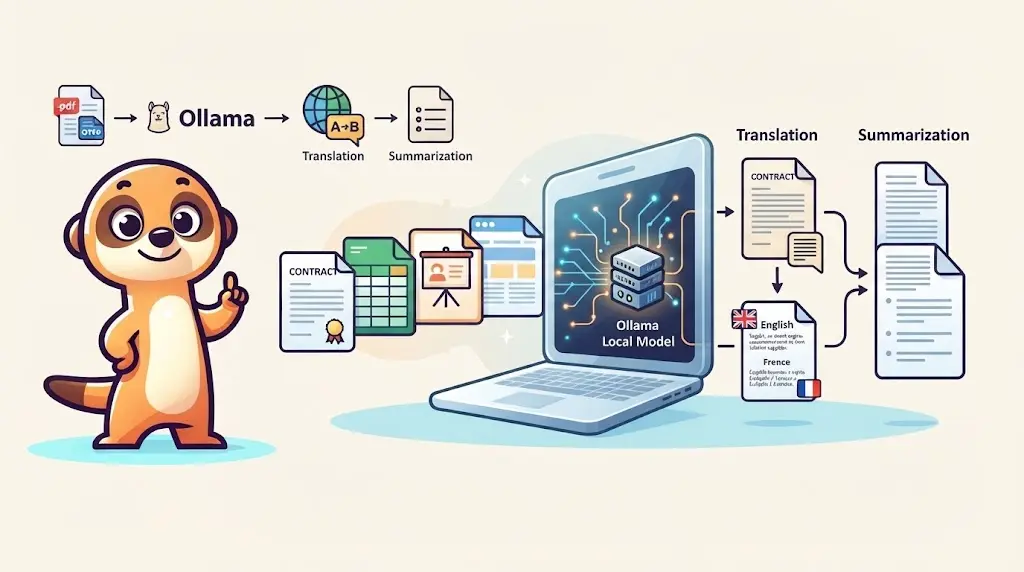
Playing with Ollama - Create a blog post analyzer with a local LLM
A Dockerized devcontainer with two Python scripts: the first sends each Markdown blog post to a local Ollama model to generate tags, the second compares those tags across posts to suggest which articles should link to each other. No cloud API, no manual tagging.


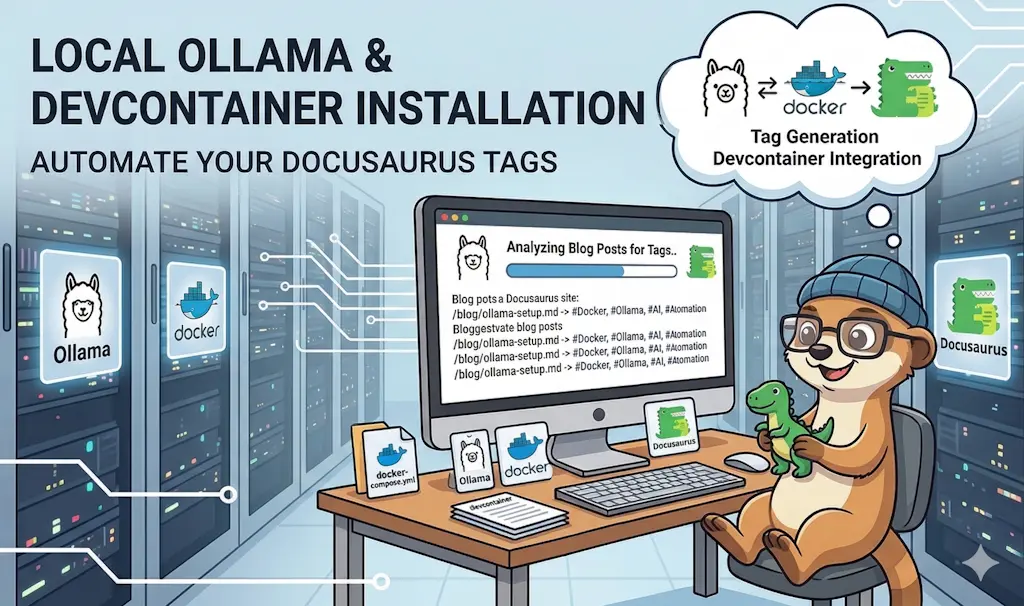
A devcontainer running Ollama alongside two Python scripts: 01_generate_tags.py reads every Markdown post in data/posts, sends its content to a local model, and saves the generated tags to a JSON file. 02_analyze_and_link.py then compares tags across posts to suggest which articles should be interlinked, and how often each tag occurs across the corpus. Everything runs locally — no cloud API, no manual tagging.
Tagging blog posts by hand does not scale — and neither does spotting, across a few hundred posts, which ones actually belong together. I wanted to see whether a local model, given nothing but the raw Markdown, could generate reasonable tags and then use those tags to suggest interlinks on its own.
The Result
Once both scripts have run, output/all_articles_with_tags.json holds the generated tags for every post:
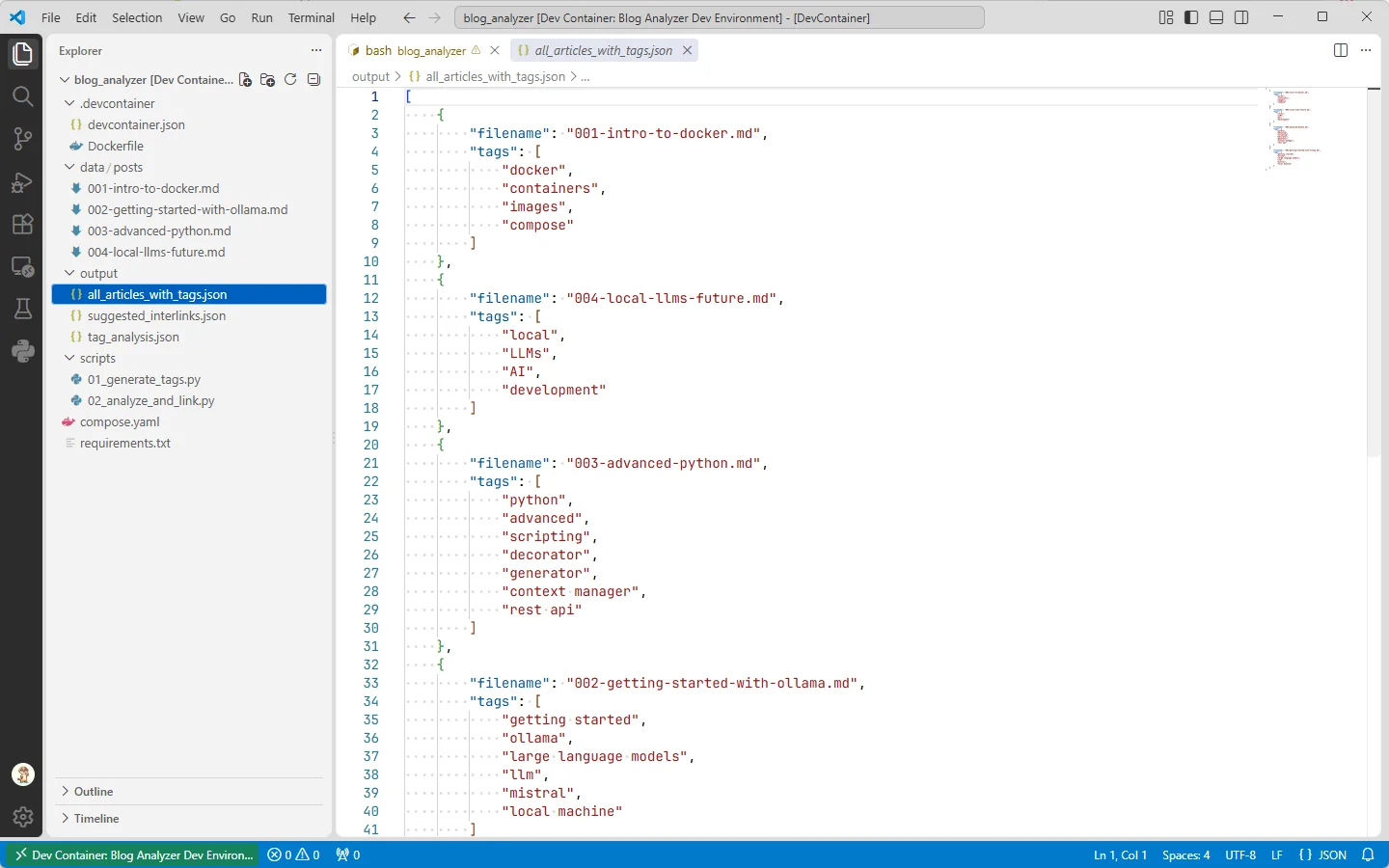
The second script then compares those tags across posts. suggested_interlinks.json is the first output worth looking at:
[ { "source_article": "001-intro-to-docker.md", "suggested_links": [] }, { "source_article": "004-local-llms-future.md", "suggested_links": ["002-getting-started-with-ollama.md"] }, { "source_article": "003-advanced-python.md", "suggested_links": [] }, { "source_article": "002-getting-started-with-ollama.md", "suggested_links": ["004-local-llms-future.md"] }]This is an array of objects that maps articles to related articles. Each object specifies a source article and lists other articles that are relevant to it, creating a cross-reference system for documentation or knowledge base navigation.
Articles 002 and 004 are correctly identified as related — they both talk about local LLMs. Articles 001 and 003 are left alone, since they cover unrelated topics. Sounds good!
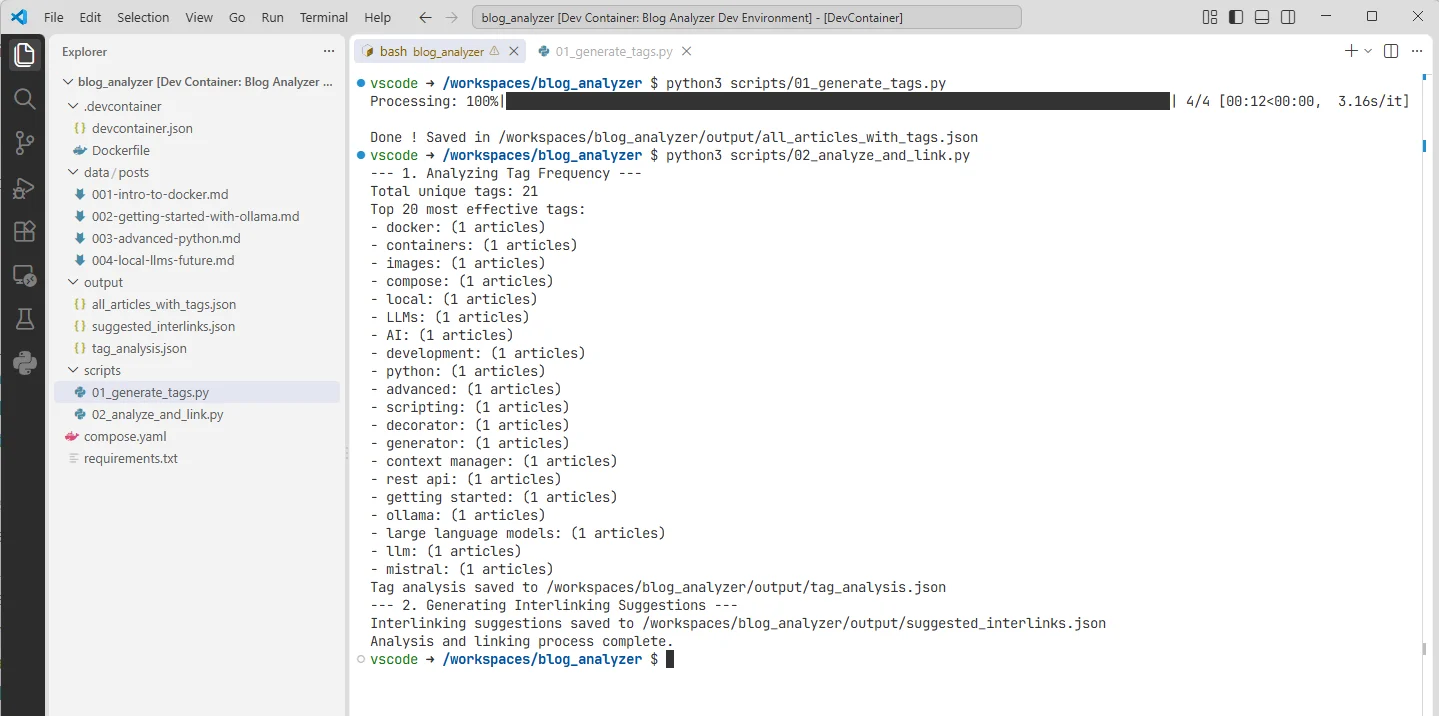
The second output file, tag_analysis.json, shows the tags and their occurrences across the articles. In this small sample, "local LLMs" appears in two articles (002 and 004) while every other tag appears in only one:
{ "total_unique_tags": 23, "top_tags": [ { "tag": "local", "count": 2 }, { "tag": "LLMs", "count": 2 }, { "tag": "docker", "count": 1 }, { "tag": "containers", "count": 1 }, { "tag": "images", "count": 1 }, { "tag": "compose", "count": 1 }, { "tag": "future", "count": 1 }, { "tag": "AI", "count": 1 }, { "tag": "development", "count": 1 }, { "tag": "advanced", "count": 1 }, { "tag": "python", "count": 1 }, { "tag": "scripting", "count": 1 }, { "tag": "decorators", "count": 1 }, { "tag": "generators", "count": 1 }, { "tag": "context", "count": 1 }, { "tag": "managers", "count": 1 }, { "tag": "rest", "count": 1 }, { "tag": "api", "count": 1 }, { "tag": "language models", "count": 1 }, { "tag": "Ollama", "count": 1 } ]}This is a JSON object that summarizes tag statistics from some collection of content. It reports that there are 23 unique tags total, and then lists the top tags by frequency, showing each tag name and how many times it appears. Most tags appear once, while 'local' and 'LLMs' are the most common, each appearing twice.
Why It Works
- One script per responsibility: the first script only talks to the LLM and produces tags; the second only reads those tags and computes relationships — no single script does both.
- Tags are the only signal used for linking. Two posts sharing a tag are considered related; the more tags they share, the stronger the suggestion.
- Nothing here is Docusaurus-specific — swap
data/postsfor any folder of Markdown files and the same two scripts produce the same kind of analysis.
Installation
Copy the directory structure and files
Please run the following command in your terminal to copy the directory structure and files for this tutorial:
Need help here? Click the "Help" button above for setup instructions.
Once done, please run code . to open the current directory in Visual Studio Code then press Ctrl+Shift+P and select Devcontainers: Reopen in Container to open the project in a development container.
It will take a few minutes to build the container and install the dependencies. Once the devcontainer is running, you'll see in your Docker Desktop that the two containers are running:

Download the LLM model
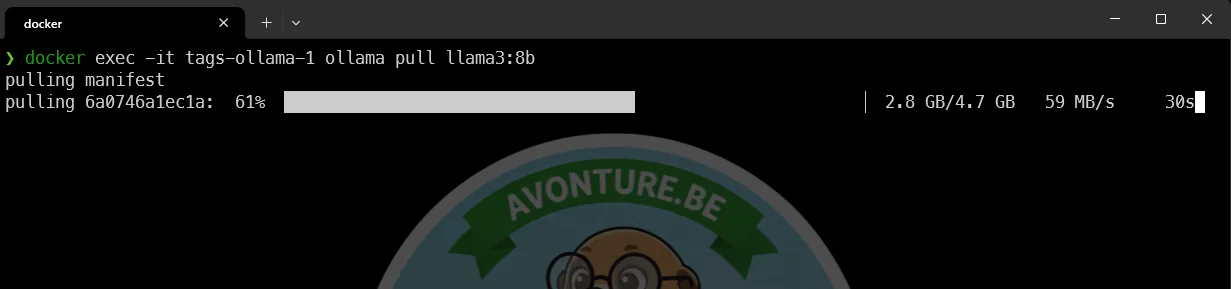
Then, return to your terminal (on your host) and run the following command to download the LLM model:
$ docker exec -it tags-ollama-1 ollama pull llama3:8b
Test the Ollama service
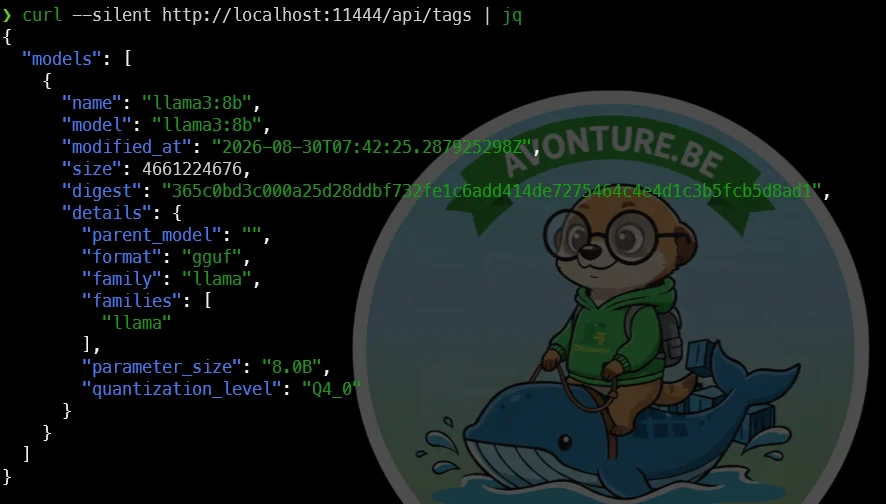
So we've just downloaded the LLM model, now let's test that the Ollama service is working correctly. Run the following command in your terminal (on your host):
$ curl --silent http://localhost:11444/api/tags | jq
If you don't have jq
The jq command is used to format the JSON output for better readability. If you don't have jq installed, check out The jq utility for Linux to learn how to install and use it, or simply run the curl command without it to see the raw JSON response.
curl --silent http://localhost:11444/api/generate \
  -d '{\
    "model": "llama3:8b", \
    "prompt": "Explain in one sentence why Docker is so amazing.", \
    "stream": false \
  }' | jq .response

Ok, the service is working, and we can see that the tags endpoint is available. This endpoint will be used by our Python scripts to send the content of the blog posts and receive the generated tags.
More Demos
Run the tag generation script
Go back to Visual Studio Code, jump in the terminal (in VSCode) and run the scripts/01_generate_tags.py file. This script will read all the Markdown files in the data/posts directory, send their content to the LLM model running in the container, and save the generated tags in a JSON file.
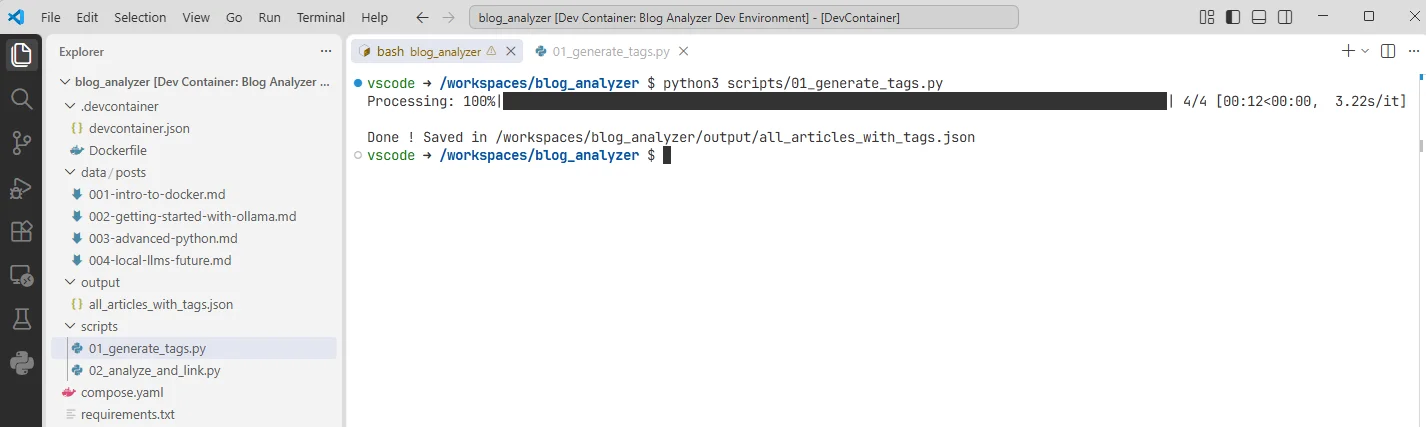
And, indeed, you can see that the output/all_articles_with_tags.json file has been created — the tags shown earlier under "The Result" are exactly what this run produced.
Host port vs container port
Notice that scripts/01_generate_tags.py calls http://ollama:11434/api/generate, not http://ollama:11444/api/generate like the curl commands above.
On your host, curl must use 11444 — the port published by compose.yaml ("11444:11434"). But 01_generate_tags.py runs inside the app container, on the same Docker Compose network as ollama. From there, 11444 doesn't exist: containers on that network reach each other through the container's own port, 11434. Mixing the service name (only resolvable inside the Compose network) with the host-published port is a classic trap, and it results in a Connection refused.
Run the analyze and link script
The second script, scripts/02_analyze_and_link.py, reads the generated tags from that JSON file and produces the suggested_interlinks.json and tag_analysis.json files shown above.
Under the Hood (skip this if you just want to use it)
Choosing the Right Model
In this article, I used llama3:8b as a starting point. However, the true beauty of Ollama lies in the flexibility to swap "brains" depending on the task at hand. The Ollama registry offers a vast library of models, but choosing the right one depends on your available hardware — specifically your RAM and GPU.
Model Comparison at a Glance
| Model | Ideal Use Case | Pros | Cons | Hardware Requirement |
|---|---|---|---|---|
| Llama 3 (8B) | Casual chat, simple scripts, fast tasks. | Extremely fast, lightweight, runs on almost anything. | Lower reasoning capability for complex logic. | ~8GB RAM |
| Mistral (7B) | Coding, creative writing, general reasoning. | Often more "human-sounding" and concise. | Can be less rigorous than Llama 3 for structured data. | ~8GB RAM |
| Llama 3 (70B) | Deep analysis, complex coding, heavy reasoning. | Near-human intelligence, very low hallucination rate. | Resource-intensive; slower generation. | ~48GB+ RAM |
Which one should you pick?
- Go for
llama3:8bif you are just getting started or have limited RAM. It is perfect for rapid prototyping and simple automation tasks that don't require deep logical reasoning. - Try
mistralif you find Llama 3's responses a bit too rigid. Many developers prefer Mistral for its creative flair and efficiency. It's an excellent "daily driver" for general coding support. - Scale up to
llama3:70bif you are performing tasks that demand high precision — such as refactoring complex codebases, deep logical debugging, or processing large datasets where accuracy is critical. Because this model is massive, it significantly reduces "hallucinations," making it the most reliable choice for professional work.
Downloading your models
You can add any of these models to your local environment instantly. Simply run the following commands in your terminal:
To pull the standard Llama 3 (8B) model:
$ docker exec -it tags-ollama-1 ollama pull llama3:8b
To pull the highly capable Llama 3 (70B) model:
$ docker exec -it tags-ollama-1 ollama pull llama3:70b
To pull the Mistral model:
$ docker exec -it tags-ollama-1 ollama pull mistral
Note: The
70bmodel is significantly larger (~40GB). Ensure you have enough disk space and, more importantly, at least 48GB of RAM available to ensure the model runs smoothly without slowing down your system.
Not enough RAM?
On my machine with 64GB of RAM, I can run the 70b model, but it does consume a lot of resources. If you have less RAM, you might want to stick with the 8b or mistral models for a smoother experience.
Conclusion
Two small Python scripts and a local model turned a folder of Markdown posts into a tag index and a set of interlink suggestions — no cloud API, no manual tagging, and nothing about the pipeline is specific to Docusaurus. Point data/posts at any folder of Markdown files and the same two scripts do the same job.
Turning a suggestion like "articles 002 and 004 are related" into an actual <Link> in the prose is still a manual step here — the natural next iteration is having the second script propose the exact sentence and anchor text, not just the pair of files.
Loading comments…
Related posts

ai-explain: ELI5 for Scripts and Errors, Right in Your Terminal
November 12, 2026
Open WebUI — Beyond the Chat: Models, RAG, Tools and API Keys
October 26, 2026

ai-data: Let a Local LLM Write Your jq and awk One-Liners
October 22, 2026
Ask My Blog: Turning 259 Articles Into 2,160 Searchable Questions
September 28, 2026