DuckDB - Query JSON and CSV Files With SQL, No Database Required
Run real SQL — joins, window functions, GROUP BY — directly against JSON and CSV files, no import step, no server, no schema to define. Dockerized, with a duckdb shell function that works from any folder. The tool I reach for once awk or jq stop being enough.


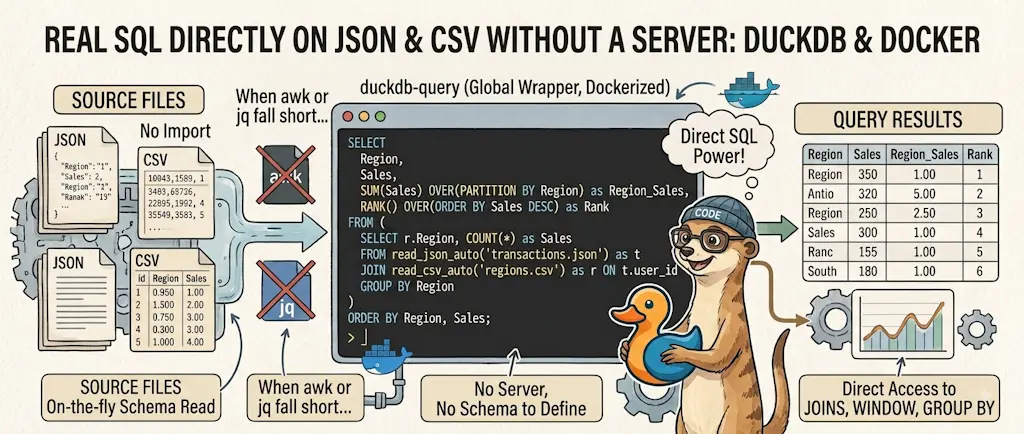
DuckDB is an embedded analytical database that queries CSV and JSON files directly with SQL — SELECT * FROM 'file.csv' just works, no import, no server, no schema to define first. This article sets it up as a Docker image with a duckdb shell function loaded by your zsh or bash, the same pattern as Markitdown and Docling: one command, works from any folder. It's the tool that picks up exactly where awk and jq stop being enough — the moment a question needs a join, a window function, or a GROUP BY across two different file formats at once.
I wrote Pandas — merge two or more files a while back for exactly this kind of job, and it works, but it means writing a script: import pandas, read the files, merge, maybe export again. Most of the time what I actually want is one query, run once, answered once. awk handles the simple version of that — group-by-and-count, filtering — but the moment I need an actual JOIN or a window function, I'm back to writing Python for a question that's genuinely one line of SQL.
Demo
order_id,region,amount1001,EMEA,120.501002,APAC,89.001003,EMEA,45.201004,AMER,300.001005,APAC,60.75This is a CSV file containing order records with three columns: a unique order identifier, the geographic region where the order was placed, and the monetary amount of each order. It's a simple dataset that tracks sales across three regions: EMEA (Europe, Middle East, Africa), APAC (Asia-Pacific), and AMER (Americas).
[
  { "name": "Alice Martin", "birth_date": "1990-04-12", "active": true },
  { "name": "Bruno Dupont", "birth_date": "1985-11-02", "active": false },
  { "name": "Chloé Bernard", "birth_date": "1998-07-23", "active": true }
]
This is a JSON array containing three person records, each with a name, birth date, and active status flag. It's a simple data structure you might use to store user information in a database or configuration file.
[
  { "region": "EMEA", "manager": "Alice Martin" },
  { "region": "APAC", "manager": "Chloé Bernard" },
  { "region": "AMER", "manager": "Bruno Dupont" }
]
This is a list of three regional sales or operations teams, each with a geographic region code and the manager responsible for that region. It's the kind of data you'd use to look up who oversees a particular area or to iterate through all teams.
Four genuinely different query shapes, none of which required writing a script: a GROUP BY/SUM on the CSV, a WHERE filter through read_json_auto on the JSON, a RANK() OVER (PARTITION BY ...) window function, and a JOIN between the CSV and a JSON file, in the same query — the kind of question awk simply doesn't have a clean answer for.
What Makes DuckDB Different
DuckDB is a real SQL engine — the syntax, the query planner, the works — except it runs in-process, needs no server, and reads CSV/JSON/Parquet files directly as if they were tables:
SELECT * FROM 'orders.csv';
SELECT * FROM read_json_auto('users.json');
No CREATE TABLE, no import step, no schema to define — it infers column types by sampling the file, the same idea as jq's automatic parsing but with full SQL on top instead of a filter language.
Installation
Try It in Two Minutes
Click the button below to get a script that creates /tmp/duckdb-json with the Dockerfile and the three demo files:
Need help here? Click the "Help" button above for setup instructions.
There's no apt or pip package for the DuckDB CLI itself (only for the Python bindings), so the Dockerfile downloads the official release binary.
Version pinned on purpose
DUCKDB_VERSION is a build arg, pinned to 2.0.0 — the version current as of writing. Check the releases page for a newer one and bump the arg; DuckDB ships new versions often enough that pinning explicitly, rather than tracking latest, keeps the build reproducible.
Make duckdb Available Everywhere
/tmp/duckdb-json was only for the demo: it vanishes at the next reboot. What has to stay on your PC is the Dockerfile, so the image can be rebuilt any time (new machine, docker image prune, a new DuckDB version). Give it a permanent home in ~/tools/duckdb, and build the image from there:
mkdir -p ~/tools/duckdb
cp /tmp/duckdb-json/Dockerfile ~/tools/duckdb/
docker build -t duckdb-cli ~/tools/duckdb
What turns that image into a command is one function, and it gets its own file in a folder your shell loads at startup, the same organisation as in my modular ZSH workflow: your rc file stays short, and removing the tool is deleting one file.
The code is the same for zsh and bash; only the folder and the loader differ.
- zsh
- bash
1. Create the file in ~/.zsh/fns/:
Need help here? Click the "Help" button above for setup instructions.
2. Load the folder from ~/.zshrc. Already done if you followed one of my "Ollama daily use" articles. Otherwise, add at the end of ~/.zshrc:
for fn_file in ~/.zsh/fns/*.zsh; do
  source "$fn_file"
done
3. Open a new terminal (or run exec zsh).
1. Create the file in ~/.bash/fns/:
Need help here? Click the "Help" button above for setup instructions.
2. Load the folder from ~/.bashrc. Add at the end of ~/.bashrc (the -r test keeps an empty folder from printing an error):
for fn_file in ~/.bash/fns/*.sh; do
  [[ -r "$fn_file" ]] && source "$fn_file"
done
3. Open a new terminal (or run exec bash).
Check that the shell knows the function: type duckdb must answer duckdb is a shell function. Then go to the demo folder and replay the first query of this article:
cd /tmp/duckdb-json
duckdb -c "SELECT region, COUNT(*) AS orders, SUM(amount) AS total FROM 'orders.csv' GROUP BY region ORDER BY total DESC"
From now on, it works the same in any folder holding a CSV or JSON file. The function mounts the current folder as /workspace, so paths in your SQL are relative to where you are. That folder is mounted read-only unless the first argument is --write; --read-only on its side locks the container's own filesystem, so nothing can be written inside the image either; a file outside the current folder isn't visible, cd to it first. With no argument, duckdb opens the interactive SQL shell; with -c "SQL", it runs one query and exits; piped SQL (cat report.sql | duckdb) works too.
If the image is missing, the function doesn't fail with a cryptic Docker error, it tells you how to rebuild it from ~/tools/duckdb:
Error: the Docker image "duckdb-cli" does not exist on this machine.

How to continue:
  1. docker build -t duckdb-cli "${HOME}/tools/duckdb"
  2. Run your duckdb command again.
And if ~/tools/duckdb/Dockerfile is gone too, the message points back to this article to get it again.
It shadows a native duckdb
The function is called duckdb, so it takes precedence over a duckdb binary installed locally. That's the point here (no local install), but if you install DuckDB natively one day, remove the function or rename it.
Working With duckdb
The Interactive Console
With the function in place, typing duckdb with no argument opens an interactive SQL console, the most comfortable place to play with the two statements from What Makes DuckDB Different:
$ duckdb
Read-only: your files cannot be modified. Start with "duckdb --write" to save files.
DuckDB v2.0.0 (Cyanoptera)
Enter ".help" for usage hints.
memory D SELECT * FROM 'orders.csv';
┌──────────┬─────────┬────────┐
│ order_id │ region  │ amount │
│  int64   │ varchar │ double │
├──────────┼─────────┼────────┤
│     1001 │ EMEA    │  120.5 │
│     1002 │ APAC    │   89.0 │
│     1003 │ EMEA    │   45.2 │
│     1004 │ AMER    │  300.0 │
│     1005 │ APAC    │  60.75 │
└──────────┴─────────┴────────┘
memory D SELECT * FROM read_json_auto('users.json');
┌───────────────┬────────────┬─────────┐
│     name      │ birth_date │ active  │
│    varchar    │    date    │ boolean │
├───────────────┼────────────┼─────────┤
│ Alice Martin  │ 1990-04-12 │ true    │
│ Bruno Dupont  │ 1985-11-02 │ false   │
│ Chloé Bernard │ 1998-07-23 │ true    │
└───────────────┴────────────┴─────────┘
memory D .quit
Look at the second table: nobody declared anything, yet birth_date came back as a date and active as a boolean, inferred from the JSON values themselves. The memory D prompt means the session runs on a throw-away in-memory database: a SELECT reads your files and changes nothing. .help lists the console commands.
To leave the console, type .quit
Console commands start with a dot: type .quit (or .exit, or press Ctrl+D) to get back to your shell. A bare exit or quit does not work: DuckDB reads it as the beginning of a SQL statement and silently waits for the rest of it, until a ; ends it with a syntax error.
UPDATE and DELETE: Read-Only by Default, --write When You Mean It
DuckDB runs UPDATE and DELETE on tables, never on a file read directly: UPDATE 'orders.csv' SET … is refused with Can only update base table, whatever the permissions. Changing a file is therefore always the same three steps: load it into a table, change the table, write it back with COPY ... TO.
That last step is a write, and the duckdb function refuses it by default: it mounts the current folder read-only, so no query can alter your files by accident. Put --write first to allow it:
$ duckdb -c "CREATE TABLE o AS FROM 'orders.csv'; UPDATE o SET amount = round(amount * 1.21, 2) WHERE region = 'EMEA'; DELETE FROM o WHERE region = 'APAC'; COPY o TO 'orders_fixed.csv'"

IO Error: Cannot open file "orders_fixed.csv": Read-only file system
Tip: the current folder is read-only. If this failed while writing a file, run it again as: duckdb --write ...

$ duckdb --write -c "CREATE TABLE o AS FROM 'orders.csv'; UPDATE o SET amount = round(amount * 1.21, 2) WHERE region = 'EMEA'; DELETE FROM o WHERE region = 'APAC'; COPY o TO 'orders_fixed.csv'"

$ cat orders_fixed.csv
order_id,region,amount
1001,EMEA,145.81
1003,EMEA,54.69
1004,AMER,300.0
The original orders.csv is untouched; orders_fixed.csv holds the EMEA amounts with 21% VAT and no APAC rows. Write back to 'orders.csv' instead and the file itself is rewritten. COPY ... TO writes CSV, JSON ('out.json') or Parquet ('out.parquet'), picked from the extension. To keep tables between two sessions instead of a throw-away memory database, attach a database file, which is a write too: duckdb --write, then ATTACH 'shop.duckdb' AS shop;.
Key Takeaways
duckdb quick reference
- No import step —
SELECT * FROM 'file.csv'andread_json_auto('file.json')query files directly - Real SQL — joins, window functions,
GROUP BY, exactly like a full database, no server required - No CLI package — the Dockerfile downloads the official release binary, version-pinned
- One file in
~/.zsh/fns/or~/.bash/fns/—duckdbworks from any folder, and explains how to rebuild when the image is gone - Interactive or one-shot — bare
duckdbfor a REPL,-c "SQL"for a single query - Read-only by default —
duckdb --writeto save files withCOPY ... TOorATTACH - Complements
ai-data— reach forawk/jqfirst, DuckDB once the question needs a join or a window function
Conclusion
Between python-pandas-merge for anything that needs real scripting, jq/awk/ai-data for quick one-liners, and now DuckDB for everything in between that's genuinely a SQL question, I've stopped reaching for "let me write a quick Python script" nearly as often. A .csv and a .json file, queried and joined together with one line of actual SQL, no server, no import — that's a tool that earns a permanent spot in my ~/.zsh/fns/.
Related posts

Export MS Access objects
June 27, 2025

Discovering Pentaho, an ETL program
June 20, 2025


Start Joomla with Docker in just a few clicks
October 3, 2024

SQL - Formatting tool
July 17, 2024