git worktree: Work on Two Branches at the Same Time
git worktree lets you check out multiple branches as real directories simultaneously — no stashing, no context loss. Keep your Docker stack running while handling hotfixes in parallel.


Changelog
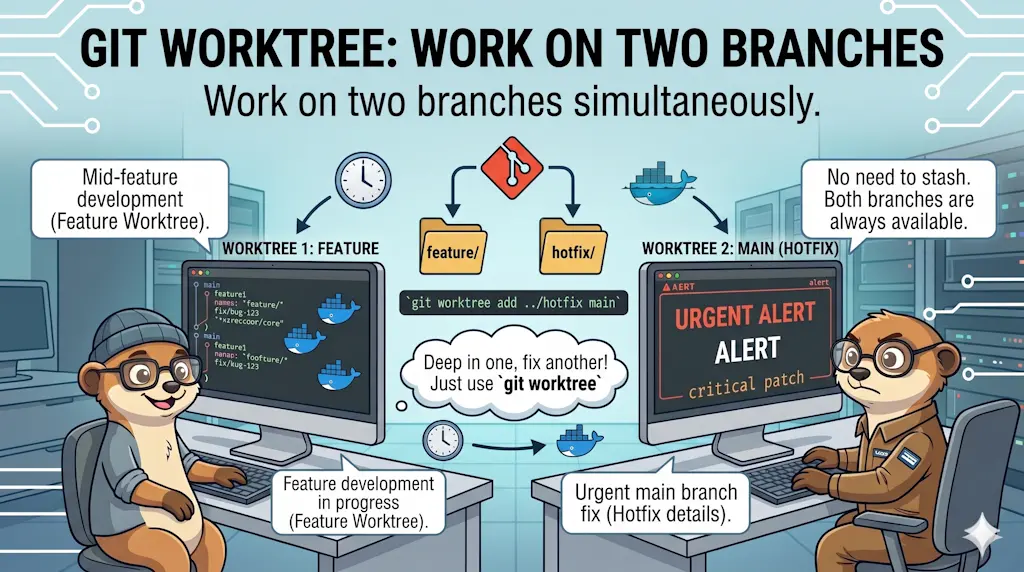
You're deep in a feature branch — half-written code, running Docker containers, open files everywhere. Then: "urgent hotfix needed on main." With the usual workflow, you stash everything, switch branches, fix, commit, push, then unstash and hope nothing explodes. With git worktree, you check out a second branch into a separate folder. Both branches exist simultaneously, as real directories, with their own terminals and their own Docker stacks.
It's 3pm on a Thursday. You've been working on a new feature for two days. The Docker containers are running, your editor has eight files open, and you're in the middle of a refactor that's not compiling yet.
Your phone buzzes. Production is broken. A fix needs to go out on main in the next thirty minutes.
What do you do?
The stash workflow and its pain
The classic approach:
It works. Most of the time. But:
- Your Docker containers are now pointing at the wrong codebase — you need to restart them
- Your editor has lost context — all those open files are gone or pointing at main's versions
- If
git stash pophas a conflict, you now have a three-way mess to resolve while still stressed from the hotfix - You can only have one active branch at a time
The deeper issue: a git stash is fragile state. It's not a branch. It has no history. It can conflict. And it disappears once you pop it.
Since we're talking about juggling branches: Git - Some tips for your .gitconfig file shows how to sort git branch by last commit date, and Showing the last 3 updated branches when you jump in a git repo displays them automatically as you enter a repository.
What git worktree does
A git worktree is a second (or third, or fourth) working directory linked to the same git repository.
Instead of one folder with one checked-out branch, you get:
~/projects/my-blog/                     ← main branch (original)
~/projects/my-blog-hotfix/              ← hotfix/invoice-fix branch (worktree)
~/projects/my-blog-feature-auth/        ← feature/auth branch (worktree)
Each folder is a real directory with its own files, its own terminal, its own running processes. They share the same .git database (commits, objects, history), but each has an independently checked-out branch.
You never leave your feature branch. The hotfix lives next door.
The basic commands
Add a worktree
Create a new directory at <path> with [branch] checked out:
If the branch doesn't exist yet, create it at the same time:
This creates hotfix/invoice-fix branching off main, checked out into ../my-blog-hotfix.
List all worktrees
Output:
/home/christophe/projects/my-blog              a4b2c1d [main]
/home/christophe/projects/my-blog-hotfix       e8f3d2a [hotfix/invoice-fix]
Remove a worktree
This deletes the folder and unregisters the worktree. The branch itself (hotfix/invoice-fix) still exists — you can delete it separately with git branch -d.
Seeing It in Action with Docker
git needs no installing — it's already on your machine. What's worth trying risk-free is the
scenario itself: a throwaway repo, already mid-refactor on a feature branch with uncommitted
changes, and a VAT calculation bug waiting on main. Exactly the Thursday-afternoon setup below,
minus the stress.
Why Docker first?
The Dockerfile below builds a repo already sitting on feature/user-notifications with two
unstaged files — the same starting point as step 1 below — plus the gwt fzf navigator from
further down, wired via real ZSH autoload. Nothing on your own repos is touched.
Build and run it:
$ docker build -t worktree-demo . [+] Building 24.1s (8/8) FINISHED ✔ exporting to image
$ docker run --rm -it worktree-demo 🐳 root ~/projects/my-blog # git status On branch feature/user-notifications Changes not staged for commit: modified: src/api/notifications.ts modified: src/components/Notifications.tsx
That's step 1 below, already set up. Now run the rest of the scenario for real, exactly as
written — git worktree add -b hotfix/invoice-fix ../my-blog-hotfix main, fix
src/billing/invoice.ts in the new folder, commit, git worktree remove, and confirm with git status that your feature branch never moved. gwt is wired too, if you want to try the fzf
navigator from the "ZSH function" section further down.
Run step 4's commands one at a time
Don't paste the whole block from step 4 in one shot: vim is a full-screen editor, so anything
you paste after vim src/billing/invoice.ts gets typed into vim instead of run as shell
commands. Run that line alone, make the edit (see the tip in step 4), save and quit, then paste
the rest. git push works in this container too — the image wires a local bare repo as origin
so there's something real to push to, no GitHub account needed.
The hotfix scenario, step by step
Back to Thursday afternoon. Here's the same situation handled with worktrees.
1. You're on your feature branch, in the middle of work
You don't touch this. You don't stash anything.
2. Create a hotfix worktree next to your project
git worktree add -b hotfix/invoice-fix ../my-blog-hotfix main
Preparing worktree (new branch 'hotfix/invoice-fix')
HEAD is now at a4b2c1d chore: update dependencies
3. Open a new terminal, cd into the hotfix folder
This directory has main's files. Your feature branch directory is untouched, still running, still open in your editor.
4. Fix the bug and push
The actual VAT fix
calculateVat() returns amount * rate — just the VAT portion, not the invoice total. In vim:
press i, change the line to return amount * (1 + rate);, then Esc followed by :wq to save
and exit. Only then run the git add/commit/push lines.
5. Clean up the worktree
Why -D and not -d
You're still on feature/user-notifications here, which never received the hotfix commit — only
origin/hotfix/invoice-fix did, via the merged PR. git branch -d refuses to delete a branch it
can't see as merged into your current branch, and errors with "not fully merged". Since you know
it's safely merged on the remote, -D (force) is the correct call, not a workaround for a mistake.
6. Back to your feature branch — nothing changed
No stash, no conflicts, no context switch.
One constraint: a branch can only be in one worktree at a time
Git enforces this. If feature/user-notifications is checked out in your main directory, you cannot add a second worktree with the same branch. Attempting it gives:
This is intentional — two directories writing to the same branch simultaneously would corrupt the working tree. Each worktree gets its own branch.
Docker + worktrees: each branch gets its own stack
This is where worktrees become genuinely powerful for a Docker workflow.
Each worktree is a separate directory. Each directory can have its own .env file and its own running Docker Compose stack, as long as you avoid port conflicts.
A practical convention: use a different port per worktree. Keep the ports in .env, which is .gitignored:
Now you can run both stacks simultaneously:
// Terminal 1 — feature branch cd ~/projects/my-blog docker compose up
// Terminal 2 — hotfix branch cd ~/projects/my-blog-hotfix docker compose up
Both servers are running at the same time. You can test the hotfix at http://localhost:3001 without stopping your feature development at http://localhost:3000.
Named Compose projects
Docker Compose uses the folder name as the default project name. Since your worktrees are in different folders, Compose creates separate networks and container sets automatically — no additional configuration needed.
A ZSH function to navigate between worktrees
If you follow the modular ZSH workflow pattern, you can add an interactive worktree navigator using fzf:
Usage:
gwt                         # fzf picker — select any active worktree and cd into it
gwt feature/dark-mode       # create + cd into a new worktree for that branch
Practical tips
Name worktrees consistently
A predictable naming scheme avoids confusion:
# Pattern: <repo-name>-<branch-slug>
git worktree add ../my-blog-hotfix-invoice hotfix/invoice-fix
git worktree add ../my-blog-feat-auth      feature/auth
Worktrees work with VS Code
Open a worktree folder in a new VS Code window:
Each window operates independently, with its own open files and terminal sessions.
Prune stale worktrees
If you manually delete a worktree folder (instead of using git worktree remove), git may still think it exists. Clean up the stale references:
Conclusion
git stash | git worktree | |
|---|---|---|
| Branch switch | Yes, required | No — branches coexist |
| Docker containers | Must restart | Run independently |
| Editor context | Lost | Preserved |
| Parallel development | No | Yes |
| Conflict risk | On stash pop | None |
| Cleanup | Automatic on pop | Manual worktree remove |
Stash remains useful for tiny, quick things — saving half a line of typing before a git pull. For anything that involves running services, an editor session, or more than five minutes of work, a worktree is cleaner.
The first time you handle a hotfix without leaving your feature branch, you'll wonder how you ever worked any other way.
Loading comments…
Related posts

ai-explain: ELI5 for Scripts and Errors, Right in Your Terminal
November 12, 2026

delta: a Syntax-Highlighted Pager for git diff
June 15, 2026


Git - pre-commit-hooks
January 10, 2025