lazydocker: A Terminal Dashboard for Docker, Containerized
lazydocker is a single-binary terminal UI that shows every container, image, volume and network at a glance, with live stats and logs. This article containerizes it — no host install — and adds a `lazydocker` shell function, for zsh or bash, so it picks up whatever project's compose.yaml you're currently standing in.


Changelog
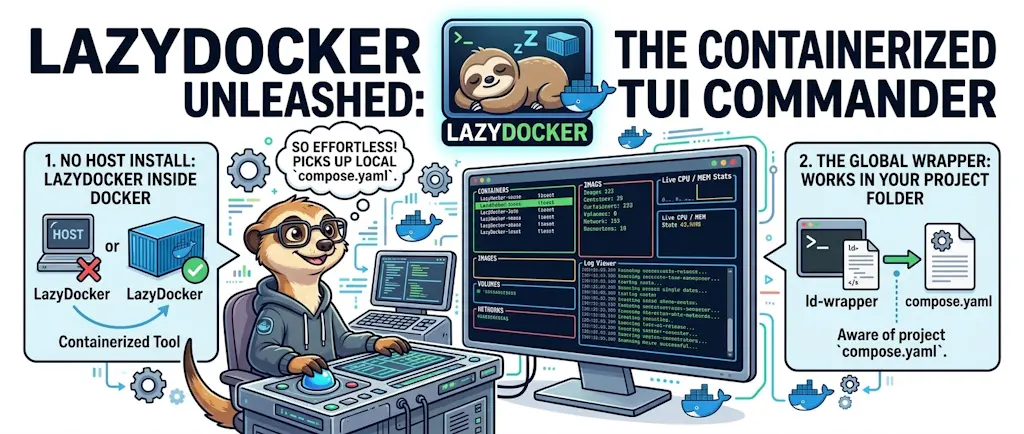
lazydocker is a terminal UI that shows containers, images, volumes and networks side by side, with live CPU/memory stats and a log pane that updates as you move the selection — the same kind of glanceable dashboard top gives you for processes, but for Docker. This article containers it (of course), sharing the host's Docker socket the same way I explained in my Docker-out-of-Docker article, and adds one shell function so running lazydocker from any project folder shows that project's containers, not a random flat list.
In a previous article, I shared the ZSH functions I use daily: dex to jump into a container, dstop to stop one, dlogs to tail its logs. They're fast, precisely because they assume I already know what I want — pick a container, do one thing, done.
But sometimes that's not the situation. Sometimes I've just started five containers for a test and I genuinely don't know yet which one is spiking CPU, or whether a log line I half-noticed scrolling by was actually an error. That's not a "run one command" problem, it's a "let me just look at everything for a second" problem — and none of dex/dstop/dlogs are built for that.
The Dashboard, Running
Five panes, updating live, on this exact machine's real containers:
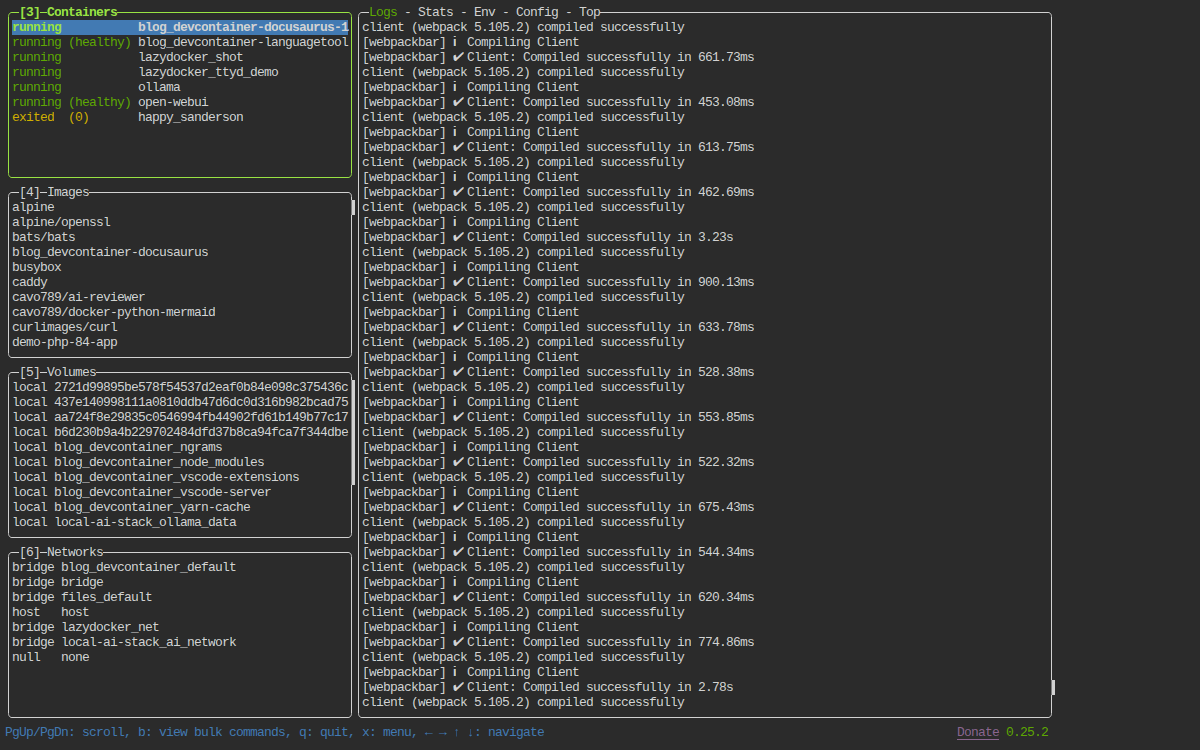
The right-hand pane is streaming this Docusaurus dev server's actual webpack output as it recompiles — no docker logs -f typed anywhere, just the container selected on the left.
What lazydocker Actually Shows
Move the selection with arrow keys or the hjkl vim-style keys; each pane updates live. Select a container and the right-hand panel shows its logs, streaming, without you having to type docker logs -f <name> first. Press Enter on a container to open a menu of actions — restart, stop, remove, attach a shell — instead of remembering the exact flag for each. If lazydocker detects a compose.yaml in the current directory, the Containers pane groups them by their compose service name instead of listing everything flat.
Full keybinding list, in-app
Press ? inside lazydocker for the complete, version-accurate keybinding list rather than trusting a snapshot in an article — the exact keys have shifted slightly between releases.
Containerizing It
You know me well enough by now: I like to containerize things, and I'm not about to install a Go binary straight onto my host for this one either.
Let's create a new folder for it: mkdir -p ~/tools/lazydocker && cd $_
Then create the Dockerfile:
# syntax=docker/dockerfile:1.7-labs
FROM alpine:3.20
# Check https://github.com/jesseduffield/lazydocker/releases for the current# tag before building; this ARG makes bumping it a one-line change.ARG LAZYDOCKER_VERSION=0.25.2
# The Docker CLI (and the compose plugin) are what lazydocker actually shells# out to behind the scenes — the binary below is only the TUI on top of them.RUN apk add --no-cache docker-cli docker-cli-compose curl tar
RUN curl -Lo /tmp/lazydocker.tar.gz \ "https://github.com/jesseduffield/lazydocker/releases/download/v${LAZYDOCKER_VERSION}/lazydocker_${LAZYDOCKER_VERSION}_Linux_x86_64.tar.gz" && \ tar -xzf /tmp/lazydocker.tar.gz -C /tmp lazydocker && \ install -m 0755 /tmp/lazydocker /usr/local/bin/lazydocker && \ rm -f /tmp/lazydocker.tar.gz /tmp/lazydocker
ENTRYPOINT ["lazydocker"]This Dockerfile creates a minimal container image based on Alpine Linux that runs lazydocker, a terminal UI for managing Docker. It installs the Docker CLI tools that lazydocker needs to work, downloads and extracts the lazydocker binary from GitHub, and sets it as the container's entry point.
Two things worth calling out. First, the base image installs the Docker CLI itself (docker-cli and docker-cli-compose) — lazydocker doesn't talk to the daemon directly, it shells out to the same docker and docker compose commands you'd type by hand, so they need to exist inside the image. Second, the version is pinned via an ARG rather than baked into the curl line directly — check the releases page for the current tag before your first build.
Now the compose.yaml:
services: lazydocker: build: . image: lazydocker container_name: lazydocker stdin_open: true tty: true volumes: - /var/run/docker.sock:/var/run/docker.sock - lazydocker-config:/root/.config/jesseduffield/lazydocker - .:/workdir working_dir: /workdir
volumes: lazydocker-config: # Pin the real volume name so the standalone `docker run` in the wrapper # script below reuses this exact volume instead of creating its own # project-prefixed one. name: lazydocker-configThis Docker Compose file defines a service called lazydocker that builds from the current directory, runs interactively with a terminal, and mounts several volumes including the Docker socket (to control Docker from inside the container), a named volume for configuration persistence, and the current directory for development work.
Same socket-sharing principle as DooD
Mounting /var/run/docker.sock here is exactly the Docker-out-of-Docker technique from that earlier article — a container reaching out to control the host's Docker daemon. lazydocker's whole reason to exist is host-level container control, so unlike the DooD article's unprivileged-user walkthrough, I'm not bothering to drop root inside this particular image: restricting the container's own UID buys nothing when the thing it's mounting already grants full Docker control regardless of who's asking. The privilege boundary that actually matters here is "who can run this wrapper script at all," not the UID inside the container.
stdin_open and tty are both set to true — without them, lazydocker's full-screen interface never gets an interactive terminal to draw into, and the container would just exit immediately.
Build it: docker compose build.
The Global Wrapper
If I only ever ran lazydocker from inside ~/tools/lazydocker, it would show me... ~/tools/lazydocker's own container, which is not the point. The trick is mounting whatever directory you're currently in, so lazydocker's project-detection logic finds the right compose.yaml. That means the plain docker compose run I've used elsewhere doesn't work here — the compose file's own working directory would always win.
A small shell function fixes it: it mounts the folder you are standing in, and since it lives in a file your shell loads at startup (the organisation explained in my modular ZSH workflow), lazydocker works from every folder without touching /usr/local/bin or sudo:
# lazydocker: open the containerized lazydocker TUI on the current folder,# so it picks up a local compose.yaml and shows a "project" view instead of# a flat container list. Works in zsh and bash: save it as# ~/.zsh/fns/lazydocker.zsh or ~/.bash/fns/lazydocker.sh (see the article).lazydocker() { local image="lazydocker" # Permanent home of the Dockerfile and compose.yaml, so the image can always be rebuilt. local build_dir="${HOME}/tools/lazydocker" # Shown as is in the messages, so the command can be copied for any user. # shellcheck disable=SC2016 local build_dir_shown='${HOME}/tools/lazydocker' local config_dir="/root/.config/jesseduffield/lazydocker"
if ! command -v docker >/dev/null 2>&1; then printf '\e[31mError: docker is not installed or not in your PATH.\e[0m\n' >&2 return 1 fi
if ! docker image inspect "${image}" >/dev/null 2>&1; then printf '\e[31mError: the Docker image "%s" does not exist on this machine.\e[0m\n\n' "${image}" >&2 printf 'How to continue:\n' >&2 if [[ -f "${build_dir}/compose.yaml" ]]; then printf ' 1. (cd "%s" && docker compose build)\n' "${build_dir_shown}" >&2 printf ' 2. Run lazydocker again.\n' >&2 else printf ' 1. Get the Dockerfile and compose.yaml from https://www.avonture.be/blog/lazydocker\n' >&2 printf ' and save them in %s\n' "${build_dir_shown}" >&2 printf ' 2. (cd "%s" && docker compose build)\n' "${build_dir_shown}" >&2 printf ' 3. Run lazydocker again.\n' >&2 fi return 1 fi
# Your custom actions (see "Customize" in the article), mounted only when the file exists. local -a config_mount=() if [[ -f "${build_dir}/config.yml" ]]; then config_mount=(-v "${build_dir}/config.yml:${config_dir}/config.yml") fi
docker run --rm -it \ -v /var/run/docker.sock:/var/run/docker.sock \ -v "lazydocker-config:${config_dir}" \ "${config_mount[@]}" \ -v "${PWD}:/workdir" \ --workdir /workdir \ "${image}"}This function runs lazydocker (a Docker management tool) inside a container, configured to see the current folder's compose.yaml file. It first checks that Docker is installed and that the lazydocker image exists locally, offering helpful instructions if either is missing. Then it launches the container with proper volume mounts so lazydocker can access Docker, your project files, and optional configuration.
The code is the same for zsh and bash; only the folder and the loader differ.
- zsh
- bash
1. Create the file in ~/.zsh/fns/:
Need help here? Click the "Help" button above for setup instructions.
2. Load the folder from ~/.zshrc. Already done if you followed one of my "Ollama daily use" articles. Otherwise, add at the end of ~/.zshrc:
for fn_file in ~/.zsh/fns/*.zsh; do
  source "$fn_file"
done
3. Open a new terminal (or run exec zsh).
1. Create the file in ~/.bash/fns/:
Need help here? Click the "Help" button above for setup instructions.
2. Load the folder from ~/.bashrc. Add at the end of ~/.bashrc (the -r test keeps an empty folder from printing an error):
for fn_file in ~/.bash/fns/*.sh; do
  [[ -r "$fn_file" ]] && source "$fn_file"
done
3. Open a new terminal (or run exec bash).
Check that the shell knows the function: type lazydocker must answer lazydocker is a shell function.
If the image is missing, the function prints the exact docker compose build command to run from ~/tools/lazydocker, or points back to this article when that folder is gone too.
Coming from the previous version of this article?
It installed lazydocker as a script in /usr/local/bin/. Remove it (sudo rm /usr/local/bin/lazydocker): the function takes over, and the old script would otherwise linger on your disk.
From any project folder now — this Docusaurus repo, a client's API, wherever — running lazydocker opens the dashboard scoped to that folder's containers.
Config survives, projects don't need to
lazydocker-config, the named volume, persists your pane layout and sort order across every project. It's the textbook reason to reach for a Docker-managed volume — don't let a --rm container throw away state that has no reason to be re-created every single run.
Customize
lazydocker's action menu is extensible: any shell command can appear there by name, in any pane — containers, images, volumes, networks. The config lives in a single YAML file that lazydocker reads from its config directory, the same one the lazydocker-config named volume already persists.
The two most useful additions depend on which pane you're in:
- Containers pane — the container is already running;
docker execjumps straight into it. - Images pane — nothing is running yet;
docker run --rmspins up a throw-away container from the selected image, drops you into a shell, and removes the container the moment you exit.
Both cases, both shells, in one file. Create ~/tools/lazydocker/config.yml:
customCommands: containers: - name: bash attach: true command: 'docker exec -it {{ .Container.ID }} bash' serviceNames: [] - name: sh attach: true command: 'docker exec -it {{ .Container.ID }} sh' serviceNames: [] images: - name: bash attach: true command: 'docker run -it --rm {{ .Image.Name }}:{{ .Image.Tag }} bash' serviceNames: [] - name: sh attach: true command: 'docker run -it --rm {{ .Image.Name }}:{{ .Image.Tag }} sh' serviceNames: []This YAML configuration defines custom commands that can be executed in Docker environments. It sets up four shell commands—two for running bash or sh inside existing containers, and two for running them in new temporary containers from images. Each command is marked as 'attach: true' so the output displays interactively, and they all have empty service name filters meaning they apply globally.
All four entries use attach: true so lazydocker hands the terminal over to the shell rather than running the command in the background. bash and sh cover images that ship one or the other — Alpine-based images only have sh.
Now tell the compose file to bind-mount that file on top of the named volume — Docker layers file mounts on top of volume mounts for overlapping paths, so config.yml wins while the volume still persists your pane layout and sort order:
volumes:
  - /var/run/docker.sock:/var/run/docker.sock
  - lazydocker-config:/root/.config/jesseduffield/lazydocker
  - ./config.yml:/root/.config/jesseduffield/lazydocker/config.yml
  - .:/workdir
The lazydocker function needs no change: it already mounts ~/tools/lazydocker/config.yml the moment that file exists.
Template variables
Each pane exposes its own object: {{ .Container.ID }} in the containers pane, {{ .Image.Name }} and {{ .Image.Tag }} in the images pane, {{ .Service.Name }} for services. The full list is in lazydocker's Config.md.
Restart lazydocker once to pick up the new mount. In the Containers pane, select a running container, press Enter, and bash/sh appear in the menu — one keypress to exec in. In the Images pane, select any image, press Enter, and bash/sh let you spin up a throw-away container from it on the spot.
My dex function vs lazydocker
Two tools, two starting points
My dex function is what I reach for when I already know which container I want and what I want to do to it — it's optimized for speed on a decision I've already made. lazydocker is what I open a beat before that decision exists — when I need to look across everything at once to figure out which container is actually the problem. Neither replaces the other; dops' fzf menu and lazydocker's dashboard solve two different moments of the same workflow.
Does Docker Desktop still earn its place?
On Windows I keep Docker Desktop running because that's what provides the engine in the first place — but its GUI is also where I used to go to watch logs, restart a container, or check what was eating memory. lazydocker does that part identically, faster, and the same way on every machine instead of only the Windows one.
What lazydocker replaces — and what it doesn't
lazydocker takes over the half of Docker Desktop you touch daily: the container, image, volume and network browser, the log pane, the quick restart/stop/shell actions. It does not provide the Docker engine, the WSL2 VM's CPU/memory/disk limits, the one-click Kubernetes node, or Docker Scout image scanning — for those you still open the Docker Desktop window.
In practice, since installing lazydocker I open that window maybe once a month, to bump a resource limit. Uninstalling Docker Desktop is a separate question — usually driven by Docker's licensing terms for larger organizations rather than by lazydocker — and the answer there is Docker Engine running straight inside a WSL2 distro, with lazydocker on top exactly as set up above.
Key Takeaways
lazydocker quick reference
- Single binary, no host install — containerized here, sharing the Docker socket the same way as DooD
- Mount
$PWD, not the Dockerfile's own folder — that's what makes project-view detection work from anywhere - Root inside the container is fine here — the socket mount already grants full host Docker control regardless of UID
- Persist the config volume — pane layout and sort order survive across every project you point it at
- Press
?for keybindings — faster and more accurate than memorizing a list that shifts between releases - Extend the action menu via config.yml — containers pane uses
docker exec(running container), images pane usesdocker run --rm(throw-away container from the image) - It replaces Docker Desktop's dashboard, not Docker Desktop — the engine, WSL2 VM limits and Kubernetes still live there
Conclusion
dex, dstop and dlogs are still exactly what I reach for the moment I know what I want to do. lazydocker fills the gap right before that moment — the "let me just look for a second" reflex that a fuzzy-finder menu isn't built to answer. And since it's just another container sharing a socket, it slots into the same mental model as the DooD article without adding a single new concept — only a new dashboard on top of one already-understood mechanism. Next up: the browser-based version of this same idea, for the times a terminal isn't the tool someone else has open.
Related posts

ai-explain: ELI5 for Scripts and Errors, Right in Your Terminal
November 12, 2026
DuckDB - Query JSON and CSV Files With SQL, No Database Required
November 9, 2026


Docker Build Cache Ate 180 GB — Here's How to Get Them Back
November 2, 2026

Open WebUI — Beyond the Chat: Models, RAG, Tools and API Keys
October 26, 2026
yq — The YAML Processor You Already Know How to Use
October 19, 2026