Linux - Working with the history of your last fired actions
Master your Linux command line history. Learn how to view, locate (.bash_history, .zsh_history), and manage your previously executed commands with essential tips.

This article is over a year old but was reviewed on July 30, 2026 — the content is still accurate.
This article is part of the Customize your shell with ZSH series:
- Customize your Linux prompt with Powerlevel10k
- How to install Oh-My-ZSH
- Autosuggestions in the console using ZSH
- Syntax highlighting in the console using ZSH
- Linux - Working with the history of your last fired actions
- ZSH Functions - Customizing Your Shell for Docker Management
- Beyond the Monolith - Organizing Your ZSH Workflow Like a Pro

This article covers working with shell history in Bash/ZSH: locating the history file via $HISTFILE, excluding sensitive commands with HISTIGNORE/HISTORY_IGNORE or a leading space (hist_ignore_space), filtering with history | grep, fuzzy-searching via CTRL+R, using zsh-autosuggestions to sidestep manual history search entirely, and deleting specific entries with history -d.
For me, one of the undeniable strengths of the command line under Linux is the management of the history of previously executed commands.
The single biggest upgrade you can make to that history is fzf: it turns CTRL+R into a fuzzy, interactive search instead of a linear one. If you want something more structured — with timestamps, exit codes, working directory, and optional multi-machine sync — Atuin replaces the flat history file with a SQLite database entirely.
To be able to press the Up or Down keys on the keyboard to return to previously run commands, wow.
For older users, there was DOSKEY under MSDos, but Linux goes much further.
Let's look at a few tricks.
Getting your history
First things first, to display the list of commands you've entered in the past, simply start history in a Linux console.
Location of your history
By default, your history is stored in a file called .bash_history in your home directory. You can display the last five commands f.i. by running tail -n5 ~/.bash_history.
On my own, since I'm using ZSH, my history is in `~/.zsh_history`.
The easiest way to determine where your history is stored is to show the content of the $HISTFILE variable like this: echo $HISTFILE.
Information
Very recently, I had to take over a script developed by a colleague (let's call him JohnDoe) and I didn't know how to call it from the command line or what parameters to pass to it.
As I'm a root user on the server, I simply consulted his history. All I had to do was display its /home/john_doe/.bash_history file.
HISTIGNORE // HISTORY_IGNORE variables
The HISTIGNORE (for Bash) or the HISTORY_IGNORE (ZSH) variable can be used to specify some patterns you don't want to be saved in your history file.
Let's take an example: HISTIGNORE="sudo *" will prevent all commands starting with sudo from being written to the history file.
You can also use a pattern like HISTIGNORE="*password*" to prevent commands containing the word password from being written.
To be able to specify more than one rule, just use the colon : character like in HISTIGNORE="sudo *:*password*".
Don't put a specific command in the history
Imagine a command like curl --user name:password http://www.example.com. Did you really want to put that command (so your login and password in plain text) in the history file?
Using ZSH, I just need to add a space before my command so by running [SPACE]curl --user name:password http://www.example.com.
# So, don't start your command like this:
$ curl --user name:password http://www.example.com

# v--- But just add a space character before
$  curl --user name:password http://www.example.com
Information
The space character is triggered by the hist_ignore_space option, defined in .oh-my-zsh/lib/history.zsh.
Using grep to filter your history
Let's say you wish to retrieve the latest docker exec instructions you've fired: history | grep -i "docker exec" i.e. simply pipe the output of the history command to the grep one and apply a filter (case insensitive using the -i flag).
On my own, I don't need this because I'm using CTRL+R under ZSH.
CTRL-R is your friend
The CTRL+R keystrokes will display a small popup window (both in Bash or ZSH) and you'll be able to quickly search in your command's history.
Below is the look and feel for ZSH; much better and easier than under Bash.
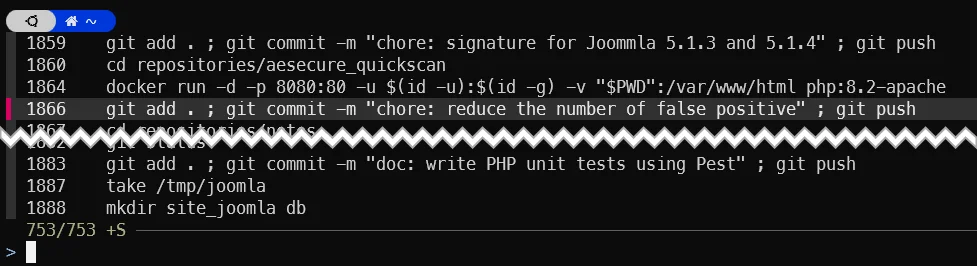
So press CTRL+R then start to type some letters like gacom and every entry having these letters (like git add . ; git commit ... will be retrieved).
This popup is still a linear walk through a flat text file, though: no timestamp, no exit code, no idea which folder you were in. If that limitation starts to bite, Atuin rebuilds the same CTRL+R shortcut on top of a SQLite database and keeps all that context for you.
Autosuggestions in the console using ZSH
By using ZSH and zsh-autosuggestion (see my previous post) you don't even need to worry about the history anymore.
Just start to type the first letters of a command like doc and all your previous docker fired statements will be accessible (just use navigation keys to select a previous command or type some more letters to be more restrictive).
Delete an instruction from your history
Ouch! You've forgotten to add a single space before your confidential instruction so, now, it's stored in the history.
No panic! The history file is ... a file so just run vi $HISTFILE and you can edit it.
Or, perhaps easier, just use history -d followed by the line number as displayed in the history output.
So if the output of history is the one below, I can remove the vi line by running history -d 2130
Information
But, then the command history -d 2130 will appear in the history, of course. So editing the file using a text editor is perhaps more ... discreet.
Note
You can specify a range like history -d 2100-2130 (Bash 5.1+).
This article is part of the Customize your shell with ZSH series:
- Customize your Linux prompt with Powerlevel10k
- How to install Oh-My-ZSH
- Autosuggestions in the console using ZSH
- Syntax highlighting in the console using ZSH
- Linux - Working with the history of your last fired actions
- ZSH Functions - Customizing Your Shell for Docker Management
- Beyond the Monolith - Organizing Your ZSH Workflow Like a Pro
Related posts

ai-explain: ELI5 for Scripts and Errors, Right in Your Terminal
November 12, 2026
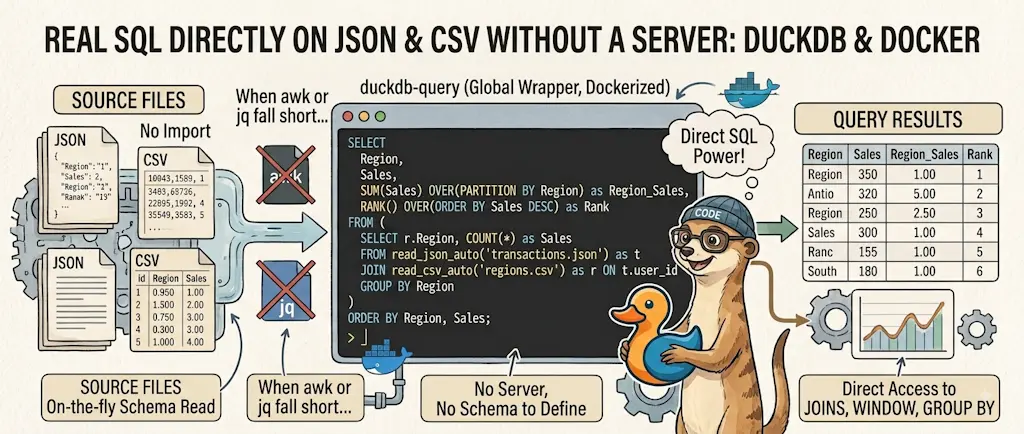
DuckDB - Query JSON and CSV Files With SQL, No Database Required
November 9, 2026
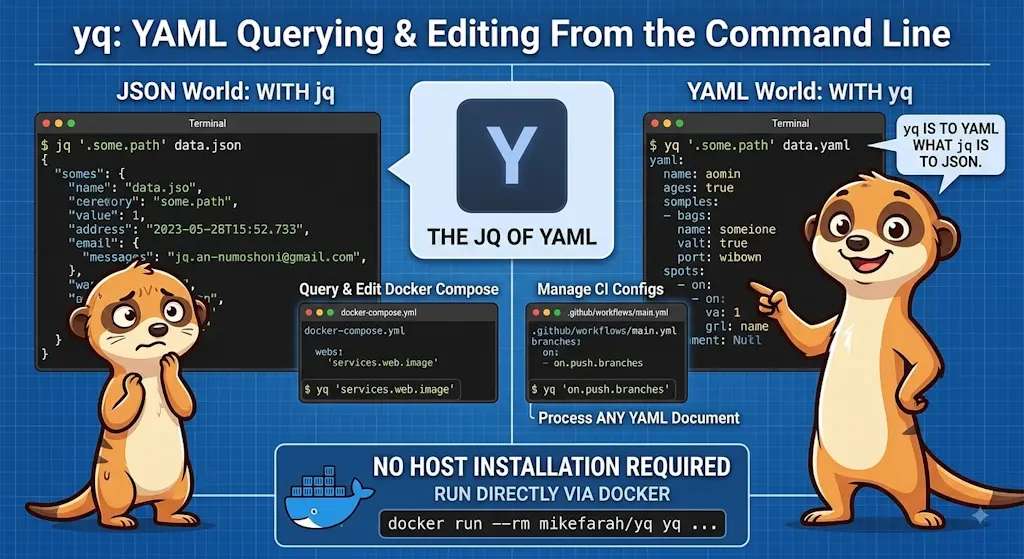
yq — The YAML Processor You Already Know How to Use
October 19, 2026
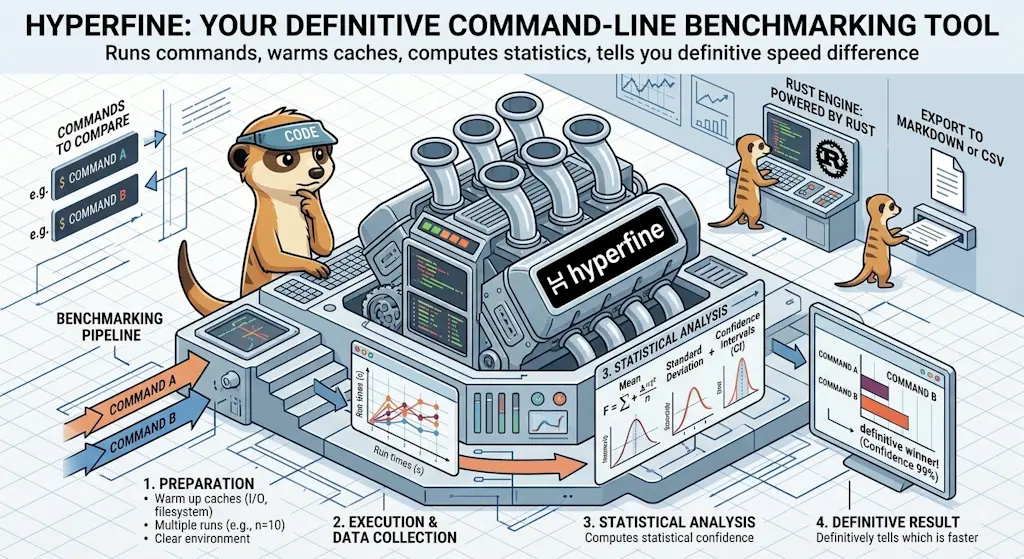
hyperfine — Stop Guessing Which Command Is Faster, Measure It
October 12, 2026

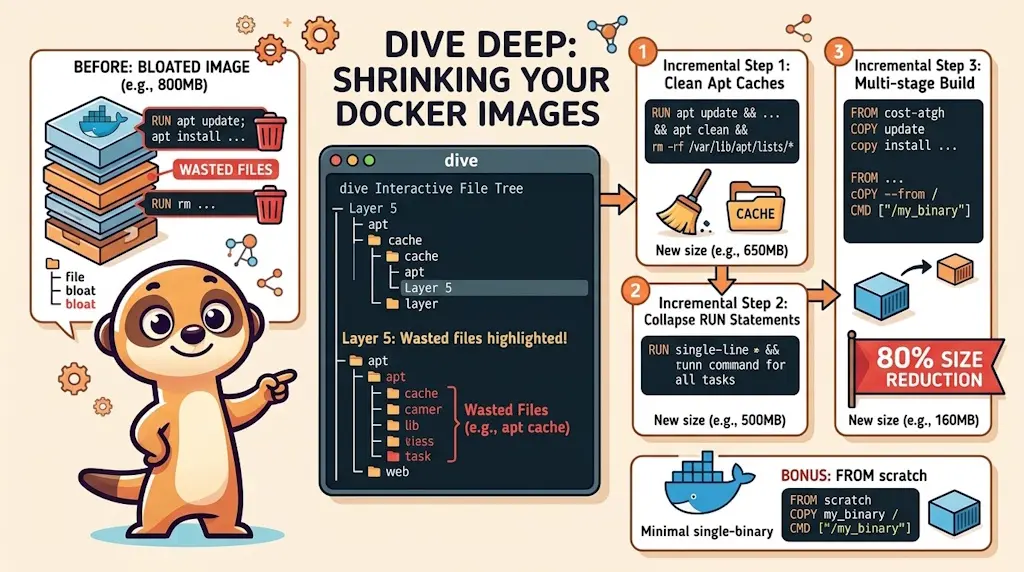
Docker Dive — X-Ray Your Images and Kill the Waste
September 24, 2026