ai-translate & ai-summarize: Confidential Documents, Handled 100% Locally
Two zsh functions that translate or summarize a Word, PDF, PowerPoint or Excel document without a single byte leaving your machine — Docling extracts the text locally, a local Ollama model does the translation or summary. Built for the document you'd never paste into a cloud translation tool.


This article is part of the Ollama daily use series:
- Installing Ollama and get local AI
- Accessing Ollama across your local network
- ai-test: Generate Missing Unit Tests From Your Terminal With a Local LLM
- ai-review, ai-secrets, ai-commit: Three zsh Checks Before Every git Commit
- AnythingLLM: Chat With All Your Scattered Documentation
- ai-translate & ai-summarize: Confidential Documents, Handled 100% Locally
- ai-diagram: From a Sentence (or a compose.yaml) to a Mermaid Diagram
- ai-data: Let a Local LLM Write Your jq and awk One-Liners
- ai-explain: ELI5 for Scripts and Errors, Right in Your Terminal
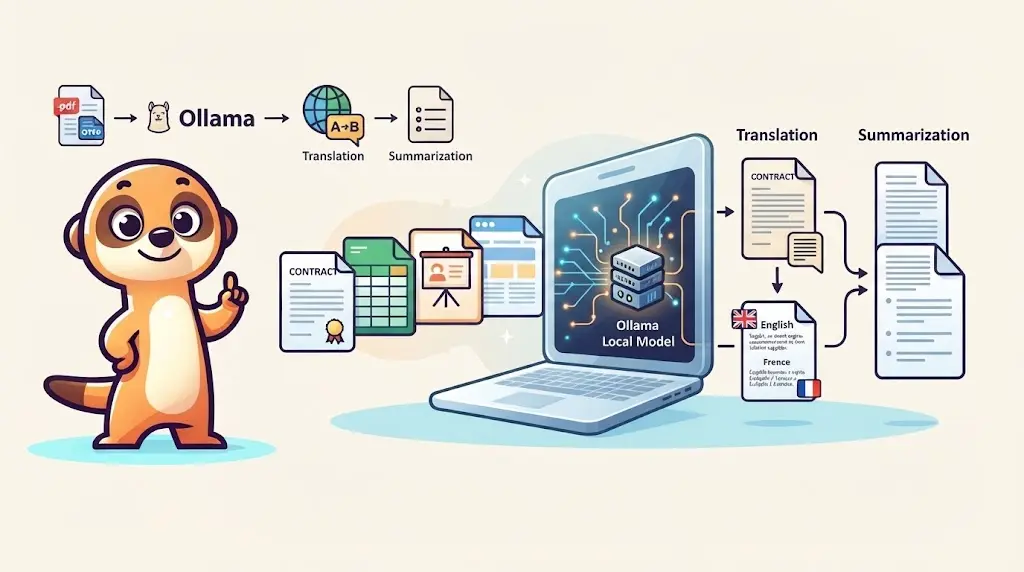
This article adds ai-translate and ai-summarize to the "Ollama daily use" series. Both accept a .pdf, .docx, .pptx, .xlsx or .html file — extracted to Markdown by Docling — or a plain .md/.txt file directly, then hand the text to the local Ollama model to translate or condense into bullet points. The entire round trip stays on your machine: no cloud translation API, no document upload anywhere, which is precisely the point for a contract, an HR document, or anything else you'd think twice about pasting into Google Translate.
I work in an office where a .docx lands in my inbox in Dutch, English or French. For a lot of good reasons, I sometimes need to translate from one language to another.
When it's not confidential at all, a reflex everyone has is to open the browser, paste into a translation tool, hope nobody minds that a client contract just passed through a third party's servers. Nobody ever explicitly told me not to. That's exactly the kind of thing you should not need permission to avoid.
Demo — ai-translate
Translation of a contract from any language to French:
And the same to Dutch:
That's a fictional service agreement, converted from .docx and translated into French/Dutch, with every heading and every bold term intact — the kind of document I would genuinely not paste into a browser-based translator.
Same document, so you can try it yourself before adapting either function to your own files:
contract.docx — the source documentDemo — ai-summarize
The same contract, condensed to four bullet points instead of translated:
Delivery deadlines, payment terms, the termination clause and which parts of the framework agreement get overridden — the four points that matter, pulled out without reading the full document.
Reusing Docling for Extraction
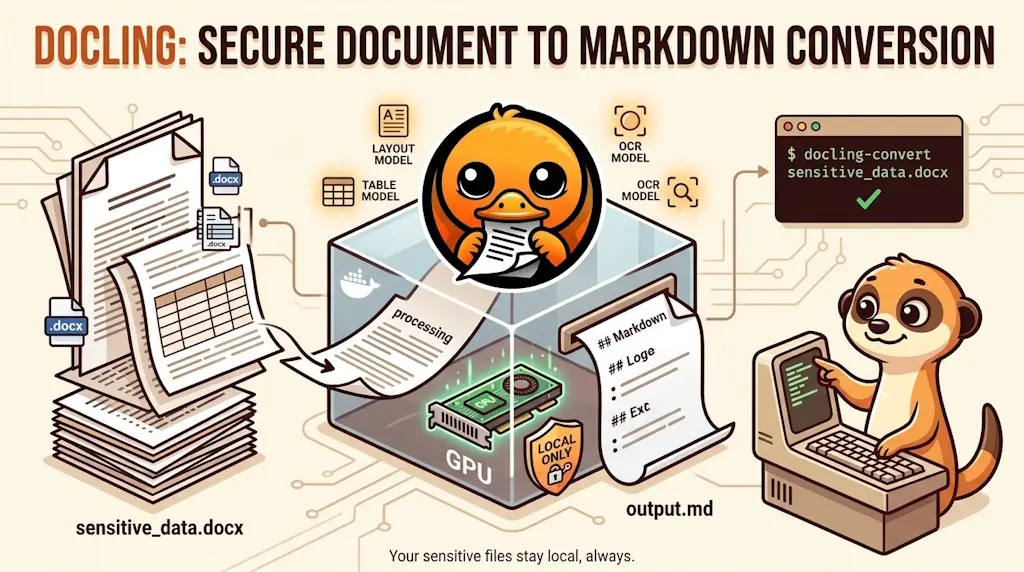
Both functions below share one job before they ever talk to Ollama: turning a document into plain text. I already built that piece in my Docling article — docling-convert file.docx produces file.md locally, GPU-accelerated if you set it up that way. Rather than duplicate that logic twice, it lives in one small helper:
No need to copy anything yet: the .zsh files shown in this article are here to be read, and Installing It at the end creates every one of them in ~/.zsh/fns/ for you.
# Shared document-to-text extraction for ai-translate and ai-summarize.# .pdf/.docx/.pptx/.xlsx/.html go through docling-convert (see /blog/docling)# first; .md/.markdown/.txt files are read directly, no conversion needed.## Leading underscore: loads after _ollama.zsh (still alphabetically before# ai-summarize.zsh and ai-translate.zsh), so _ollama_query is always ready.
_ai_extract_text() { local file="$1" local ext="${file:e:l}"
case "$ext" in md|markdown|txt) cat "$file" ;; pdf|docx|pptx|xlsx|html|htm) if ! command -v docling-convert >/dev/null 2>&1; then echo "_ai_extract_text: docling-convert not found — see /blog/docling to set it up" >&2 return 1 fi local dir filename base mdfile dir="${file:h}" filename="${file:t}" base="${filename%.*}" mdfile="${dir}/${base}.md" echo "→ Converting '$file' with docling-convert..." >&2 ( cd "$dir" && docling-convert "$filename" >/dev/null 2>&1 ) || { echo "_ai_extract_text: docling-convert failed on '$file'" >&2 return 1 } cat "$mdfile" ;; *) echo "_ai_extract_text: unsupported extension .$ext (expected pdf/docx/pptx/xlsx/html/md/txt)" >&2 return 1 ;; esac}This function extracts text from various document formats by either reading them directly (for plain text files) or converting them first using a tool called docling-convert (for binary formats like PDF and Word documents). It's a shared utility used by other AI tools in this script collection to prepare documents for processing.
Markdown and text files skip conversion entirely
If you already have a .md or .txt file, _ai_extract_text just cats it — no Docling call, no dependency. The conversion step only kicks in for actual office formats.
Why the subshell around docling-convert
docling-convert (from the previous article) mounts the current directory into its container and expects a filename relative to it — it wasn't built to resolve an arbitrary absolute path. ( cd "$dir" && docling-convert "$filename" ) runs it from the document's own folder, in a subshell, so your actual working directory is untouched when the function returns.
ai-translate
# ai-translate <file> [language] — translate a document into the given# language (default: French), entirely locally. Accepts .pdf/.docx/.pptx/# .xlsx/.html (via docling-convert) or plain .md/.txt files directly.
AI_COMMANDS[translate]="ai-translate <file> [language] — translate a document locally (default: French)"
ai-translate() { local file="$1" local lang="${2:-French}"
if [[ -z "$file" || ! -f "$file" ]]; then echo "Usage: ai-translate <file> [target-language]" >&2 return 1 fi
local text text=$(_ai_extract_text "$file") || return 1
local prompt="Translate the following document into $lang. Preserve the Markdown structure exactly — headings, lists, tables, emphasis. Output only the translated document, no commentary and no notes about the translation.
$text"
_ollama_query "$prompt"}This script defines a function that translates documents into a specified language (French by default) using a local AI model. It extracts text from various file formats, constructs a prompt that asks the AI to preserve formatting while translating, and sends that to the AI for processing.
Extract, then ask the model to translate into whatever language you pass as the second argument (French by default — the language I need most often), with an explicit instruction to preserve the Markdown structure so headings, lists, and tables survive the round trip instead of collapsing into a wall of text.
ai-summarize
# ai-summarize <file> [points] — summarize a document in N bullet points# (default: 5), entirely locally. Accepts .pdf/.docx/.pptx/.xlsx/.html (via# docling-convert) or plain .md/.txt files directly.
AI_COMMANDS[summarize]="ai-summarize <file> [points] — summarize a document locally (default: 5 points)"
ai-summarize() { local file="$1" local points="${2:-5}"
if [[ -z "$file" || ! -f "$file" ]]; then echo "Usage: ai-summarize <file> [number-of-points]" >&2 return 1 fi
local text text=$(_ai_extract_text "$file") || return 1
local prompt="Summarize the following document in exactly $points bullet points, written in the same language as the document. Prioritize decisions, numbers, deadlines and action items over generic description. Output only the bullet points, nothing else.
$text"
_ollama_query "$prompt"}This bash function summarizes documents by extracting their text content and sending it to a local AI model with instructions to produce a specific number of bullet points. It supports various file formats through a conversion utility and defaults to 5 bullet points if none are specified.
Same extraction step, different prompt: a fixed number of bullet points (5 by default), explicitly told to prioritize decisions, numbers, deadlines and action items over generic description — and to answer in whatever language the source document is already in, rather than silently switching to English.
Registered in the ai Menu
Two lines — AI_COMMANDS[translate]=... and AI_COMMANDS[summarize]=... — and both are reachable as ai translate / ai summarize, or directly as ai-translate / ai-summarize, alongside every other function in this series.
Both functions call _ollama_query and register into AI_COMMANDS, which live in the shared _ollama.zsh foundation introduced in ai-test. If you already followed an earlier article in this series, it's already sitting in ~/.zsh/fns/ and sourced by your autoloader — nothing more to do. Starting here instead? It is one of the files created in Installing It below.
Docling and Ollama don't have to be on the same machine
docling-convert always runs locally, no GPU required — converting a document to Markdown works on any laptop. Translating or summarizing still needs an Ollama server reachable somewhere, though: both functions connect to OLLAMA_HOST, same setup as accessing Ollama across your local network — a shared LAN, or a VPN/tunnel across two separate networks.
Key Takeaways
ai-translate / ai-summarize quick reference
- Shared extraction —
_ai_extract_textin_ai-docs.zsh, reused by both functions - Docling for office formats —
.pdf/.docx/.pptx/.xlsx/.htmlgo throughdocling-convertfirst - Markdown/text skip conversion —
.md/.txtfiles are read directly - Nothing leaves the machine — extraction and translation/summary both run locally, end to end
- Registers into
ai— reachable asai translateandai summarize
Installing It
Everything runs on your machine: zsh, curl and jq (which builds the request sent to Ollama), and an Ollama server you can reach — see installing Ollama if you don't have one yet. For .pdf, .docx, .pptx, .xlsx and .html files, you also need docling-convert, from my Docling article.
1. Create the files. Every function of this series lives in its own file in ~/.zsh/fns/. The one-liner below creates that folder and the four files in one go — or download the ZIP, or create each file by hand and paste its content. _ollama.zsh is the foundation the whole series shares: if an earlier article already gave it to you, the copy here is the same file.
Need help here? Click the "Help" button above for setup instructions.
2. Load the folder from ~/.zshrc. Already done if you followed an earlier article of this series. Otherwise, add these lines at the end of ~/.zshrc — they source every .zsh file in the folder, so the next function you add needs no change here:
for fn_file in ~/.zsh/fns/*.zsh; do
  source "$fn_file"
done
3. Open a new terminal (or run exec zsh in the current one), and check that the shell knows the new functions:
type ai-translate ai-summarize
ai-translate is a shell function from …/ai-translate.zsh means you're ready. ai-translate not found means step 2 is missing.
Conclusion
The actual privacy story here isn't a policy or a promise — it's an architecture. A document goes in, Docling turns it into text without a network call, Ollama processes that text without a network call, and the result lands in my terminal. There's no step in that chain where "trust the vendor" is required, which is exactly what makes it usable for the documents I'd never risk on a cloud tool in the first place. Between this, ai-ci for pipelines, ai-standup for the morning recap and the rest of this series, the local model I already had running for other reasons keeps finding one more thing worth doing quietly, in the background, without asking anything of me except a file path.
This article is part of the Ollama daily use series:
- Installing Ollama and get local AI
- Accessing Ollama across your local network
- ai-test: Generate Missing Unit Tests From Your Terminal With a Local LLM
- ai-review, ai-secrets, ai-commit: Three zsh Checks Before Every git Commit
- AnythingLLM: Chat With All Your Scattered Documentation
- ai-translate & ai-summarize: Confidential Documents, Handled 100% Locally
- ai-diagram: From a Sentence (or a compose.yaml) to a Mermaid Diagram
- ai-data: Let a Local LLM Write Your jq and awk One-Liners
- ai-explain: ELI5 for Scripts and Errors, Right in Your Terminal
Related posts

ai-explain: ELI5 for Scripts and Errors, Right in Your Terminal
November 12, 2026
Open WebUI — Beyond the Chat: Models, RAG, Tools and API Keys
October 26, 2026

ai-data: Let a Local LLM Write Your jq and awk One-Liners
October 22, 2026
Ask My Blog: Turning 259 Articles Into 2,160 Searchable Questions
September 28, 2026