Installing Ollama and get local AI
Learn how to deploy Ollama locally via Docker to run private, free LLMs and enable AI-powered code autocompletion in VSCode.


This article is part of the Ollama daily use series:
- Installing Ollama and get local AI
- Accessing Ollama across your local network
- ai-test: Generate Missing Unit Tests From Your Terminal With a Local LLM
- ai-review, ai-secrets, ai-commit: Three zsh Checks Before Every git Commit
- AnythingLLM: Chat With All Your Scattered Documentation
- ai-translate & ai-summarize: Confidential Documents, Handled 100% Locally
- ai-diagram: From a Sentence (or a compose.yaml) to a Mermaid Diagram
- ai-data: Let a Local LLM Write Your jq and awk One-Liners
- ai-explain: ELI5 for Scripts and Errors, Right in Your Terminal
Changelog

In one of my last articles about my TL;DR summary component, I created a Python script to consume the Gemini API and boom, after just a few requests, I got a maximum quota exceeded error.
What if we can solve this for free? How? Simply by installing a LLM locally, on our host. No more quota.
Try It in Your Terminal
Once Ollama is running and a model is pulled (covered under Installation below), the command is ollama run <model_name>:
You can now start to ask anything like a comparison between Quarto and Docusaurus:
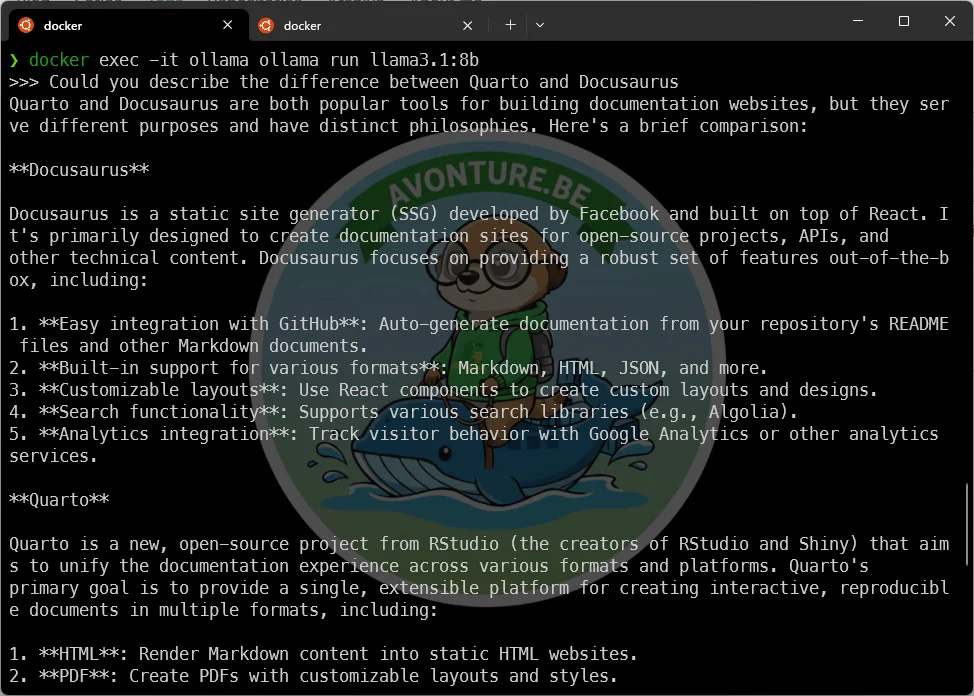
Or getting a joke :
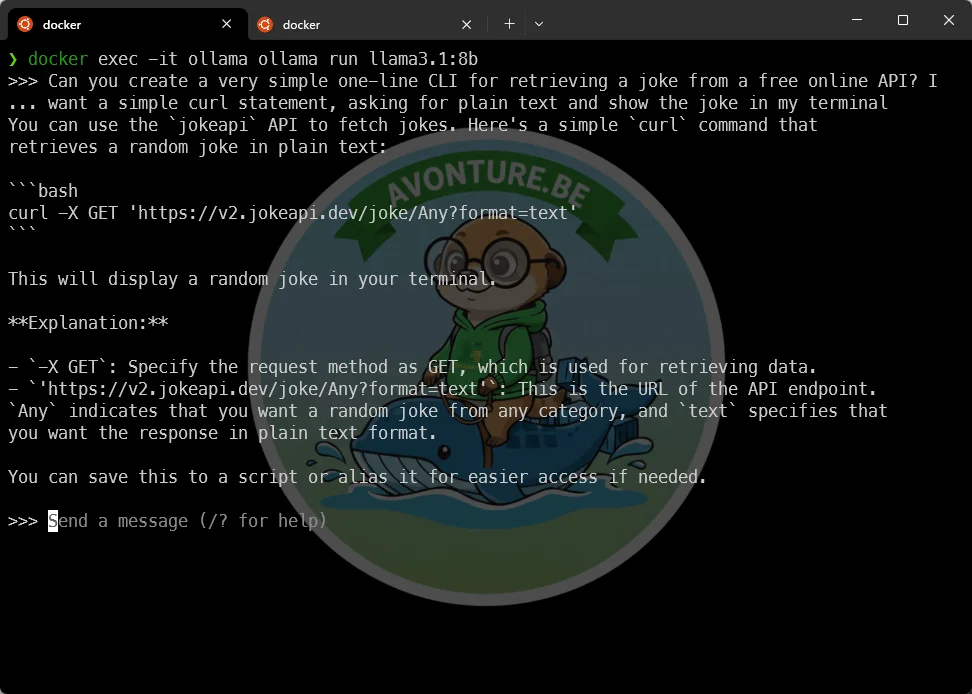
Type /bye to exit.
Faster the second time
You've experienced some delay right before getting the prompt? Run the exact same command again; you'll see, it's now immediate since the model is already loaded in RAM.
And, if you don't use the model for the next five minutes, Ollama will unload it, freeing up your RAM.
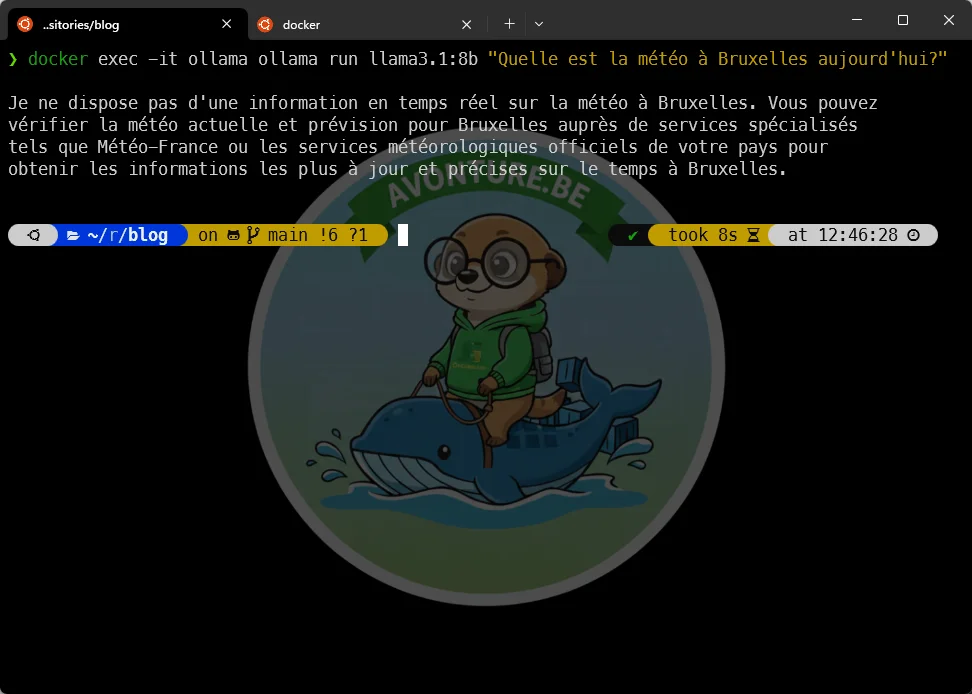
Should I speak English with the model?
In fact, no — just like a webpage, you can use your own language. In the example below, you can also see another way to ask a question: instead of jumping into a terminal, you can type your question directly on the command line.
Do you need a local LLM?
Probably the most important reason is privacy: having it locally, on your host, means that your documents stay on your computer. You won't share your codebase, for example, with AI companies. That same argument is why I liked Tabnine, which also works offline — Ollama simply takes the idea much further.
You can also think about automation: you'll be able to run automation scripts without the fear of reaching any quota. Also, you don't have to be afraid of billing; since it runs on your host, it's completely free.
Installing and running Ollama
You know, as a Docker lover, I won't install Ollama by hand.
Let's create the compose.yaml file on your disk. I use a few Docker containers every day, and I save their configuration files in a ~/tools folder; let's do the same here.
Run mkdir ~/tools/ollama && cd $_ then create a compose.yaml with this content:
Still in the ~/tools/ollama folder, simply run docker compose up --detach to download ollama and run it as a Docker container.
Download an LLM model
First, you need to think about your use case. Most likely, you'll want speed and accuracy.
For speed, you should use a "small" LLM like llama3.1:8b. Let's take an example: you plan to use a VSCode extension, and you need speed for autocompletion.
For accuracy, you might be okay with waiting a bit longer to get better results.
First, pay attention to how much free RAM you have.
$ free -h
               total        used        free      shared  buff/cache       available
Mem:            15Gi       5.4Gi       2.4Gi       9.7Mi       7.8Gi       9.9Gi
Swap:          4.0Gi        11Mi       4.0Gi
Look at the last column available. I actually have ~10GB free, so I can easily choose a model of ~4.7GB, like llama3.1:8b.
Start a new terminal and run this command:
We're using Docker right?
Since we've installed ollama as a Docker container, we've to use the docker exec -it ollama syntax then the ollama CLI.
This is why, for instance, we're running docker exec -it ollama ollama pull llama3.1:8b.
If you run free -h again, look at the Available column again. I had ~9.9G before, now I've ~5.5G.
Where are stored LLMs?
Since we're using Docker, look at the compose.yaml file. We're using a ollama_data Docker self-managed volume.
Like any other volume, nothing will pollute our disk. If one day we wish to remove Ollama, we just need to remove the Docker container and the associated volume. Et voilà.
More power needed?
There are a lot of models available, look at the suffix at the end of llama3.1:8b; for instance, 8b means 8 billion parameters. The more you can have, the more knowledge you'll get, but it has a price: the size.
If you've more than 32GB of RAM, you can certainly also use gemma2:27b (27 billion parameters, around ~17G), mixtral:8x7b (around ~26G) or llama3:70b (70 billion parameters, ~45GB).
The higher the parameter count, the better the results — but also the slower the response. You have to determine, for your own use case (your hardware, your GPU, your needs, ...), one or two LLMs you'll use.
For instance, a very fast (so, small) model for quick interactions — you don't want to wait 30 seconds for an answer — and a more powerful one for heavy tasks like code refactoring or generating a codebase.
What Does 8x7b Mean?
If you look at mixtral, you'll notice the 8x7b suffix. This indicates that the model uses a Mixture of Experts (MoE) architecture, meaning it is composed of 8 distinct expert neural networks, each with 7 billion parameters.
When you use this type of model, a built-in router first analyzes your prompt to determine which experts are best equipped to answer.
Let's look at an example: imagine you ask Mixtral to generate a Python function. First, the router processes the context of your question. Then, it seamlessly activates only the most relevant experts for that specific task (typically just two out of the eight) to generate the best possible answer.
Because it selectively uses its experts, mixtral is an incredibly versatile and highly efficient model—provided your machine has enough RAM to load the entire framework into memory!
Getting the list of models
If you want to retrieve models you've already installed:
The entire list of existing models is online: https://ollama.com/library
Using a web interface
You can download a WebGUI to interact with Ollama and the most used one is Open WebUI
Let's edit our compose.yaml file and add a new service:
Run docker compose up --detach to download the open-webui image (~1.7G) and create the container.
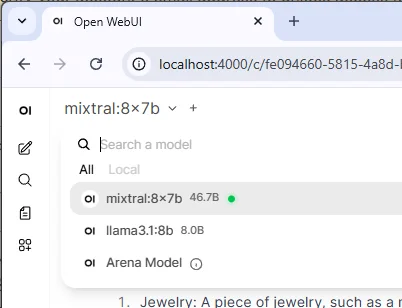
Now, simply surf to http://localhost:4000 and you'll have your interface and, you can start to interact with your local LLM.
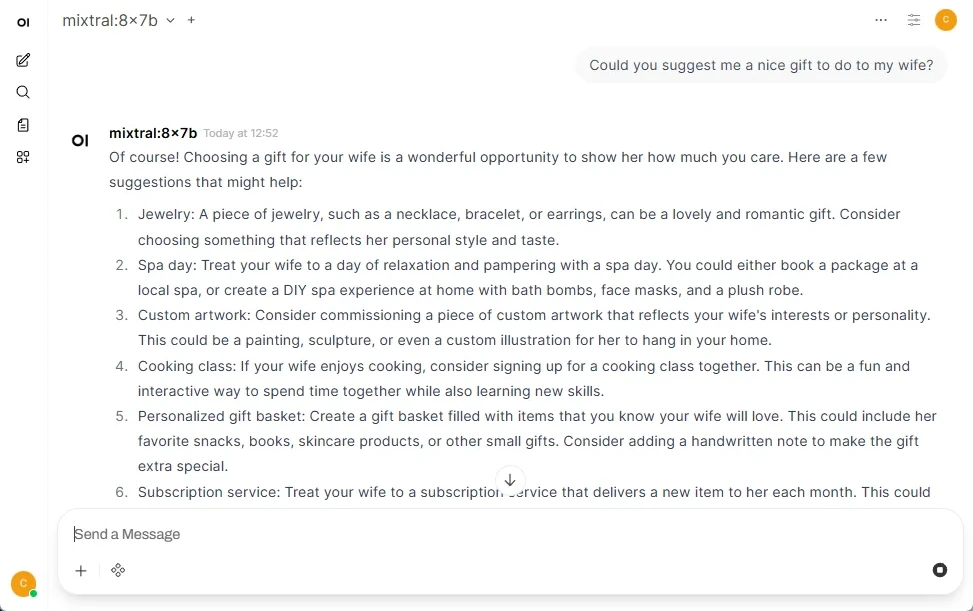
Pay attention top left: you can see there the list of installed models.
The chat window is only the surface: model presets, RAG on your documents, Python Tools and API keys are covered in Open WebUI — Beyond the Chat.
Using a VSCode extension
If you want to add AI in VSCode, you can install Continue - open-source AI agent.
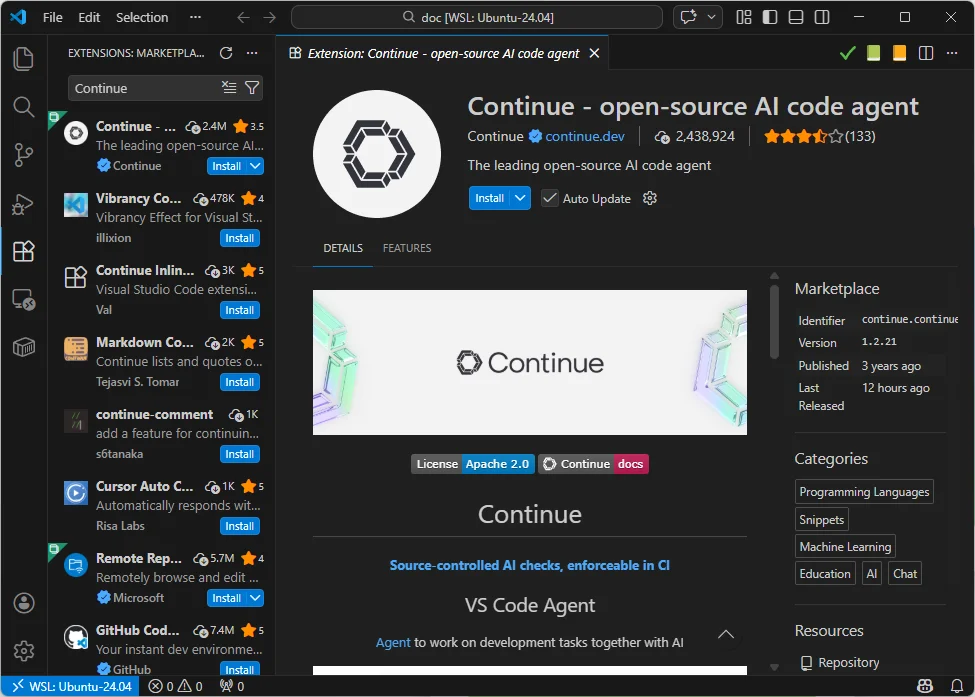
Continue's status as of July 2026
Continue was acqui-hired by Cursor (Anysphere) in June 2026, and the standalone open-source project was wound down: v2.0.0 (June 19, 2026) is the final release, and the GitHub repository is now read-only — no further security patches, model adapters, or editor-compatibility fixes from the original team. The bring-your-own-LLM path with Ollama, which is all this section uses, still works fine in that final release. Worth knowing before investing time in it, but not a reason to skip local autocompletion entirely.
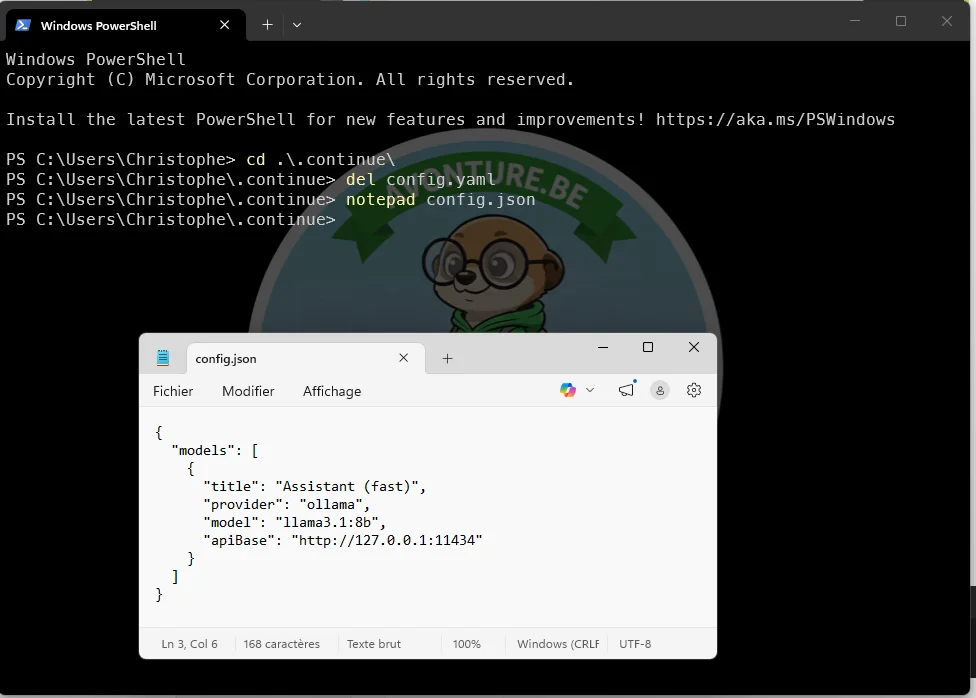
Continue requires a config file in your Windows home folder — not on the WSL side, at least in my original testing; worth reconfirming on current versions if this doesn't match what you see.
config.yaml, not config.json
Older Continue versions (pre-1.0) used config.json. That format is now deprecated — current versions use ~/.continue/config.yaml instead, with models listed under explicit roles (chat, edit, autocomplete). The snippets below use this current format.
Start a Powershell terminal, run cd ~/.continue ; notepad config.yaml and paste the content of this file:
Restart VSCode again or, in the Continue panel, find the Local config option and select Refresh.
When you see your model name in the list of loaded models, Continue is ready to manage your first question.
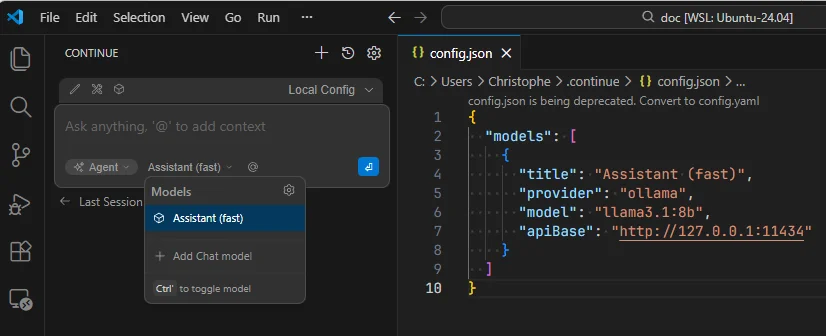
From now on, you can use Continue to ask questions about your codebase, generate unit tests, refactor some code, and so on.
The speed will depend on the model you've selected and your hardware for sure.
Using autocompletion
When you're typing some text in VSCode, you wish immediate autocompletion and not to wait one second or more.
For this, you'll need to use a faster model; let's use qwen2.5-coder:1.5b (1.5 billion parameters, around ~1G).
Update your .continue/config.yaml file (on Windows side) with this new content:
Now that I've added the qwen2.5-coder:1.5b model in my config file, let's create a calculate.sh file with this content:
#!/bin/bash
functionThis is an incomplete bash script file. It has a shebang line indicating it should be executed by bash, but the function definition on line 3 is incomplete and has no body or name, making this script invalid and non-functional.
... and nothing more.
After just one second, VSCode will suggest completing the function with the right code:

I accepted the suggestion and typed function main; again, after one second, the rest of the code was autocompleted.
Then I typed function help, accepted the proposal, and finally accepted the last lines of the script.
So, in less than 5 seconds, I've got a complete script with the right code and the right comments. All this without writing a single line of code, just by accepting suggestions from the LLM.
And it works out-of-the-box!
Using more powerful LLM depending on your expectations
Updated 2026-07-27
This section originally recommended gemma2:27b, a dense 27-billion-parameter model. I've since moved to qwen3-coder:30b for this role — same Mixture-of-Experts trick explained earlier for Mixtral: 30 billion parameters total, but only ~3.3 billion active per token, so it's noticeably faster than a dense model of similar size while fitting comfortably in 24GB of VRAM (around 19GB on disk with the default quantization). The screenshot further down still shows the original gemma2:27b test — the config and pull command below reflect the current recommendation.
If you've a powerful CPU and/or GPU with 24GB or more, you can add a stronger model like qwen3-coder:30b:
This model is noticeably more accurate than the fast assistant, and — thanks to the Mixture-of-Experts architecture — still reasonably quick despite its size. Save it for intensive code analysis tasks such as code refactoring, generating complex unit tests, and so on.
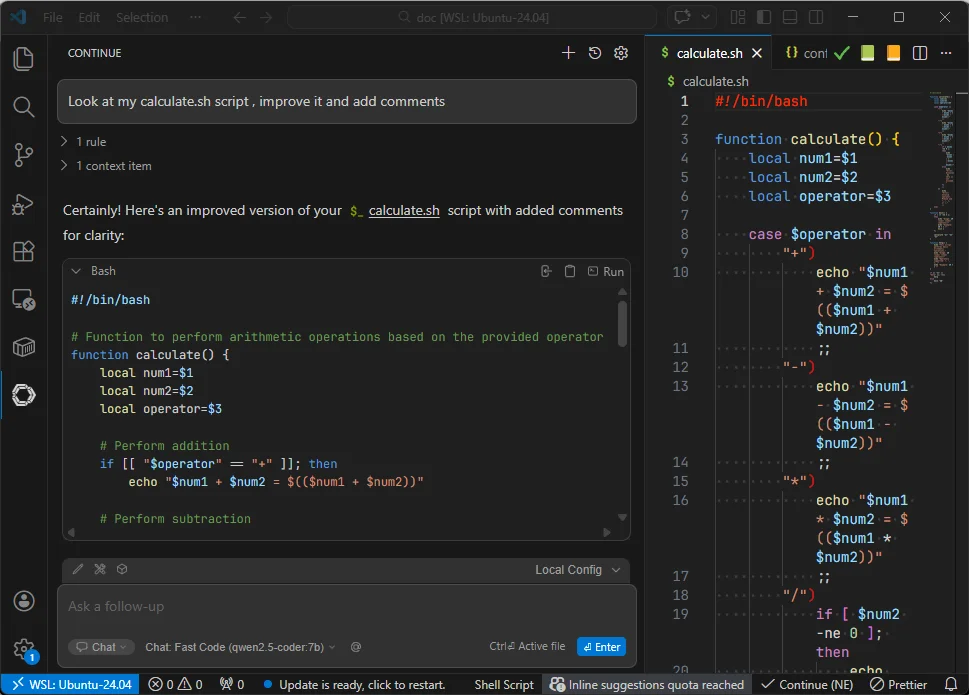
Here's the original test, asking gemma2:27b for a refactoring — it was really slow even on my machine (i9 - 64GB):
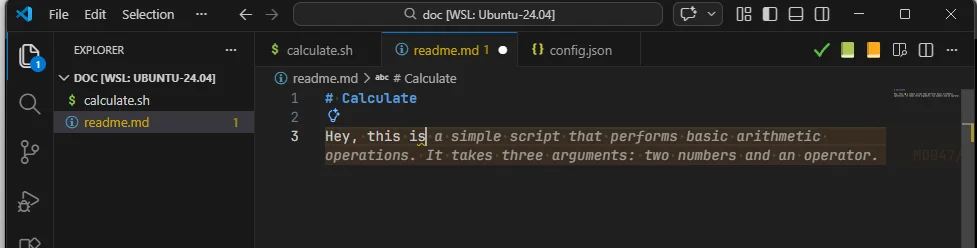
And using autocompletion for the readme.md
Bonus
CanIRun.ai
The website https://www.canirun.ai/ automatically detects your CPU, GPU, and memory configuration—strictly locally, without transmitting your system data to an external server—and instantly outputs a realistic assessment of which AI models your machine can execute smoothly.
By visiting that web page, the system will calculate which AI models can run on your hardware and how fast. No data is sent to any server. Everything is computed client-side.
Freeing Up RAM with ollama stop
If you ever need to instantly reclaim your system's memory, you can force a model to unload by running docker exec -it ollama ollama stop <model_name>.
However, this manual step usually isn't necessary, as Ollama is designed to automatically unload models from your RAM after a few minutes of inactivity. It's simply a handy command to keep in your back pocket for those times you need immediate control over your resources!
Remove a model
Simply run docker exec -it ollama ollama rm <model_name>.
.wslconfig file
If you're a WSL2 user, it's a good idea to create a .wslconfig file in your Windows partition in order to specify a few default settings for WSL, such as the maximum amount of RAM it can use.
On my host, I use these settings:
[wsl2]
# Limits RAM to leave 12GB for Windowsmemory=20GB
# (Optional) Adds some dedicated swap space for WSLswap=8GB
# Mirror Windows network interfaces to WSL for seamless localhost accessnetworkingMode=mirrored
# Automatically shrink the WSL virtual disk when files are deleted to free up spacesparseVhd=true
[experimental]
# Enables automatic RAM reclamation so, Windows can reclaim itautoMemoryReclaim=gradualThis is a configuration file for WSL2 (Windows Subsystem for Linux 2) that tunes performance and resource management. It allocates 20GB of RAM to the Linux environment while reserving the rest for Windows, enables network mirroring so localhost works seamlessly between Windows and Linux, adds swap space for extra memory flexibility, and enables automatic cleanup features to prevent the Linux virtual disk from unnecessarily consuming disk space.
To create this file, simply start a new Powershell terminal, run cd ~ to go to your home directory (at Windows level) and run notepad .wslconfig to open that file (and create it if needed).
Tip
Remember to run wsl --shutdown in a Powershell console if you've created/updated the .wslconfig file.
This article is part of the Ollama daily use series:
- Installing Ollama and get local AI
- Accessing Ollama across your local network
- ai-test: Generate Missing Unit Tests From Your Terminal With a Local LLM
- ai-review, ai-secrets, ai-commit: Three zsh Checks Before Every git Commit
- AnythingLLM: Chat With All Your Scattered Documentation
- ai-translate & ai-summarize: Confidential Documents, Handled 100% Locally
- ai-diagram: From a Sentence (or a compose.yaml) to a Mermaid Diagram
- ai-data: Let a Local LLM Write Your jq and awk One-Liners
- ai-explain: ELI5 for Scripts and Errors, Right in Your Terminal
Loading comments…
Related posts

ai-explain: ELI5 for Scripts and Errors, Right in Your Terminal
November 12, 2026
Open WebUI — Beyond the Chat: Models, RAG, Tools and API Keys
October 26, 2026

ai-data: Let a Local LLM Write Your jq and awk One-Liners
October 22, 2026
Ask My Blog: Turning 259 Articles Into 2,160 Searchable Questions
September 28, 2026