Accessing an Oracle database using .Net, NodeJS, PHP and Python
Step-by-step guide to accessing an Oracle database container with .Net, Node.js, PHP, and Python. Includes Dockerfile and full code samples for each language. (154 characters)

This article is over a year old but was reviewed on July 30, 2026 — the content is still accurate.
This article is part of the Running Oracle Database Server as a Docker container series:
- Running Oracle Database Server as a Docker container
- Transform an Oracle DB as OpenData using Oracle REST Data Services
- Accessing an Oracle database using .Net, NodeJS, PHP and Python

This step-by-step guide demonstrates how to connect to an Oracle database from .Net, Node.js, PHP, and Python. For each language, you'll find a complete, ready-to-use example that includes the Dockerfile for building a container with all necessary dependencies, and a sample script to query the database. This article provides a quickstart template for anyone needing to integrate an Oracle database into their application, regardless of the programming language.
In a previous article (Running Oracle Database Server as a Docker container), we've created a Docker container called oracle-db where a Human Resources database is running.
This time, let's play with .Net, NodeJS, PHP and Python to access to it and display records.
For each language, we'll build a Docker image with all the required stuff like Oracle Instant Client then we'll create a small script to connect to the employees table and display records.
The idea is then to provide a very quick skeleton for starting a project in those languages and if you need to directly connect to an Oracle database.
If you'd rather not write a connector at all, Transform an Oracle DB as OpenData using Oracle REST Data Services exposes the same tables as a REST API that any language can consume with a plain HTTP call.
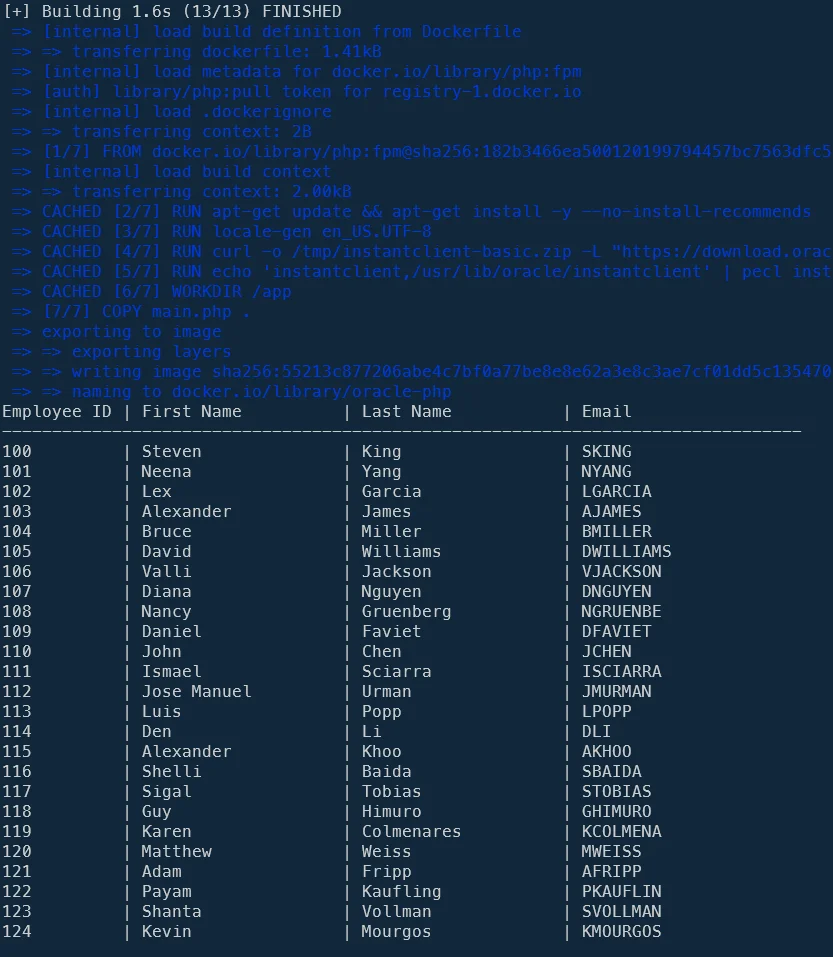
Here's the result, whichever language you pick below: a small Docker container that connects and prints the employees table.

In the Running Oracle Database Server as a Docker container article, we've created a Docker container called oracle-db where a Human Resources database is running.
Please read that article and follow steps so, before continuing here, you've a running Docker container as described below.
Some prerequisites
Before you begin make sure...
- You've a running Docker container called
oracle-db, - The container is thus running on your
localhost, - The port number to access your database is
1521, - The credentials to use is
SYS(orSYSTEM) andadminfor the password, - The container contains a database called
ORCLPDB1(also called service name) which is the Human Resources sample of Oracle (refer to the mentioned article) and - Our database
oracle-dbis running on a network calledoracle.
The code samples were largely created using AI
Because it's fast to do and also because I don't know .Net and very little NodeJS, I've used Google Gemini for building my samples below. Sometimes, like for .Net, it was almost ready-to-use. Sometimes for PHP, it was more difficult and it took a lot of fiddling on my part to find the right configuration.
Nevertheless the objective of this article was to provide the minimum set of files in order to connect to an Oracle DB, run a SELECT query and display results; not to have a best-in-class codebase.
Access our Oracle DB container using .Net
First language by alphabetical order; let's play with a .Net container:
Also create this directory:
Let's create a Dockerfile:
# cspell:ignore libaio1,instantclient,libclntsh,libocci,ldconfig
FROM mcr.microsoft.com/dotnet/sdk:8.0 AS build
WORKDIR /app
COPY OracleConnector/*.csproj ./OracleConnector/RUN dotnet restore ./OracleConnector/OracleConnector.csproj
COPY OracleConnector/. ./OracleConnector/RUN dotnet publish ./OracleConnector/OracleConnector.csproj -c Release -o out
FROM mcr.microsoft.com/dotnet/runtime:8.0 AS final
WORKDIR /app
COPY --from=build /app/out .
# Install necessary Oracle Instant Client librariesARG ORACLE_INSTANT_CLIENT_VERSION=21.12ARG ORACLE_DOWNLOAD_URL=https://download.oracle.com/otn_software/linux/instantclient/instantclient-basic-linuxx64.zip
RUN apt-get update && apt-get install -y --no-install-recommends \ curl \ unzip \ libaio1 \ && rm -rf /var/lib/apt/lists/*
RUN curl -sSL "${ORACLE_DOWNLOAD_URL}" -o instantclient.zip \ && mkdir -p /usr/lib/oracle/instantclient \ && unzip -qq instantclient.zip -d /usr/lib/oracle/instantclient \ && rm instantclient.zip \ && ln -s /usr/lib/oracle/instantclient/libclntsh.so.${ORACLE_INSTANT_CLIENT_VERSION}.1 /usr/lib/oracle/instantclient/libclntsh.so \ && ln -s /usr/lib/oracle/instantclient/libocci.so.${ORACLE_INSTANT_CLIENT_VERSION}.1 /usr/lib/oracle/instantclient/libocci.so \ && echo "/usr/lib/oracle/instantclient" > /etc/ld.so.conf.d/oracle-instantclient.conf \ && ldconfig
ENTRYPOINT ["dotnet", "OracleConnector.dll"]This Dockerfile builds a .NET application in a temporary stage, then creates a final lightweight runtime image that includes the compiled application and Oracle database client libraries needed to connect to Oracle databases. It uses a multi-stage build to keep the final image small by discarding the build tools.
Now, the DotNet part. We need two files: OracleConnector/OracleConnector.csproj and OracleConnector/main.cs.
<Project Sdk="Microsoft.NET.Sdk">
<PropertyGroup> <OutputType>Exe</OutputType> <TargetFramework>net8.0</TargetFramework> <ImplicitUsings>enable</ImplicitUsings> <Nullable>enable</Nullable> </PropertyGroup>
<ItemGroup> <PackageReference Include="Oracle.ManagedDataAccess.Core" Version="3.21.121" /> </ItemGroup>
</Project>This is a C# project configuration file that sets up a console application (.NET 8.0) with Oracle database connectivity. It enables modern C# features like implicit usings and nullable reference types, then adds the Oracle data access library as a dependency.
// cspell:ignore orclpdb1
using Oracle.ManagedDataAccess.Client;using System;
namespace OracleConnector{ class Program { static void Main(string[] args) { string dbHost = Environment.GetEnvironmentVariable("ORACLE_HOST") ?? "oracle-db"; string dbPort = Environment.GetEnvironmentVariable("ORACLE_PORT") ?? "1521"; string dbService = Environment.GetEnvironmentVariable("ORACLE_SERVICE") ?? "orclpdb1"; string dbUser = Environment.GetEnvironmentVariable("ORACLE_USER") ?? "system"; string dbPassword = Environment.GetEnvironmentVariable("ORACLE_PASSWORD") ?? "admin";
string connectionString = $"Data Source=(DESCRIPTION=(ADDRESS_LIST=(ADDRESS=(PROTOCOL=TCP)(HOST={dbHost})(PORT={dbPort})))(CONNECT_DATA=(SERVICE_NAME={dbService})));User ID={dbUser};Password={dbPassword};";
try { using (OracleConnection connection = new OracleConnection(connectionString)) { connection.Open();
string sql = "SELECT employee_id, first_name, last_name, email FROM employees WHERE ROWNUM <= 25";
using (OracleCommand command = new OracleCommand(sql, connection)) using (OracleDataReader reader = command.ExecuteReader()) { Console.WriteLine("\nEmployee ID | First Name | Last Name | Email"); Console.WriteLine("------------|----------------------|----------------------|-------------------------");
while (reader.Read()) { int employeeId = reader.GetInt32(0); string firstName = reader.GetString(1); string lastName = reader.GetString(2); string email = reader.GetString(3);
Console.WriteLine($"{employeeId,-12}| {firstName,-21}| {lastName,-21}| {email}"); } } } } catch (OracleException ex) { Console.WriteLine($"Error connecting to or querying Oracle: {ex.Message}"); } catch (Exception ex) { Console.WriteLine($"An unexpected error occurred: {ex.Message}"); } } }}This program connects to an Oracle database using credentials loaded from environment variables (with sensible defaults), then retrieves and displays the first 25 employee records in a formatted table. It uses the Oracle managed data access library and includes error handling for connection and query failures.
This is what your project looks like in VSCode:

Still in the console, located in folder /tmp/oracle/dotnet, create the Docker image and run the container (and thus the script): clear ; docker build -t oracle-dotnet . && docker run --rm -it --network oracle oracle-dotnet.
Job done — the same result already shown at the top of this article, our .Net code has accessed the list.
Access our Oracle DB container using NodeJS
Second in the alphabetical order, let's play with a NodeJS container:
Let's create a Dockerfile:
# cspell:ignore libaio
FROM node:20-alpine
WORKDIR /app
COPY package.json .
RUN npm install -g npm@latestRUN npm install
RUN apk add --no-cache --update curl unzip libaio
COPY main.js .
CMD ["npm", "start"]This Dockerfile builds a Docker image based on Node.js 20 running on Alpine Linux. It sets up a working directory, installs dependencies, adds some system tools we'll need at runtime, copies the application code in, and configures the container to start by running npm start.
We also need these files:
{ "name": "oracle-connector-nodejs", "version": "1.0.0", "description": "Node.js script to connect to Oracle", "main": "app.js", "scripts": { "start": "node main.js" }, "dependencies": { "oracledb": "^6.3.0" }}This is a package.json file that configures a Node.js project for connecting to Oracle databases. It specifies the project metadata, defines how to run the application, and declares that the project depends on the oracledb library version 6.3.0 or compatible newer versions.
// cspell:ignore orclpdb1, oracledb

const oracledb = require("oracledb");

async function run() {
  let connection;

  try {
    const dbHost = process.env.ORACLE_HOST || "oracle-db";
    const dbPort = process.env.ORACLE_PORT || "1521";
    const dbService = process.env.ORACLE_SERVICE || "orclpdb1";
    const dbUser = process.env.ORACLE_USER || "SYSTEM";
    const dbPassword = process.env.ORACLE_PASSWORD || "admin";

    const connectConfig = {
      user: dbUser,
      password: dbPassword,
      connectString: `${dbHost}:${dbPort}/${dbService}`,
    };

    connection = await oracledb.getConnection(connectConfig);

    const result = await connection.execute(
      `SELECT employee_id, first_name, last_name, email FROM employees WHERE ROWNUM <= 25`, // Assuming your table is named 'EMPLOYEES'
    );

    console.log(
      "\nEmployee ID | First Name           | Last Name             | Email",
    );
    console.log(
      "------------|----------------------|-----------------------|-------------------------",
    );

    for (const row of result.rows) {
      const employeeId = row[0];
      const firstName = row[1];
      const lastName = row[2];
      const email = row[3];
      console.log(
        `${employeeId.toString().padEnd(12)}| ${firstName.padEnd(21)}| ${lastName.padEnd(21)}| ${email}`,
      );
    }
  } catch (err) {
    console.error("Error connecting to or querying Oracle:", err);
  } finally {
    if (connection) {
      try {
        await connection.close();
      } catch (err) {
        console.error("Error closing connection:", err);
      }
    }
  }
}

run();
Still in the console, located in folder /tmp/oracle/nodejs, create the Docker image and run the container (and thus the script): clear ; docker build -t oracle-nodejs . && docker run --rm -it --network oracle oracle-nodejs.

Nice! As you can see, we can quite easily access our Oracle database using NodeJS.
Access our Oracle DB container using PHP
And, last in the alphabetical order; let's finish with a PHP container:
And there, let's create a Dockerfile:
# cspell:ignore instantclient,libaio1,libncurses5,libreadline8,ldconfig,pecl
FROM php:fpm
RUN apt-get update && apt-get install -y --no-install-recommends \ libaio1 \ libncurses5 \ libreadline8 \ locales \ unzip \ && rm -rf /var/lib/apt/lists/*
RUN locale-gen en_US.UTF-8ENV LANG=en_US.UTF-8ENV LANGUAGE=en_US:enENV LC_ALL=en_US.UTF-8
ARG ORACLE_INSTANT_CLIENT_VERSION=21.12
# Downloading Oracle Instant ClientRUN curl -o /tmp/instantclient-basic.zip -L "https://download.oracle.com/otn_software/linux/instantclient/instantclient-basic-linuxx64.zip" \ && curl -o /tmp/instantclient-sdk.zip -L "https://download.oracle.com/otn_software/linux/instantclient/instantclient-sdk-linuxx64.zip" \ && mkdir -p /usr/lib/oracle \ && unzip -o /tmp/instantclient-basic.zip -d /usr/lib/oracle \ && unzip -o /tmp/instantclient-sdk.zip -d /usr/lib/oracle \ && rm /tmp/*.zip \ && ln -s /usr/lib/oracle/instantclient_* /usr/lib/oracle/instantclient \ && sh -c "echo /usr/lib/oracle/instantclient > /etc/ld.so.conf.d/oracle-instantclient.conf" \ && ldconfig
# Install OCI8 ExtensionRUN echo 'instantclient,/usr/lib/oracle/instantclient' | pecl install oci8 \ && docker-php-ext-enable oci8
WORKDIR /app
COPY main.php .
CMD [ "php", "main.php" ]This Dockerfile builds a PHP FPM container with Oracle database support. It starts with a PHP image, installs system dependencies and locale settings, downloads Oracle Instant Client libraries, configures the system to find those libraries, installs the PHP OCI8 extension to connect to Oracle, and sets up a working directory to run a PHP application.
Then let's create a PHP script (generated using AI)
<?php
declare(strict_types=1);
// cspell:ignore orclpdb1,rownum,sqlt
$dbUser = "system";$dbPassword = "admin";$dbHost = "oracle-db";$dbPort = "1521";$dbServiceName = "orclpdb1";
$connection = null;$statement = null;
try { $dsn = "(DESCRIPTION=(ADDRESS_LIST=(ADDRESS=(PROTOCOL=TCP)(HOST={$dbHost})(PORT={$dbPort})))(CONNECT_DATA=(SERVICE_NAME={$dbServiceName})))";
/** @var resource|false $connection */ $connection = oci_connect($dbUser, $dbPassword, $dsn, "");
if (!$connection) { $e = oci_error(); throw new Exception("Error connecting to Oracle: " . $e['message']); }
$sql = "SELECT employee_id, first_name, last_name, email FROM system.employees WHERE ROWNUM <= :max_rows";
/** @var resource|false $statement */ $statement = oci_parse($connection, $sql);
if (!$statement) { $e = oci_error($connection); throw new Exception("Error parsing SQL statement: " . $e['message']); }
$numRows = 25; oci_bind_by_name($statement, ":max_rows", $numRows, SQLT_INT);
$result = oci_execute($statement);
if (!$result) { $e = oci_error($statement); throw new Exception("Error executing SQL statement: " . $e['message']); }
echo "Employee ID | First Name | Last Name | Email\n"; echo str_repeat("-", 80) . "\n";
while (($row = oci_fetch_array($statement, OCI_ASSOC + OCI_RETURN_NULLS)) !== false) { $employeeId = (int) $row['EMPLOYEE_ID']; $firstName = $row['FIRST_NAME']; $lastName = $row['LAST_NAME']; $email = $row['EMAIL']; printf("%-12d| %-20s| %-20s| %-26s\n", $employeeId, $firstName, $lastName, $email); }
} catch (Exception $exception) { echo "Error: " . $exception->getMessage() . "\n";} finally { if (is_resource($statement)) { oci_free_statement($statement); } if (is_resource($connection)) { oci_close($connection); }}
?>This PHP script connects to an Oracle database using hardcoded credentials, runs a query to fetch the first 25 employees from a table, and displays them formatted as a columnar report. It includes error handling at each step and always cleans up the database connection and statement resources when done, whether the script succeeds or fails.
Still in the console, located in folder /tmp/oracle/php, create the Docker image and run the container (and thus the script): clear ; docker build -t oracle-php . && docker run --rm -it --network oracle oracle-php.
Access our Oracle DB container using Python
Let's create a Python script now:
And its Dockerfile; the only thing we need (except Python) is to install the oracledb dependency. Quite straightforward.
# cspell:ignore oracledb
FROM python:slim
WORKDIR /app
RUN pip install --no-cache-dir oracledb
COPY main.py main.py
CMD ["python", "main.py"]This Dockerfile creates a Docker image based on a slim Python runtime, installs the Oracle database client library, copies a Python script into the container, and sets that script to run when the container starts. It's the recipe for packaging a Python application that needs to talk to Oracle databases.
Then let's create a Python script (generated using AI)
from typing import Optional, Tuple, List
import oracledb
# cspell:ignore oracledb,orclpdb1,sysdba,rownum
DB_USER: str = "SYS"DB_PASSWORD: str = "admin"DB_HOST: str = "oracle-db"DB_PORT: int = 1521DB_SERVICE_NAME: str = "orclpdb1"
connection: Optional[oracledb.Connection] = Nonecursor: Optional[oracledb.Cursor] = None
try: dsn: str = f"{DB_HOST}:{DB_PORT}/{DB_SERVICE_NAME}"
connection = oracledb.connect( user=DB_USER, password=DB_PASSWORD, dsn=dsn, mode=oracledb.AuthMode.SYSDBA, )
cursor = connection.cursor()
sql: str = ( "SELECT employee_id, first_name, last_name, email " "FROM system.employees " "WHERE ROWNUM <= :max_rows" )
num_rows: int = 25 cursor.execute(sql, max_rows=num_rows)
records: List[Tuple[int, str, str, str]] = cursor.fetchall()
print("Employee ID | First Name | Last Name | Email") print("-" * 80)
employee_id: int first_name: str last_name: str email: str
for record in records: employee_id, first_name, last_name, email = record print(f"{employee_id:<12}| {first_name:<20}| {last_name:<20}| {email:<26}")
except oracledb.Error as exception: print(f"Error connecting to Oracle: {exception}")
finally: if cursor: try: cursor.close() except oracledb.Error as exception: print(f"Error closing cursor: {exception}") if connection: try: connection.close() except oracledb.Error as exception: print(f"Error closing connection: {exception}")This script connects to an Oracle database using administrator credentials, executes a SQL query to fetch the first 25 employees from a table, and displays them in a formatted table. It uses proper error handling to catch database errors and ensures the connection and cursor are cleanly closed whether the query succeeds or fails.
Still in the console, located in folder /tmp/oracle/python, create the Docker image and run the container (and thus the script): clear ; docker build -t oracle-python . && docker run --rm -it --network oracle oracle-python.

Nice! As you can see, we can quite easily access our Oracle database using Python.
Conclusion
You know what? I've more than 15 years of experience with PHP and just 6 months using Python and, if we look at the Dockerfile of both languages, there is no doubt at all; the one for Python is so much easier to read and to configure. I had a hard time getting the PHP one to work, and none at all for Python since it's just one dependency to install and that's all.
And if we look at PHP versus Python code, they are quite similar but, I should admit, the one for Python has my preference because we don't need to check for errors in multiple places, we can more easily define the data types of variables, the echo statement is more readable, ...
This article is part of the Running Oracle Database Server as a Docker container series:
- Running Oracle Database Server as a Docker container
- Transform an Oracle DB as OpenData using Oracle REST Data Services
- Accessing an Oracle database using .Net, NodeJS, PHP and Python
Loading comments…
