Using Mustache templating with Quarto
Master Mustache templating in Quarto! Discover how to use the quarto-partials extension to create structured, repetitive documentation pages for your static website project.

This article is over a year old but was reviewed on July 30, 2026 — the content is still accurate.
This article is part of the Discovering Quarto series:
- Running Quarto Markdown in Docker
- Quarto conditional display
- Use Quarto and create a PowerPoint slideshow
- Using variables from external file in your Quarto project
- Some tips and tricks for Quarto when rendering as a reveal.js slideshow
- Quarto Callout Blocks
- Quarto includes short code
- Quarto Inline style
- My favorite Quarto extensions
- Using Mustache templating with Quarto
- Make your Quarto project Devcontainer-Ready — No More Setup Headaches
- Quarto - How I Built a Self-Documenting Ecosystem for 50+ Projects

This tutorial explains how to use Mustache-like templating in Quarto to efficiently create structured, repetitive documentation for a static website. By leveraging the quarto-partials extension, you can define reusable content snippets (partials) and include them in multiple pages. The guide covers setting up a project, passing variables from a document's YAML frontmatter to a partial, and using conditional logic to render content based on whether a variable is defined. This approach is ideal for documenting a large number of similar features with a consistent structure.
I use Quarto to generate documentation; until now I've mainly generated .docx and .pdf files.
Recently, I needed to generate a static website (HTML) that would allow my colleagues to consult the documentation for the latest software I've written. I had to describe nearly 80 functions: as many web pages to write, each with the same structure (a description chapter, a how to run chapter, a how to configure chapter, etc.). This need eventually grew into the full pipeline described in Quarto - How I Built a Self-Documenting Ecosystem for 50+ Projects.
And immediately, when you put it like that, you think of a CMS (content management system) such as Joomla for example, i.e. being able to define a standard page (a template) that will include the chapters and in each chapter, you could imagine injecting content that would be variables. Wouldn't it be silly to write each page by hand?
And this is where Mustache's idea comes in. Mustache defines itself as a Logic-less templates framework.
And, because I'm using Quarto for my documentation, I need an extension for using Mustache and, it's Quarto-partials from Garrick Aden-Buie — one of the extensions I mention in my favorite Quarto extensions, but it deserves this much deeper dive.
Here's the idea in one picture: a Markdown page whose "How to run" chapter is injected from a shared template, with a variable filled in from the page's own frontmatter.
The "Contextual Canvas" heading and description are typed directly in the page; the "How to run" paragraph below it comes from a template shared by every feature page, with {{ command }} replaced by the value declared in that page's frontmatter. Let's build it.
Create some files
Like always, let's create some files.
Please create a temporary folder and jump in it:
$ mkdir /tmp/partials && cd $_
Create a file called _quarto.yml with this content:
project: type: website output-dir: .
lang: en
website: title: "Playing with Quarto partials" page-navigation: true bread-crumbs: true sidebar: style: "docked" toc-depth: 4 contents: auto
<!-- highlight-next-line -->filters: <!-- highlight-next-line --> - partialsThis is a Quarto configuration file that sets up a website project written in English. It configures the output location, enables navigation features like breadcrumbs and a table of contents, and applies a 'partials' filter to process the content.
This file tells Quarto that we're about to create a website i.e. by running quarto render later on, we'll convert our pages written in Markdown as HTML pages.
The two last lines should be present to load an external extension called partials; let's install it.
Because we'll use Docker, the command is quite long: docker run -it --rm -v .:/public -w /public -u $(id -u):$(id -g) ghcr.io/quarto-dev/quarto:latest quarto add gadenbuie/quarto-partials.
This will create a new folder called _extensions with partials in it.
Let's discover the basics
The idea behind Quarto-partials is to allow writing a page like the one below i.e. I'll describe my first fictive functionality and, in the How to run chapter, I'll inject the content of another page:
---title: Contextual Canvas---
## Description
Imagine you're working on a complex project – perhaps writing a research paper, designing a website, or planning a marketing campaign. You have various documents open, browser tabs scattered, and maybe even some handwritten notes nearby. It can feel like juggling multiple realities at once.
*Contextual Canvas* aims to streamline this by creating a dynamic, visual workspace directly within your primary application. Instead of just seeing a static file or interface, you can summon the Canvas, which intelligently pulls in relevant information based on what you're currently working on
## How to run
{{< partial ../_partials/run.md >}}This is a documentation file that introduces 'Contextual Canvas,' a feature designed to help users manage multiple related documents and information in one organized visual workspace. Rather than switching between scattered files and browser tabs, the Canvas intelligently gathers relevant information based on what you're currently doing, keeping everything in sight within your main application.
As you can see, I'm typing the description of my feature (called "Contextual Canvas" here) and then, I've a "How to run chapter". Instead of typing the how-to here, I'll include an external file (a template) called ../_partials/run.md.
That one will use the Quarto-partials extension so, I can put in ../_partials/run.md some Mustache's feature like injecting a variable.
Here is the template:
In order to run this action, please run `{{ command }}`.
Existing flags:
* `--debug`: output debug information, * `--no-color`: disable ANSI colors and * `--verbose`: enable verbose mode; showing more information on screenThis is user-facing documentation explaining how to run an action and what command-line flags are available. It lists three optional flags the user can pass: one for debugging, one to disable colors, and one for verbose output.
Here comes Mustache in action: as you can see on the first line, the syntax {{ command }} will output the content of a variable called command. Of course, I need to declare it. Let's review my documentation and add what Quarto call a frontmatter YAML block:
---title: Contextual Canvas<!-- highlight-next-line -->partial-data: <!-- highlight-next-line --> command: "make canvas"---
## Description
Imagine you're working on a complex project – perhaps writing a research paper, designing a website, or planning a marketing campaign. You have various documents open, browser tabs scattered, and maybe even some handwritten notes nearby. It can feel like juggling multiple realities at once.
*Contextual Canvas* aims to streamline this by creating a dynamic, visual workspace directly within your primary application. Instead of just seeing a static file or interface, you can summon the Canvas, which intelligently pulls in relevant information based on what you're currently working on
## How to run
{{< partial ../_partials/run.md >}}This is a documentation file (written in Markdown with YAML frontmatter) that describes a feature called 'Contextual Canvas'. It explains that this feature creates a dynamic visual workspace within an application that automatically gathers relevant information based on what the user is currently working on, reducing the need to juggle multiple documents and windows.
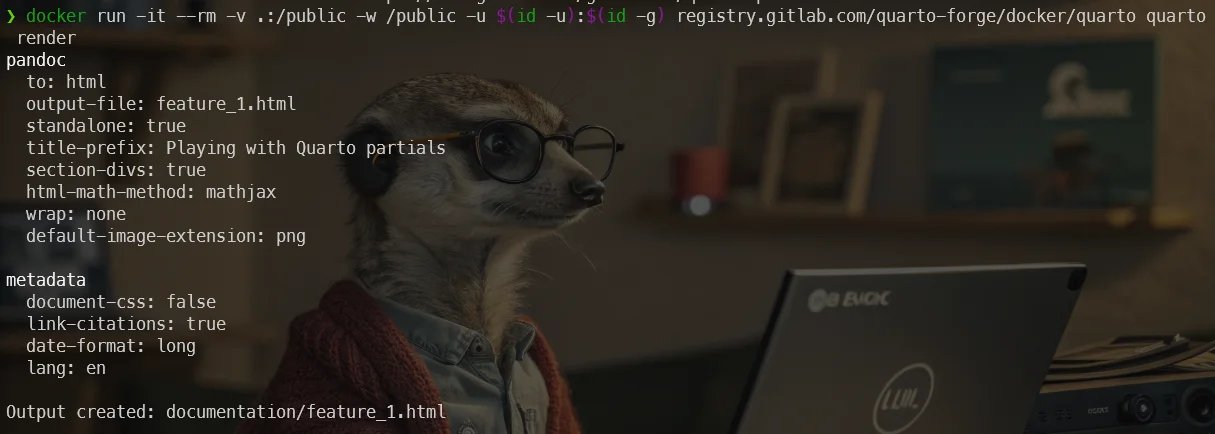
Time to create our website. Please run docker run -it --rm -v .:/public -w /public -u $(id -u):$(id -g) ghcr.io/quarto-dev/quarto:latest quarto render — the same rendering already teased at the top of this article.
This will call the render command of Quarto. Quarto will then process the _quarto.yml file, see we want to produce a website and start HTML rendering. It'll take just one or two seconds.
Now, by running docker run -d --name partials -p 8080:80 -v .:/usr/local/apache2/htdocs/ httpd:alpine, we'll create an Apache container accessible on port 8080.
Finally, surf to http://localhost:8080/documentation/canvas.html and we'll see our website.
And now, we're ready to copy/paste the file documentation/canvas.md to documentation/feature_2.md and just update the command variable. And do this again and again until we've documented all features.
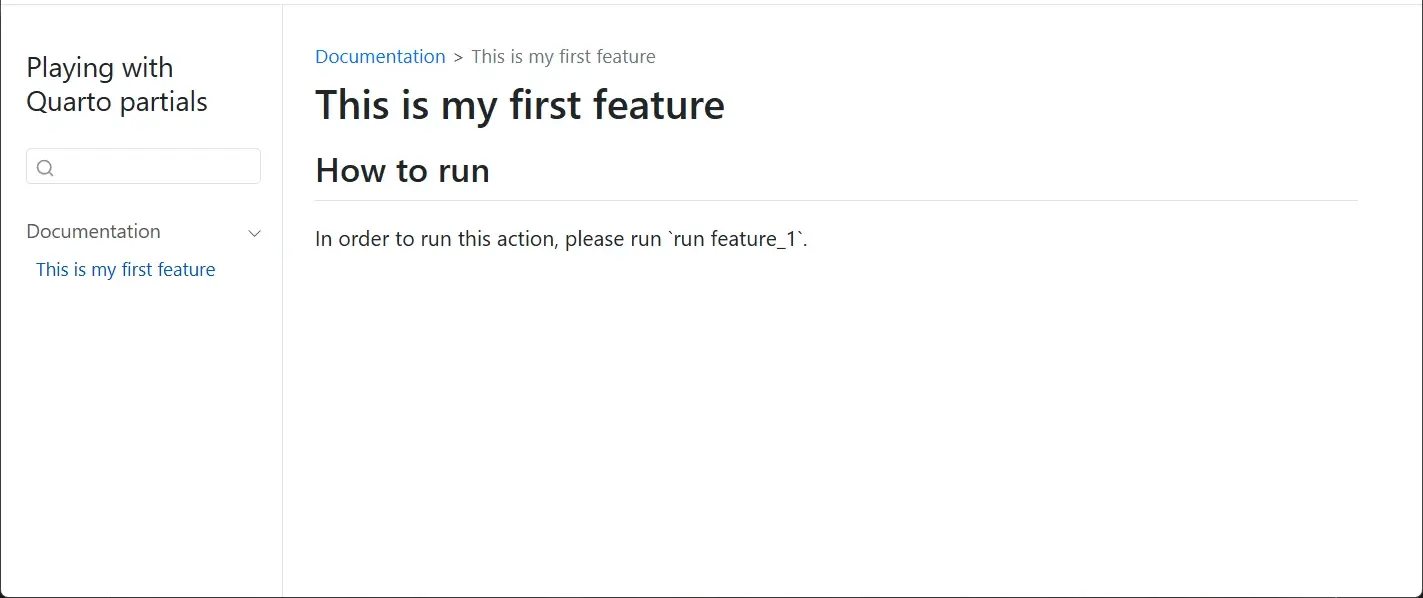
Let's prove the template is reusable. We'll create a new feature:
---title: Intent-Driven Interface Builderpartial-data: command: "make builder"---
## Description
Imagine the process of building user interfaces. Developers and designers often spend significant time translating conceptual designs and user stories into the specific widgets, layouts, and interactions of a software application. *Intent-Driven Interface Builder* aims to revolutionize this by allowing users to describe the intent of a UI element or section, rather than manually configuring every pixel and property.
The *Intent-Driven Interface Builder* would then leverage AI and a vast library of pre-built, adaptable UI components and design patterns to automatically generate the corresponding interface elements. It would intelligently choose appropriate widgets, arrange them in a logical layout, and even suggest relevant styling based on the application's overall design language and best practices.
## How to run
{{< partial ../_partials/run.md >}}This is a documentation file that describes an Intent-Driven Interface Builder — a tool that lets you describe what you want a user interface to do, and it automatically generates the actual UI for you instead of making you manually build it piece by piece. It uses AI and a library of pre-made components to figure out which widgets to use, how to arrange them, and what they should look like.
and render our site again by running again docker run -it --rm -v .:/public -w /public -u $(id -u):$(id -g) ghcr.io/quarto-dev/quarto:latest quarto render.
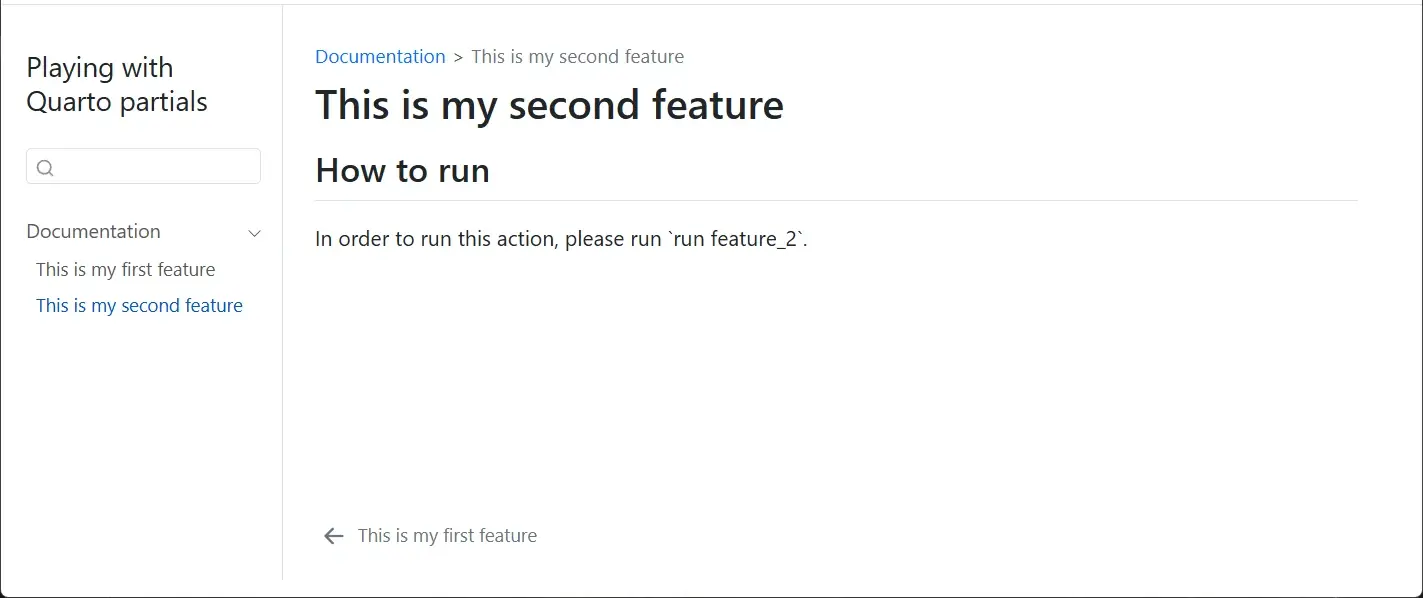
What Have We Just Done
We've created a reusable template. Our document has two parts; a YAML section (the frontmatter) where we'll provide some variables. The second part, the Markdown one, is our basic template. We can copy that one for all our features f.i.
---
partial-data:
  command: "run canvas"
---

## How to run

{{< partial ../_partials/run.md >}}
My use case
In my own case, my documentation looks like this:
---title: PHP lintercategories: [linting, php]order: 1partial-data: command: "lint-php" config_file: ".phplint.yml" config_url: "https://github.com/tengattack/phplint/blob/master/.phplint.yml" constant: "PHPLINT" type: "PHP"---
<!-- cspell:ignore phplint -->
## Description
This is a brief description of the functionality. This text is hardcoded because it is different each time, from one feature to another.
## For what type of project
{{< partial ../_partials/project_type.md >}}
## How to run
{{< partial ../_partials/run.md >}}
## How to configure
{{< partial ../_partials/configure/file.md >}}
## Attention points
None.
## Remarks
None.This is a documentation file (likely in YAML frontmatter format) that describes a PHP linting tool configuration. It sets up metadata about the linter including its command name, configuration file location, and references to documentation partials that will be included when this page is rendered.
Testing if a Variable Is Defined or Not (optional — skip if your templates don't need conditionals)
Let's take a look at the is_for.md file.
<!-- #type means defined and thus has been set to something like "PHP" or "PYTHON" -->{{#type}}
This job only for **{{ type }}** project.
{{/type}}
<!-- ^type means empty/missing so, in this case, the command is for all type of projects -->{{^type}}
This stage is for **all** type of projects.
{{/type}}This is a template snippet that conditionally displays different messages depending on whether a 'type' variable is set. If type has a value (like 'PHP' or 'PYTHON'), it shows a message saying the job is for that specific type; otherwise, it shows a message saying the stage applies to all project types.
There are two syntaxes used here: {{# and {{^.
The first one will check the presence of a variable called type and if that one is defined, the block will be processed.
The second one is called Inverted section and will check the absence of the variable so if type is not defined, that block will be parsed.
If you look at my php_lint.md file, I do have a variable type defined in my partial-data section (the one used by Quarto-partials).
---title: PHP lintercategories: [linting, php]order: 1<!-- highlight-next-line -->partial-data: command: "lint-php" config_file: ".phplint.yml" config_url: "https://github.com/tengattack/phplint/blob/master/.phplint.yml" name: "PHP Linter" <!-- highlight-next-line --> type: "PHP"---
<!-- cspell:ignore phplint -->
## Description
This is a brief description of the functionality. This text is hardcoded because it is different each time, from one feature to another.
## For what type of project
{{< partial ../_partials/project_type/is_for.md >}}
## How to run
{{< partial ../_partials/run.md >}}
## How to configure
{{< partial ../_partials/configure/file.md >}}
## Attention points
None.
## Remarks
None.This is a documentation file (likely in YAML/Markdown format) describing a PHP linter tool. It sets up metadata about the linter—like its name, command to run, and configuration file—then provides sections explaining what it does, what projects it's for, and how to use it.
If I render my file using the command line quarto render, I'll then see This job only for **PHP** project. in my documentation.
In case my feature was for all project types, I can just remove the type: "PHP" line from my frontmatter. In that case, I'll see This stage is for **all** type of projects..
Let's take a look at the next included file:
<!-- #config_file means defined and thus there is a configuration file -->{{#config_file}}
{{ name }} uses a settings file named .config/{{ config_file }} ([learn more]({{ config_url }})).
{{/config_file}}
<!-- ^config_file means empty/missing so no configuration file -->{{^config_file}}
There is no configuration file.
{{/config_file}}This is a Mustache template that shows different text depending on whether a configuration file exists. If the config_file variable has a value, it displays information about where to find the settings file; otherwise, it states that no configuration file exists.
Same idea. If a config_file key is defined in the documentation frontmatter, we'll obtain PHP Linter uses a settings file named .config/.phplint.yml ([Learn more](https://github.com/tengattack/phplint/blob/master/.phplint.yml)).. If we remove the config_file line, we'll then get There is no configuration file..
Raw Contents (optional — skip unless a rendered value looks wrongly escaped)
When displaying a variable, sometimes we need to disable the normal echo mode and use what Mustache calls raw content.
In the example below, I've used a character / that will be escaped by Mustache.
partial-data:
  output: ".output/coverage"
{{#output}}

The report will be created into your project's directory in a folder called `{{ output }}`.

{{/output}}
The HTML rendering here will return .output/coverage and not .output/coverage as expected. As we can see, Mustache has escaped our slash. So, we have to use the raw content mode and use the {{& output }} syntax instead.
{{#output}}

The report will be created into your project's directory in a folder called `{{& output }}`.

{{/output}}
Conclusion
One _quarto.yml extension line, a couple of partial templates, and nearly 80 near-identical documentation pages stop being 80 copy-pasted Markdown files — they become one template plus one small frontmatter block per page. See Quarto - How I Built a Self-Documenting Ecosystem for 50+ Projects for how this grew into a full pipeline, and my favorite Quarto extensions for more building blocks like this one.
This article is part of the Discovering Quarto series:
- Running Quarto Markdown in Docker
- Quarto conditional display
- Use Quarto and create a PowerPoint slideshow
- Using variables from external file in your Quarto project
- Some tips and tricks for Quarto when rendering as a reveal.js slideshow
- Quarto Callout Blocks
- Quarto includes short code
- Quarto Inline style
- My favorite Quarto extensions
- Using Mustache templating with Quarto
- Make your Quarto project Devcontainer-Ready — No More Setup Headaches
- Quarto - How I Built a Self-Documenting Ecosystem for 50+ Projects
Loading comments…
Related posts


GitLab - Running Docker-out-of-Docker in your CI
June 15, 2025

My favorite Quarto extensions
May 3, 2025