ripgrep — The Search Tool That Changed My WSL2 Workflow
Discover ripgrep, the blazingly fast grep alternative written in Rust. Installation on Ubuntu/WSL2, ZSH configuration, practical shell functions, and real-world use cases that will transform how you search code every day.


This article is part of the Modern CLI tools for your terminal series:
- The jq utility for Linux
- The xmlstarlet utility for Linux
- Introduction to fzf - Fuzzy Finder
- Let's revisit the ls command thanks to eza
- Master your ssh command and select the host from a list
- FZF + ripgrep: Interactive Code Search with Live Preview
- delta: a Syntax-Highlighted Pager for git diff
- ripgrep — The Search Tool That Changed My WSL2 Workflow
- yq — The YAML Processor You Already Know How to Use
Changelog
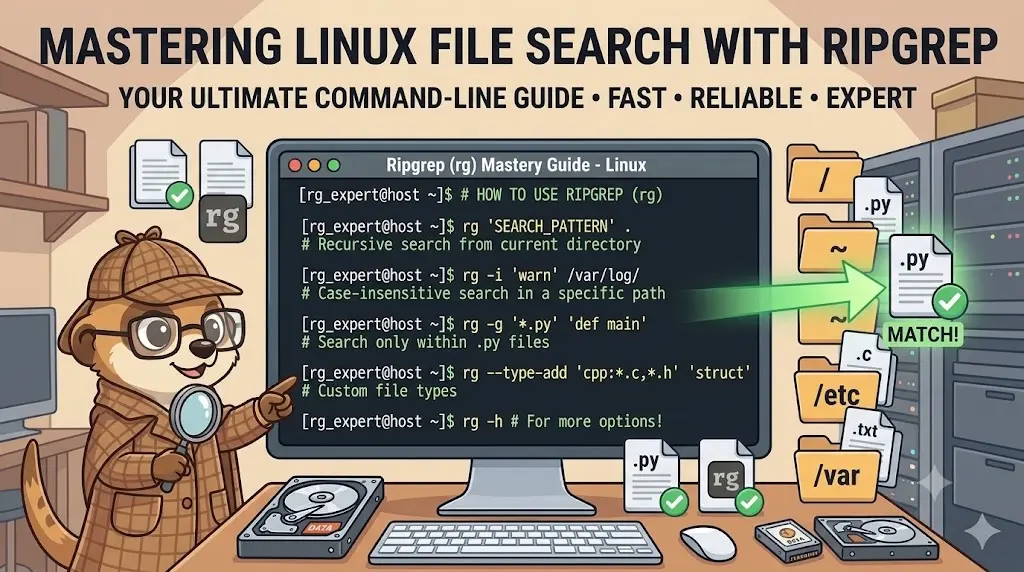
ripgrep (rg) is a line-oriented search tool written in Rust that dramatically outperforms traditional grep — especially on large codebases. It respects .gitignore by default, skips binary files, and handles Unicode natively. This article covers installation on Ubuntu/WSL2, a ~/.ripgreprc configuration file, ZSH aliases and functions for your ~/.zshrc and ~/.zsh/fns/ directory, and real-world use cases that will make you wonder how you ever lived without it.
Damn. I have typed that command so many times I could do it in my sleep: grep -rn --include="*.php" "getUser" . | grep -v vendor. It works — grep is a classic, it gets the job done. But over the years I have accumulated so many flags, so many aliases, so many muscle-memory workarounds for grep's quirks... At some point, you have to ask yourself: is there something better out there?
What does that command actually do?
grep -rn --include="*.php" "getUser" . breaks down as: -r searches recursively through all subdirectories, -n prints the line number of each match, --include="*.php" restricts the search to .php files only, "getUser" is the pattern to find, and . means start from the current directory. The trailing | grep -v vendor pipes the results through a second grep that filters OUT (-v) any line containing vendor — a common workaround to exclude the vendor/ dependencies folder that grep has no built-in way to skip.
There is. It is called ripgrep, and once you start using it, there is no going back.
It belongs to the same family of modern rewrites as eza (for ls) and delta (for git diff).
ripgrep vs grep — A Side-by-Side Look
Let me show you why ripgrep clicks so immediately. Here are the same searches expressed in both tools:
With grep:
grep -rn --include="*.php" "getUser" . \
  | grep -v vendor
With ripgrep:
rg "getUser" --type php
With grep:
grep -rn -i "TODO" . \
  --include="*.py" \
  --include="*.pyi" \
  --exclude-dir=.venv \
  --exclude-dir=dist
With ripgrep:
rg -i "TODO" --type py
With grep:
grep -rn "DB_PASSWORD" . \
  --include="*.env" \
  --include="*.yml" \
  --include="*.yaml"
With ripgrep:
rg "DB_PASSWORD" -t yaml -t sh
For sure, grep's flags are powerful once you know them by heart. But ripgrep's syntax is just cleaner — and by default it already ignores vendor/, node_modules/, and everything in your .gitignore, without any extra flags.
What is ripgrep?
ripgrep (rg on the command line) is a line-oriented search tool built in Rust by Andrew Gallant (BurntSushi). Speed is its headline feature — benchmarks consistently show it outperforming grep, ag (the Silver Searcher), and ack by a wide margin on large codebases — and hyperfine lets you check that claim on your own machine. But raw speed is only part of the story.
What makes ripgrep genuinely better for day-to-day use is its smart defaults:
- It automatically respects
.gitignore,.ignore, and.rgignorefiles — sovendor/,node_modules/,dist/, and.git/are skipped without any--exclude-dirgymnastics. - It skips binary files by default.
- It colors and groups output by filename out of the box.
- It uses Unicode by default — no more garbled output on accented filenames or content.
- It supports modern regex syntax, including PCRE2 with the
-Pflag. - It searches hidden files only when you explicitly ask for it (
--hidden).
That last output behavior is underrated. Readable, grouped, colorized results — right away, no configuration required. So cool, no?
Seeing It in Action with Docker
Before touching your own ~/.zshrc, try ripgrep in a throwaway container that already ships the
~/.ripgreprc config, the rgtodo/rgenv functions, and a small fake project built specifically
to show off the smart defaults: a vendor/ folder that must stay invisible, TODO/FIXME comments,
a leaking DB_PASSWORD, and a console.log(token) call worth flagging.
Why Docker first?
The Dockerfile below reproduces the exact .ripgreprc, .zsh/fns/ functions, and .zshrc section
from this article, then builds the demo project. Nothing changes on your own machine.
Build and run it:
$ docker build -t ripgrep-demo . [+] Building 21.3s (10/10) FINISHED ✔ exporting to image
$ docker run --rm -it ripgrep-demo 🐳 root ~/demo #
Now play with the exact scenarios described above, live:
Notice vendor/legacy/User.php — which also defines getUser, on purpose — never shows up in
any of these searches: the .gitignore and the --glob=!vendor/* config entry both exclude it,
exactly as described above. Try rg --no-ignore "getUser" to see it reappear.
Installation on Ubuntu / WSL2
ripgrep ships in Ubuntu's default package repositories, so getting it is a one-liner:
Prerequisite: ripgrep
Verify:
Want the latest version?
The Ubuntu repositories sometimes lag a few releases behind upstream ripgrep. For the most recent version, grab the latest .deb package directly from the GitHub releases page and install it with sudo dpkg -i ripgrep_*.deb. From version 14 onwards you also benefit from improved PCRE2 support and faster directory traversal.
Configuration — ~/.ripgreprc
Like most Unix tools, ripgrep can be configured via a dedicated file. You point to it with the RIPGREP_CONFIG_PATH environment variable. Here an example of a ~/.ripgreprc file:
--colors=match:fg:red--colors=match:style:bold--colors=path:fg:blue--follow--glob=!.cache/*--glob=!.git/*--glob=!.output/*--glob=!.yarn/*--glob=!build/*--glob=!dist/*--glob=!node_modules/*--glob=!vendor/*--hidden--max-filesize=10M--smart-caseThis is a configuration file for a search tool (likely ripgrep) that customizes how search results are displayed and which files to search. It sets color formatting for matches and file paths, includes hidden files in searches, excludes common build and dependency directories, follows symbolic links, and limits results to files under 10 megabytes.
Each line is a default flag applied to every rg invocation. A few highlights worth explaining:
--hiddenmakes ripgrep search inside hidden files and folders (anything prefixed with a dot). Combined with the--glob=!.git/*exclusion, this means you can search.envfiles,.zshrc,.gitignore, and similar without opening the entire.git/internals.--max-filesize=10Msilently skips very large files (log dumps, generated assets) that would otherwise flood your results.--smart-caseis probably the most impactful setting: searches are case-insensitive by default, but the moment your pattern contains an uppercase letter ripgrep switches to exact case matching — exactly the behavior I want 95% of the time.
Shell Setup — ~/.zshrc or ~/.bashrc
With the config file in place, I add the environment variable, the function loader, and a handful of type-specific aliases to my shell's rc file. The content is the same for zsh and bash, except for the loader loop:
- zsh
- bash
export RIPGREP_CONFIG_PATH="$HOME/.ripgreprc"
# If you don't already have such loop...# Load custom ZSH functions from ~/.zsh/fns/for fn_file in ~/.zsh/fns/*.zsh; do source "${fn_file}"done
# Type-specific shortcutsalias rgp='rg --type php'alias rgj='rg --type js'alias rgt='rg --type ts'alias rgm='rg --type md'alias rgy='rg --type yaml'alias rgb='rg --type sh'alias rgd='rg --glob "Dockerfile*" --glob "*.dockerfile"'This script sets up a ripgrep configuration file path, loads custom ZSH functions from a directory, and creates convenient shortcut aliases for searching specific file types with ripgrep (a fast text search tool). It's basically building a personalized search environment with type-specific commands.
export RIPGREP_CONFIG_PATH="$HOME/.ripgreprc"
# If you don't already have such loop...# Load custom bash functions from ~/.bash/fns/for fn_file in ~/.bash/fns/*.sh; do [[ -r "${fn_file}" ]] && source "${fn_file}"done
# Type-specific shortcutsalias rgp='rg --type php'alias rgj='rg --type js'alias rgt='rg --type ts'alias rgm='rg --type md'alias rgy='rg --type yaml'alias rgb='rg --type sh'alias rgd='rg --glob "Dockerfile*" --glob "*.dockerfile"'This script sets up a ripgrep configuration file path, loads custom bash functions from a directory, and creates convenient search shortcuts for different file types. It's a configuration snippet that makes searching through code faster by letting you type short commands like 'rgp' instead of the full ripgrep command with type filters.
The -r test keeps an empty ~/.bash/fns/ folder from printing an error at every shell start.
The for fn_file loop sources every function file in that directory automatically — so adding a new function is as simple as dropping a new file there, no need to touch your rc file again.
The type-specific aliases (rgp for PHP, rgt for TypeScript, rgm for Markdown, and so on) save keystrokes when you know exactly what kind of file you are looking in. I reach for rgp "getUser" or rgm "## Installation" dozens of times per day.
Shell Functions — ~/.zsh/fns/ or ~/.bash/fns/
Now this is where it gets fun. Here are three functions I have installed in my ~/.zsh/fns/ directory, each solving a real problem.
rgf — Interactive Search with fzf
I covered this combination in detail in a dedicated article: FZF + ripgrep: Interactive Code Search with Live Preview. The short version: pipe rg into fzf with a bat preview panel and you get an interactive fuzzy finder that searches file content, previews matches with syntax highlighting, and opens your editor at the exact matching line. If you have not read that article yet, it is worth the detour.
rgtodo — Surface All Technical Debt at Once
Every codebase has them lurking in comments: TODO, FIXME, HACK, NOTE, XXX. This function brings them all to the surface:
Run rgtodo at the root of any project and you get a sorted, colorized list of every comment marker. Run rgtodo src/ to narrow it to a specific folder. Eye-opening on codebases that have been around for a while.
rgenv — Track Down Environment Variable Usage
In Docker-heavy projects, environment variables end up scattered across .env files, compose.yml, PHP bootstraps, and Python configs. This function searches all of them in one shot:
rgenv DB_PASSWORD instantly shows every file that references that variable — whether it is defining it, consuming it, or passing it as a Docker secret. Invaluable when debugging configuration drift in complex multi-container setups.
Installing rgtodo and rgenv
Both functions are plain shell code: the same files work in zsh and bash, only the folder differs. The loader loop is already in your rc file since the previous section.
- zsh
- bash
1. Create the files in ~/.zsh/fns/:
Need help here? Click the "Help" button above for setup instructions.
2. Open a new terminal (or run exec zsh).
1. Create the files in ~/.bash/fns/:
Need help here? Click the "Help" button above for setup instructions.
2. Open a new terminal (or run exec bash).
Check that the shell knows them: type rgtodo rgenv must answer … is a shell function twice.
Real-World Use Cases
Let me walk through the searches I run most often in my day-to-day WSL2 workflow.
Finding a Function Definition Across a PHP Project
rg "function getUser" --type php
Without ripgrep: add --include="*.php", --exclude-dir=vendor, -rn. With ripgrep: just type it. The vendor/ directory is already excluded because it is in .gitignore.
Searching All Docker Compose Files for an Image Reference
rgy "image:"
That is our rgy alias (rg --type yaml). Useful when auditing a repository for outdated image references or finding all services that share a base image.
Context Lines — Understanding Code Around a Match
The -C N flag shows N lines of context around each match — a feature I use constantly:
You can also use -A N (after) and -B N (before) separately, exactly like with grep.
A more common scenario: a teammate leaves console.log() calls in JavaScript before pushing to production. Without context, you only see the line itself — you know it exists, but not how serious it is. With -C 2:
Now you can tell the difference. The first match logs a JWT token in plain text — that is a security issue, not just noise. The second sits inside a for loop over a cart: one checkout call would flood the console with hundreds of lines. The context turns a list of matches into actionable information.
Counting Occurrences Per File
rg -c "console.log" --type js
This outputs the match count per file — perfect for identifying which source files still have debug statements before a release.
Bulk Rename with rg + sed
ripgrep is intentionally read-only (no -i in-place mode), but it pairs cleanly with sed for bulk refactoring:
rg -l lists only the filenames with matches. Piping to xargs sed -i then rewrites exactly those files — nothing more, nothing less. Much safer than a raw find | xargs sed that has no idea which files actually match.
Searching Multiple File Types at Once
rg "API_KEY" -t php -t yaml -t sh
Multiple -t flags work together — ripgrep searches all matching types in a single pass, with unified colored output.
Limiting Search Depth
rg "FROM" --glob "Dockerfile*" --max-depth 3
--max-depth is great when you want to stay close to the current directory without diving into every nested subdirectory.
Key Takeaways
ripgrep quick reference
- Install —
sudo apt install ripgrepon Ubuntu/WSL2 - Configure — create
~/.ripgreprcand point to it viaRIPGREP_CONFIG_PATHin~/.zshrc - Type flags —
-t phpinstead of--include="*.php"— shorter and smarter - Smart case —
--smart-casegives you case-insensitive searches that auto-switch to exact when you use uppercase - gitignore-aware —
vendor/,node_modules/,.git/are excluded automatically; no flags needed - Context lines —
-C 3shows 3 lines above and below each match - File list mode —
rg -lreturns filenames only; pipe toxargsfor bulk operations - Interactive mode —
rgf "pattern"combines ripgrep with fzf for live-preview search; full setup in FZF + ripgrep
Conclusion
At the beginning of this article, I mentioned typing that grep -rn --include="*.php" ... | grep -v vendor command so many times it became muscle memory. Now, every time I open a terminal in WSL2, I reach for rg without even thinking. The vendor/ exclusion is automatic, the output is readable without any flags, and the search is genuinely faster on large codebases. Between the ~/.ripgreprc configuration, the type aliases in ~/.zshrc, functions like rgtodo and rgenv in ~/.zsh/fns/, and the rgf interactive search covered in a dedicated article, ripgrep has stopped being a tool I consciously choose and started being the invisible backbone of how I navigate code every day. If you are still on bare grep in your WSL2 environment, give yourself twenty minutes with ripgrep — that is all it takes.
This article is part of the Modern CLI tools for your terminal series:
- The jq utility for Linux
- The xmlstarlet utility for Linux
- Introduction to fzf - Fuzzy Finder
- Let's revisit the ls command thanks to eza
- Master your ssh command and select the host from a list
- FZF + ripgrep: Interactive Code Search with Live Preview
- delta: a Syntax-Highlighted Pager for git diff
- ripgrep — The Search Tool That Changed My WSL2 Workflow
- yq — The YAML Processor You Already Know How to Use
Loading comments…
Related posts

ai-explain: ELI5 for Scripts and Errors, Right in Your Terminal
November 12, 2026

ai-data: Let a Local LLM Write Your jq and awk One-Liners
October 22, 2026