Do I need VSCode on my machine to use it?
Learn how to run VSCode in your browser using Docker and the `code-server` image. Edit code remotely without installing VSCode on your local machine.

This article is over a year old but was reviewed on July 30, 2026 — the content is still accurate.
This article is part of the VSCode - Tips, extensions and shortcuts series:
- Markdown folding not working
- Start vscode from github.com
- Sticky scroll in vscode
- Autosave feature in VSCode
- Error Lens addon for VSCode
- CodeSnap addon for VSCode
- Export the list of extensions you've installed in VSCode
- Multiple cursors in vscode
- PHP Getter and Setter in VSCode
- Working with regions in VSCode
- Using the JetBrains Mono font in vscode
- Todo Tree in VSCode
- Do I need VSCode on my machine to use it?

This article shows you how to run a full VS Code environment directly in your browser using the code-server Docker image. It's a perfect solution if you need to code on a machine without VS Code installed. The guide provides a single docker run command and breaks down each flag to explain how it mounts your project, persists configuration, and avoids file permission issues by mapping your local user. You'll learn how to find the auto-generated password and get started with your browser-based editor in minutes.
Maybe one day we won't need to install an operating system, just have Docker on our machine. Well, it won't be tomorrow yet, but as far as VSCode is concerned, yes, we can.
You read that right: there's a Docker image that's nothing other than VSCode in a browser.
It's useless if you're a heavy user of VSCode (=you've installed it on every one of your computers) but there are situations where, for example, you need to work on another computer (while yours is being repaired or you're traveling and don't have yours) and VSCode's Docker image will come in handy.
A third option, when you do have VSCode locally but the code lives elsewhere: SSH Remote development with VSCode.
Or ... you're not yet convinced by VSCode and just want to try it out.
If all you need is to edit a file or two in a GitHub repository, there is an even lighter option that doesn't require Docker at all: see Start VSCode from github.com.
One docker run codercom/code-server command, and here's the result: a full VS Code, running in your browser.

Why It Works
- No local VS Code install needed — the editor itself runs inside the container, your browser is just the display.
- Configuration is stored on your host (
~/.config/), not inside the project, so it persists across containers and is shared if you start code-server for several projects. - The container user is mapped to yours (
-u "$(id -u):$(id -g)"), so files created or edited from the browser keep your normal file permissions — noroot-owned files to clean up afterward.
Installation
By running the instruction below, you'll download (once) the codercom/code-server Docker image then run a container as a daemon.
Once triggered successfully, just open your browser and visit http://127.0.0.1:8080 to start VSCode in the browser.
The `docker run` explained
-d: the code-server will run as a daemon service,-p 8080:8080: we'll expose the service on our port8080,--name: it's just for giving a descriptive name to our container (optional),-v "${HOME}/.config:/home/coder/.config": save the code-server configuration on your host, in your home directory.-v ".:/home/coder/project": mount your current directory in the container so you can work on it in code-server,-u "$(id -u):$(id -g)": map the user used inside the container with local one so files/folders created/modified in the container will have the exact same permissions and-e "DOCKER_USER=${USER}": if you runecho ${USER}on your host, you'll see you'll get your Linux name (christophefor me) so, here, just inform the container about your name.
The code-server configuration is thus stored in your home directory, in the folder ~/.config/. Like this, config files will not be part of your current project and the configuration will be the same if you start code-server at several places, for different projects.
Getting the Password
By opening http://127.0.0.1:8080 you'll get this screen:
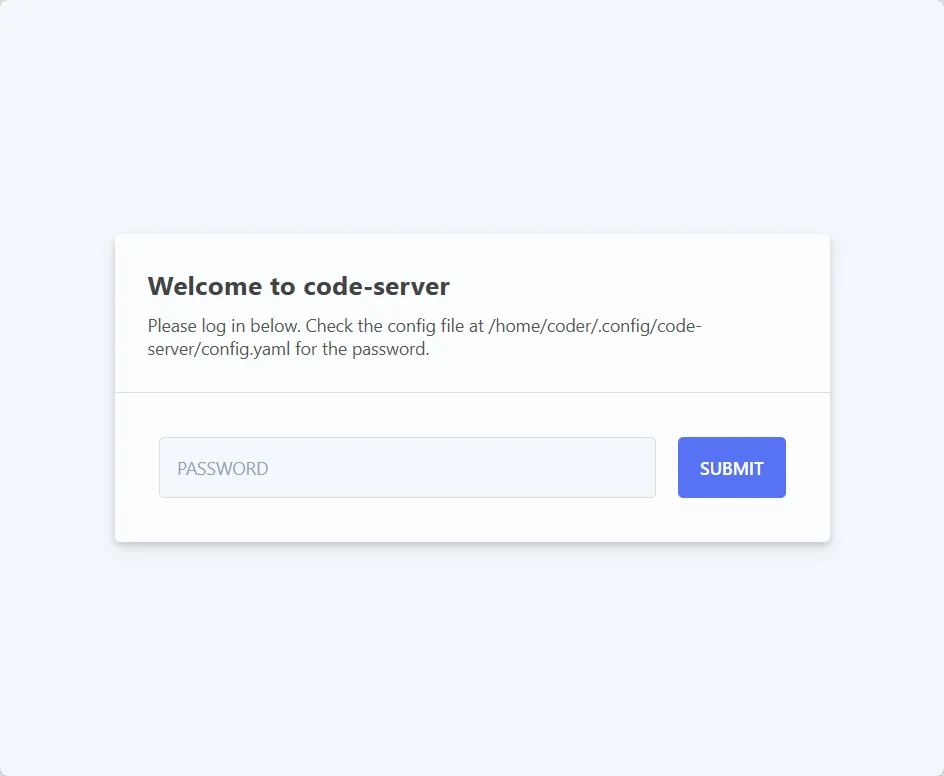
Back to your console, run cat ${HOME}/.config/code-server/config.yaml to discover the configuration for code-server. You'll see something like this:
Copy/paste the password in the form and submit it and tadaaa — the same VS Code in the browser already shown at the top of this article.
Conclusion
One Docker image, one docker run command, and a full VS Code is available from any browser — no local install, no lost configuration, no permission headaches on the files you edit. Continue your journey with the official documentation: https://github.com/coder/code-server or https://coder.com/docs/code-server/guide to get more info.
This article is part of the VSCode - Tips, extensions and shortcuts series:
- Markdown folding not working
- Start vscode from github.com
- Sticky scroll in vscode
- Autosave feature in VSCode
- Error Lens addon for VSCode
- CodeSnap addon for VSCode
- Export the list of extensions you've installed in VSCode
- Multiple cursors in vscode
- PHP Getter and Setter in VSCode
- Working with regions in VSCode
- Using the JetBrains Mono font in vscode
- Todo Tree in VSCode
- Do I need VSCode on my machine to use it?
Loading comments…