Discovering Zorin
Trying a new OS? Zorin OS 18 is a Linux distribution based on Ubuntu, perfect for switching from Windows. Easy install, familiar interface, and great compatibility!

Zorin OS 18 is an Ubuntu-based Linux distribution designed for Windows users seeking an alternative, especially for older PCs. It features an easy installation process and a familiar, Windows-like interface, making the switch straightforward. The OS also boasts compatibility with many Windows applications via WINE and strong gaming support, positioning it as a top choice.
Like everyone else, I have an old computer and with Windows 10 support coming to an end, I saw so many blog posts or news articles about Zorin OS 18 that I became curious and wanted to try it out.
Zorin OS is a Linux distribution based on Ubuntu that targets users switching from Windows or macOS, with a desktop environment very similar to Windows.
Not ready to repurpose a whole machine? You can get a feel for a Linux desktop from inside Windows: Start lubuntu Desktop in Docker. And if you just want the command line, Ubuntu - Install from scratch covers the WSL route.
Zorin can be downloaded for free (i.e. the Core edition or the Education one). If you want to support developers or need additional features, you can download the Pro edition (less than 50€ incl. sales tax end of 2025).
You'll have to download a .iso file and a program called balenaEtcher in order to flash a USB drive. Everything is clearly described on the how to install Zorin OS page.
Once my USB drive is ready, I just put it in my old PC, start the PC, press F12 in my case to enter the BIOS and change the boot sequence: the PC has to start on the USB drive this time; not the hard disk.
Save and exit the BIOS and, indeed, the installation screen is now displayed. As mentioned in the how to guide, I have to select the Try or Install Zorin OS option and wait a few moments until Zorin performs some checks.
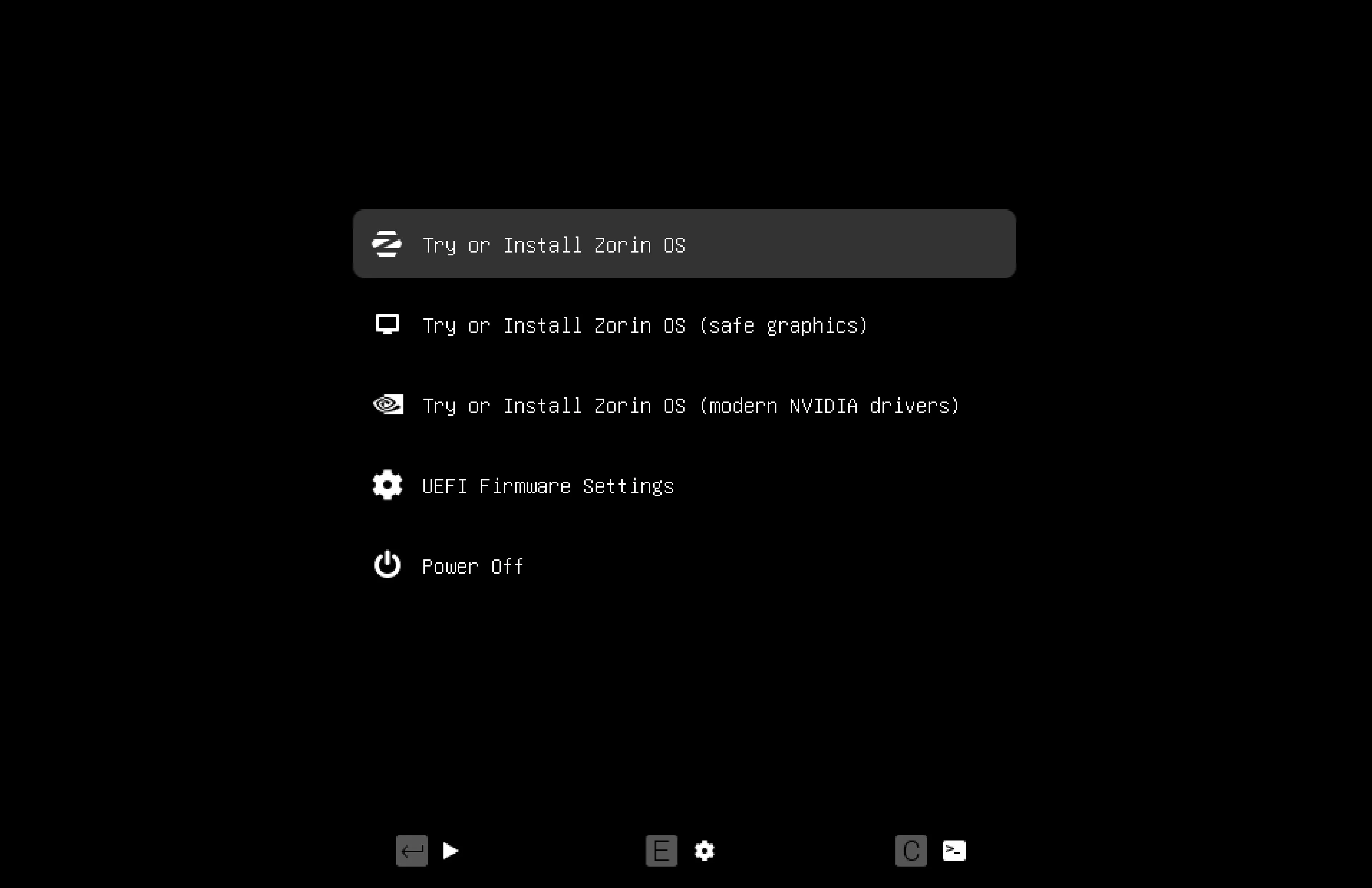
The PC will reboot and you'll get the Zorin welcome screen. Select the language for your OS; your keyboard configuration, normal or minimal installation, ... and proceed with the installation.
So far, it's no more difficult than using a Windows installer, and no different: we just need to wait until everything is installed.
Windows users will appreciate that Zorin OS's graphical interface is very similar to Windows, with menus, taskbars, and a file manager.
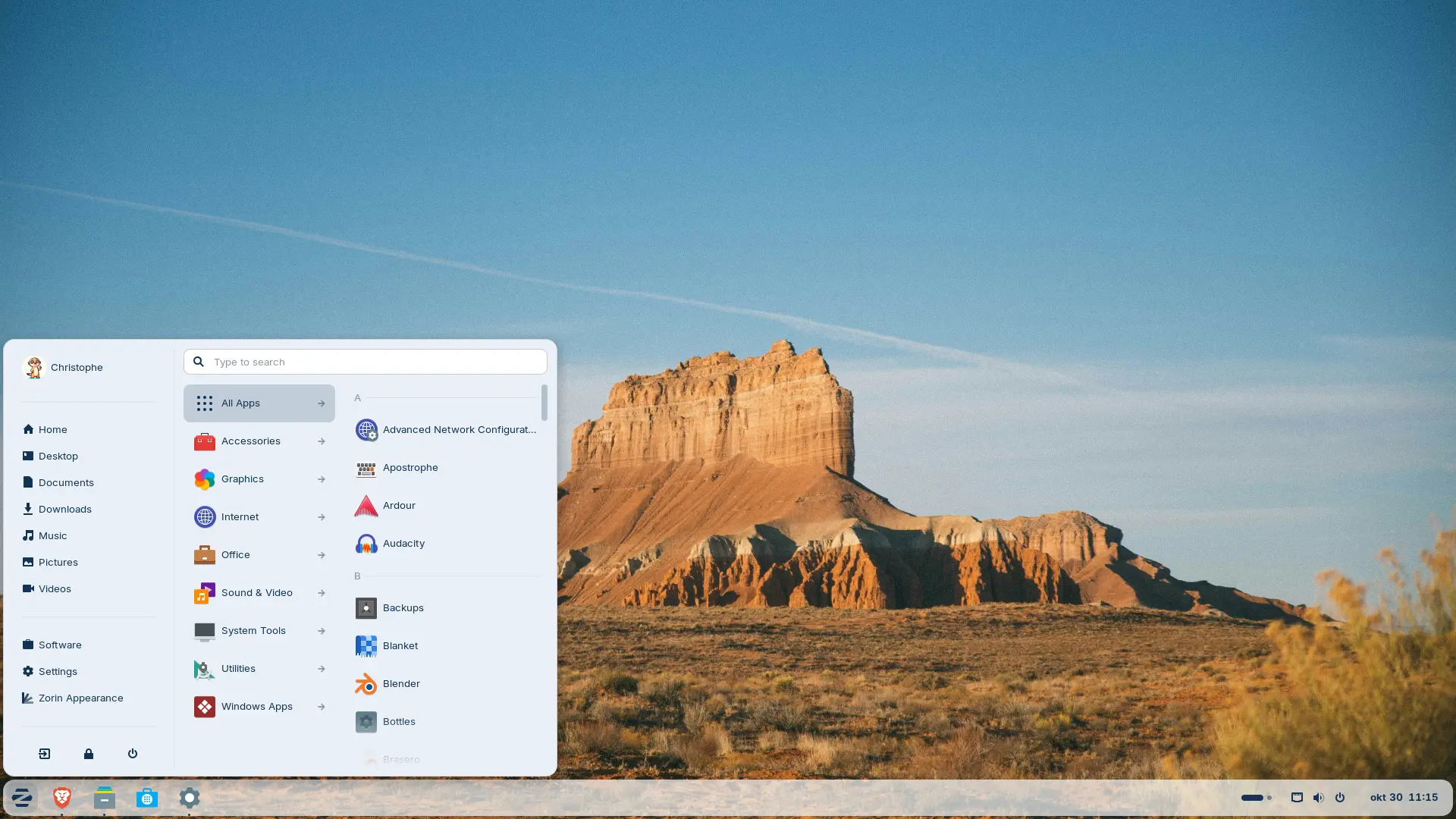
Looks like Windows no?
What can make the differences
- The installer is well done, click, click, click and reboot.
- Zorin includes built-in Microsoft OneDrive integration.
- You'll also be able to install some Windows applications directly on Zorin thanks to
WINE(open-source compatibility layer that allows Windows applications and games to run on Linux.). - If you're a gamer, almost 90% of Windows games are now running on Linux.
The system was immediately operational i.e. no problem at all with my graphic card and my internet connection was operational.
Zorin comes with a lot of preinstalled software like Libre-Office.
I haven't gone any further in exploring Zorin, but if I ever needed to do without Windows, Zorin would definitely be at the top of my list of options.
Re-format USB flash drive
Now that Zorin has been installed, you can reformat your USB drive to be able to reuse it... but please notice if you format it using Zorin (Linux thus) your USB stick won't work anymore under Windows.
If you already have formatted your stick using Zorin, you'll have to start the diskpart utility in a DOS console.
- Plug in your USB drive
- Press Win+R, type
diskpart, and hit Enter - In the Diskpart window, execute these commands
list diskto show the list of disks you haveselect disk X(replaceXwith your USB’s number). Don't select disk0, it's your hard drive. Most probably your USB stick will be disk1but check more than once! before pressing Entercleanto remove everything on the stickcreate partition primaryto create a primary partitionformat fs=ntfs quickto format the stick using NTFS file systemassignto assign a drive letter to the stick- finally run
exitto quit the diskpart utility
Now, the stick will be recognized again by Windows.
To get more information about Zorin and its latest version: Zorin OS 18 Has Arrived.
Loading comments…
Related posts

ai-explain: ELI5 for Scripts and Errors, Right in Your Terminal
November 12, 2026
DuckDB - Query JSON and CSV Files With SQL, No Database Required
November 9, 2026
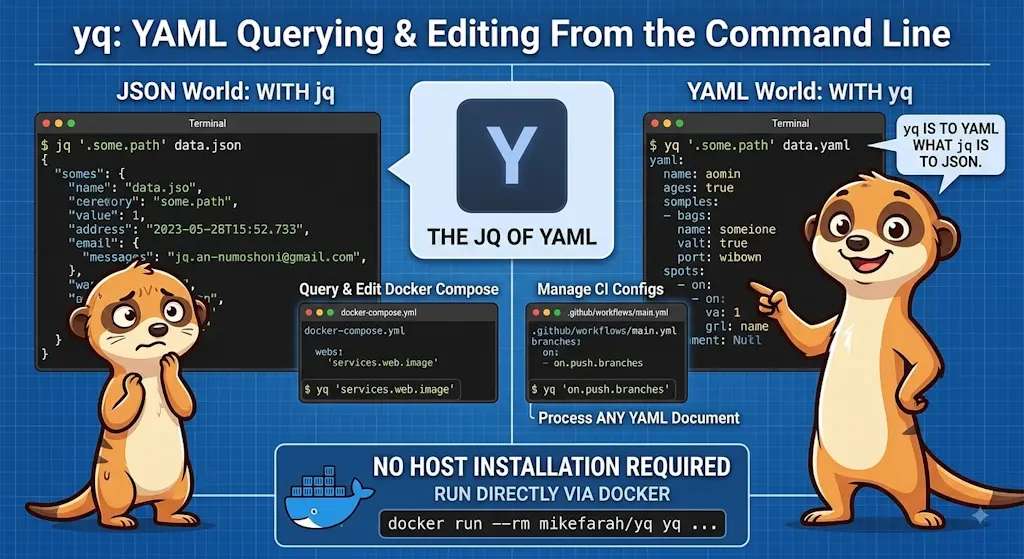
yq — The YAML Processor You Already Know How to Use
October 19, 2026
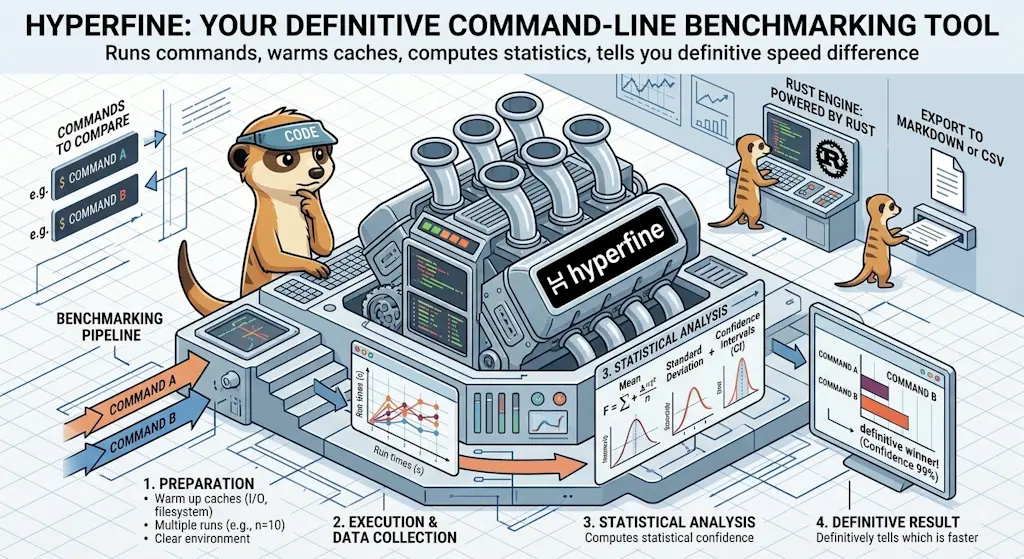
hyperfine — Stop Guessing Which Command Is Faster, Measure It
October 12, 2026

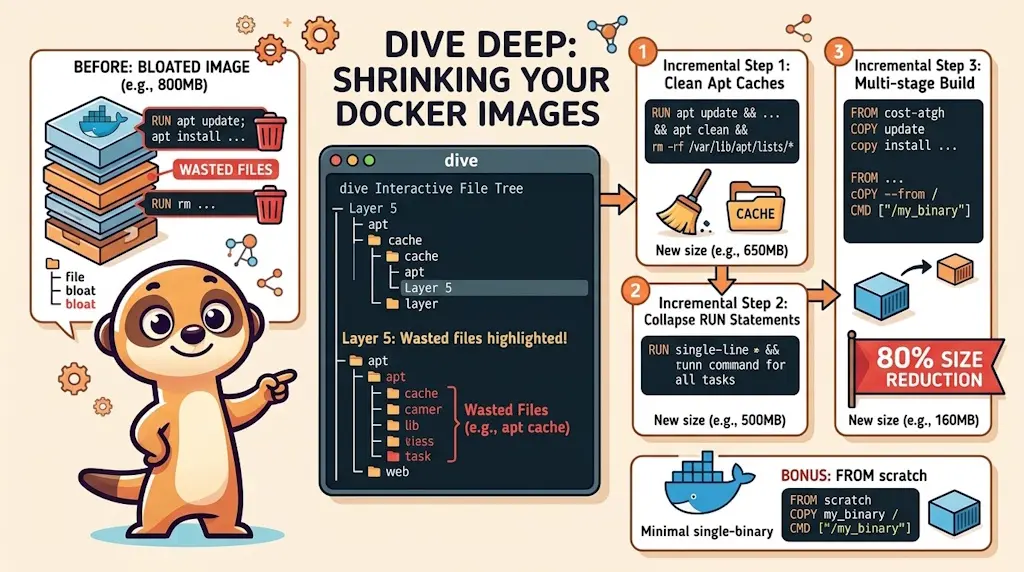
Docker Dive — X-Ray Your Images and Kill the Waste
September 24, 2026